Ako nastaviť šablónu RCCA
Strojový preklad z angličtiny. Zobrazený je anglický originál.
Standardize your RCCA documents across your company with a template. You can modify the system’s default template or create and customize your own. Sufficient rights are required.
Create the template
Open the template list
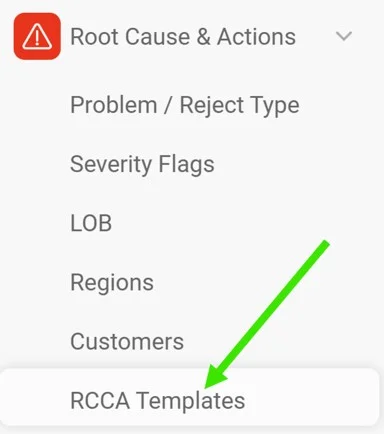
In the Root Cause & Actions module, select RCCA Templates from the submenu.
Create or edit a template
Click the green Create New icon in the upper right corner to create a new template. To modify an existing template, click its edit pencil.

Define the template settings
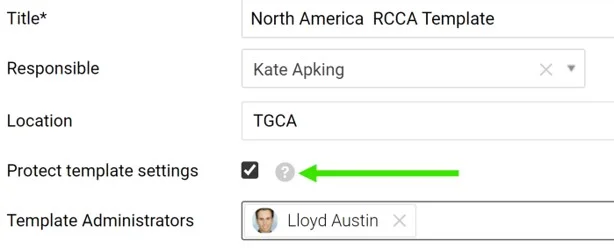
Fill in the title, the responsible person and the other settings.
Location can be set for each template: the template then becomes the default one for that structure. Tick Protect template settings to lock the template, so that only the responsible person and the Template administrators can modify it.
Adjust the sections
Show, hide or make sections optional
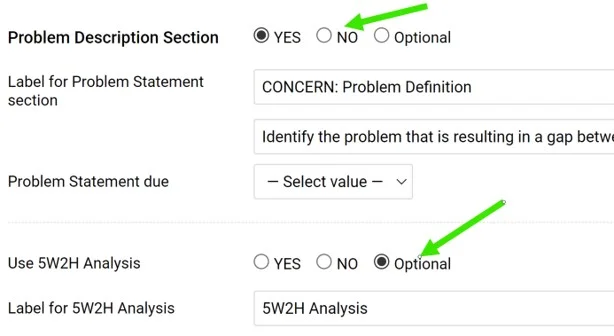
Choose which sections to display or hide, or set them to Optional, so that each RCCA document decides whether to use them.
Rename the section titles
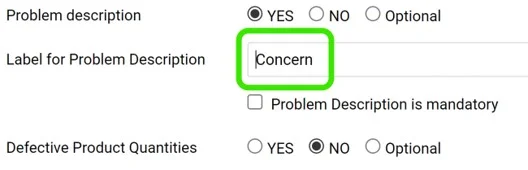
Rename the titles as needed.
Add hints
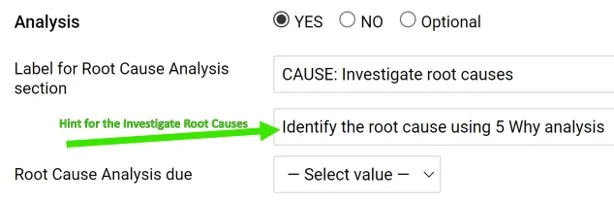
Help your team understand what a field is intended for by entering a hint.
Require a due date
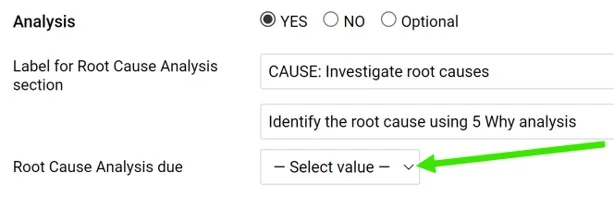
Select the due date if a section requires one (it is optional).
Reorder the sections
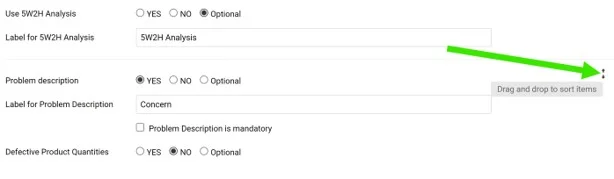
Change the order of the sections by drag and drop: the handle appears when you hover over the right side of a section.
Save the template
Click the green Save & Return icon in the upper right corner.
Use the template
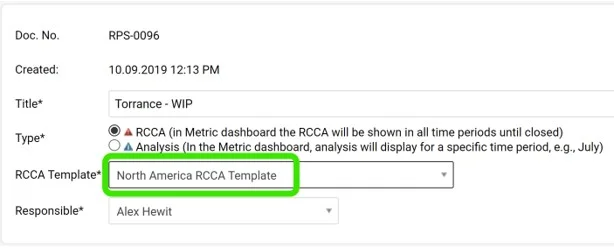
Pick the template for a new RCCA
When you create an RCCA document, you are prompted to select a template.
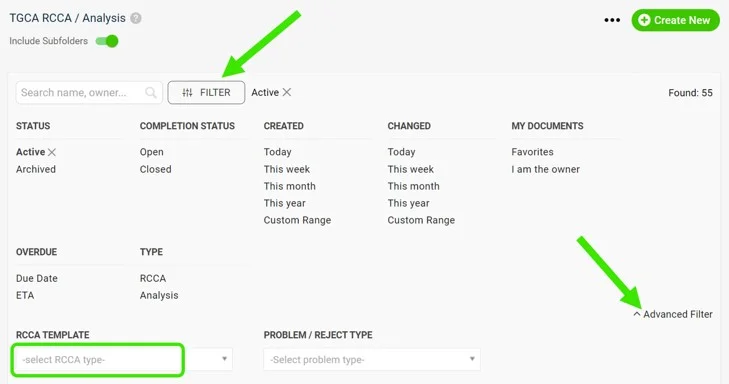
Filter documents by template
Use the advanced filter in your document list to see the documents based on a specific template.
Text entered in a field of an RCCA document is kept when you switch to another template, even if that template names the field differently. If the field is not activated in the new template, its text is hidden, and it appears again once the field is activated.
Please contact us if you need any assistance. We are ready to help.
Pomocou šablóny zjednotíte dokumenty RCCA v celej spoločnosti. Môžete upraviť predvolenú šablónu systému alebo si vytvoriť a prispôsobiť vlastnú. Potrebujete na to dostatočné oprávnenia.
Vytvorte šablónu
Otvorte zoznam šablón
V module Analýza príčin a nápravné opatrenia vyberte v podmenu Šablóny RCCA.
Vytvorte alebo upravte šablónu
Novú šablónu vytvoríte kliknutím na zelenú ikonu Vytvoriť nový v pravom hornom rohu. Ak chcete upraviť existujúcu šablónu, kliknite na jej ceruzku na úpravu.
Nastavte šablónu
Vyplňte názov, zodpovednú osobu a ďalšie nastavenia.
Každej šablóne môžete nastaviť Lokalitu: šablóna sa potom stane predvolenou pre danú štruktúru. Ak zaškrtnete Chrániť nastavenia šablóny, šablónu uzamknete a upravovať ju bude môcť len zodpovedná osoba a Administrátori šablóny.
Upravte sekcie
Zobrazte, skryte alebo nastavte sekcie ako voliteľné
Vyberte, ktoré sekcie sa majú zobraziť a ktoré skryť, alebo ich nastavte ako Voliteľné. O ich použití potom rozhodne každý dokument RCCA sám.
Premenujte názvy sekcií
Názvy sekcií podľa potreby premenujte.
Pridajte nápovedy
Zadajte nápovedu, aby váš tím vedel, na čo dané pole slúži.
Vyžadujte termín
Ak sekcia potrebuje termín, vyberte ho (nie je povinný).
Zmeňte poradie sekcií
Poradie sekcií zmeníte presunutím myšou: úchyt sa zobrazí, keď myšou prejdete nad pravú časť sekcie.
Uložte šablónu
Kliknite na zelenú ikonu Uložiť a späť v pravom hornom rohu.
Používajte šablónu
Vyberte šablónu pre nový dokument RCCA
Pri vytváraní dokumentu RCCA vás systém vyzve na výber šablóny.
Filtrujte dokumenty podľa šablóny
V rozšírenom filtri zoznamu dokumentov si zobrazíte dokumenty založené na konkrétnej šablóne.
Text zadaný do poľa dokumentu RCCA zostane zachovaný aj po prepnutí na inú šablónu, aj keď sa pole v nej volá inak. Ak pole v novej šablóne nie je aktivované, jeho text sa skryje a znovu sa zobrazí po aktivovaní poľa.
Ak potrebujete pomoc, kontaktujte nás. Radi vám pomôžeme.
Potrebujete ďalšiu pomoc?
Napíšte nám. V pracovné dni zvyčajne odpovedáme do hodiny.