So richten Sie den Ablauf von Qualifikationen in der Qualifikationsmatrix ein
Maschinelle Übersetzung aus dem Englischen. Englisches Original wird angezeigt.
You can set up skill expiration manually, or link a skill with a document.
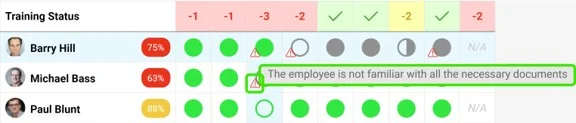
Red triangle alerts
Once you set up skill expiration, a red triangle alert is displayed in your skill matrix. It indicates either that the skill (requirement) validity has expired, or that the employee has to get familiar with a linked document or its new version.
Set up skill expiration manually
Open the skills
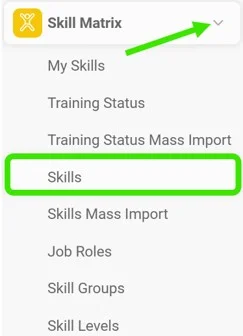
First, you have to add requirement(s) to your skill. Go to the Skill Matrix module in the left panel and choose Skills from the submenu.
Set the skill validity
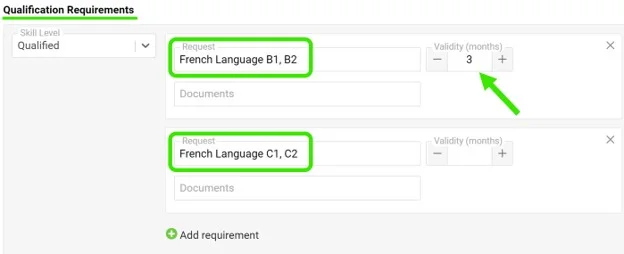
Add the Qualification Requirements for your skill. Here you can also set the validity of the skill: use the plus / minus buttons to select the number of months the skill will be valid for, or simply type in the number of months until the skill expires.
Request the requirement for the employee
To activate the expiration for employees, you have to mark the skill requirement as needed for the employee: click the Status field below the requirements and choose Request (or another status) from the submenu.
Enter the expiration date
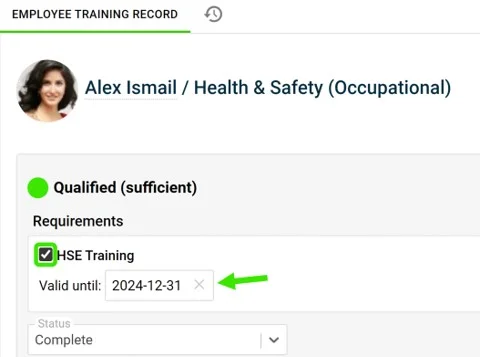
Then, to add the expiration date, tick the Status box next to the requirement and enter the date you want. Please note that if no date is entered, the skill never expires by default.
Expiration in a numerical scale matrix
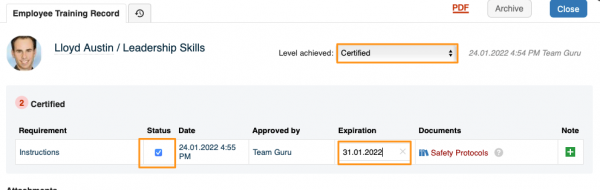
In a skill matrix using a numerical scale, you activate the expiration by choosing the Level achieved first and then ticking the Status next to the requirement to set up the expiration.
Link your skill with a document
Alerts for linked documents
You can link your skill requirement with a document that already exists in TeamGuru. Once you do, you see the red triangle in your skill matrix if the employees need to get familiar with the document or its new version.
Please note that the expiration of a document plays no role in the alerts. If you also need to set up expiration, set it up manually by following the same steps as above.
Add the linked document
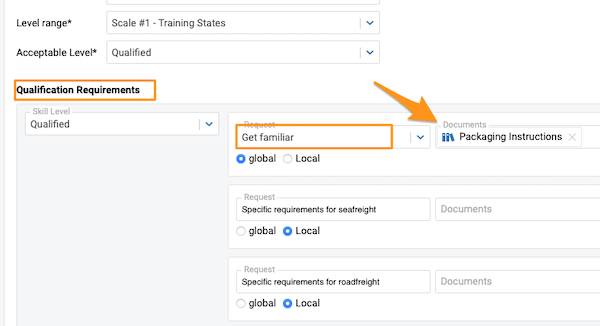
To add a linked document, go to your skill and add a document under Qualification Requirements.
No status needed for the alert
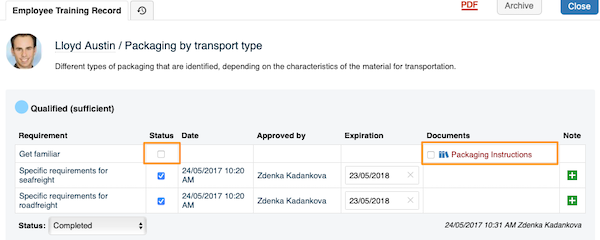
Please note that in this case, you don’t need to set any status in the employee’s training record to trigger the red triangle alert in your skill matrix (unless you want to set up expiration too). The alert is triggered automatically once the skill requirement is linked with a document and the employee is selected in the document itself to be informed about it or its new versions.
Sie können den Ablauf einer Qualifikation manuell einrichten oder die Qualifikation mit einem Dokument verknüpfen.
Rote Dreiecke als Warnung
Sobald Sie den Ablauf eingerichtet haben, erscheint in Ihrer Qualifikationsmatrix ein rotes Dreieck. Es zeigt entweder, dass die Gültigkeit der Qualifikation (Anforderung) abgelaufen ist, oder dass sich der Mitarbeiter mit einem verknüpften Dokument oder dessen neuer Version vertraut machen muss.
Ablauf manuell einrichten
Qualifikationen öffnen
Zuerst müssen Sie Ihrer Qualifikation Anforderungen hinzufügen. Öffnen Sie im linken Bereich das Modul Qualifikationsmatrix und wählen Sie im Untermenü Qualifikationen.
Gültigkeit der Qualifikation festlegen
Fügen Sie die Qualifikationsanforderungen Ihrer Qualifikation hinzu. Hier legen Sie auch die Gültigkeit fest: Wählen Sie mit den Plus-/Minus-Schaltflächen die Anzahl der Monate, die die Qualifikation gültig ist, oder geben Sie die Anzahl der Monate bis zum Ablauf direkt ein.
Anforderung für den Mitarbeiter anfordern
Damit der Ablauf für Mitarbeiter greift, müssen Sie die Anforderung als für den Mitarbeiter erforderlich markieren: Klicken Sie unter den Anforderungen auf das Feld Status und wählen Sie im Untermenü Anfordern (oder einen anderen Status).
Ablaufdatum eingeben
Um das Ablaufdatum hinzuzufügen, aktivieren Sie das Kästchen Status neben der Anforderung und geben das gewünschte Datum ein. Ohne Datum läuft die Qualifikation standardmäßig nie ab.
Ablauf in einer Matrix mit Zahlenskala
In einer Qualifikationsmatrix mit Zahlenskala aktivieren Sie den Ablauf, indem Sie zuerst das Erreichte Niveau wählen und dann den Status neben der Anforderung aktivieren, um den Ablauf einzurichten.
Qualifikation mit einem Dokument verknüpfen
Warnungen bei verknüpften Dokumenten
Sie können eine Qualifikationsanforderung mit einem Dokument verknüpfen, das bereits in TeamGuru vorhanden ist. Dann sehen Sie das rote Dreieck in Ihrer Qualifikationsmatrix, wenn sich Mitarbeiter mit dem Dokument oder dessen neuer Version vertraut machen müssen.
Der Ablauf eines Dokuments spielt für die Warnungen keine Rolle. Brauchen Sie zusätzlich einen Ablauf, richten Sie ihn manuell wie oben beschrieben ein.
Verknüpftes Dokument hinzufügen
Um ein verknüpftes Dokument hinzuzufügen, öffnen Sie Ihre Qualifikation und fügen unter Qualifikationsanforderungen ein Dokument hinzu.
Kein Status für die Warnung nötig
In diesem Fall müssen Sie im Schulungsnachweis des Mitarbeiters keinen Status setzen, damit das rote Dreieck in Ihrer Qualifikationsmatrix erscheint (außer Sie möchten auch einen Ablauf einrichten). Die Warnung erscheint automatisch, sobald die Anforderung mit einem Dokument verknüpft ist und der Mitarbeiter im Dokument selbst als zu informierende Person für das Dokument oder dessen neue Versionen ausgewählt ist.
Brauchen Sie weitere Hilfe?
Schreiben Sie uns. An Werktagen antworten wir meist innerhalb einer Stunde.