如何在技能矩阵中设置技能有效期
本文由英文机器翻译。 当前显示英文原文。
You can set up skill expiration manually, or link a skill with a document.
Red triangle alerts
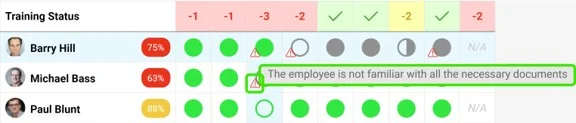
Once you set up skill expiration, a red triangle alert is displayed in your skill matrix. It indicates either that the skill (requirement) validity has expired, or that the employee has to get familiar with a linked document or its new version.
Set up skill expiration manually
Open the skills
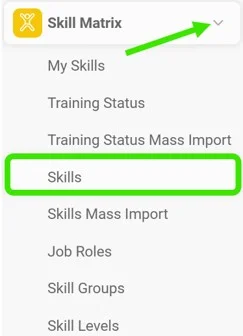
First, you have to add requirement(s) to your skill. Go to the Skill Matrix module in the left panel and choose Skills from the submenu.
Set the skill validity
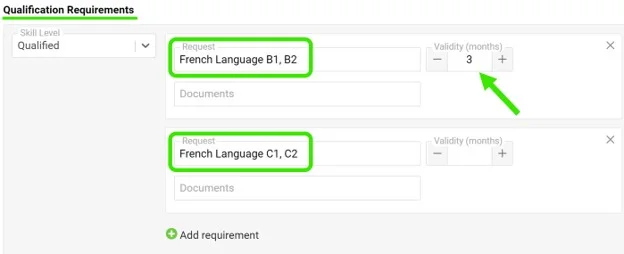
Add the Qualification Requirements for your skill. Here you can also set the validity of the skill: use the plus / minus buttons to select the number of months the skill will be valid for, or simply type in the number of months until the skill expires.
Request the requirement for the employee
To activate the expiration for employees, you have to mark the skill requirement as needed for the employee: click the Status field below the requirements and choose Request (or another status) from the submenu.
Enter the expiration date
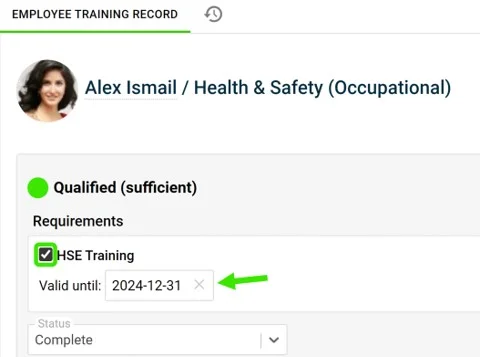
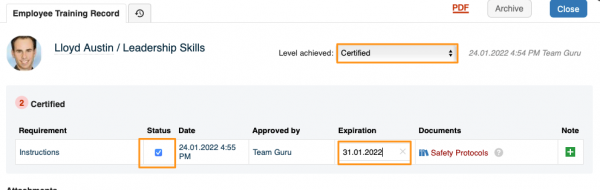
Then, to add the expiration date, tick the Status box next to the requirement and enter the date you want. Please note that if no date is entered, the skill never expires by default.
Expiration in a numerical scale matrix
In a skill matrix using a numerical scale, you activate the expiration by choosing the Level achieved first and then ticking the Status next to the requirement to set up the expiration.
Link your skill with a document
Alerts for linked documents
You can link your skill requirement with a document that already exists in TeamGuru. Once you do, you see the red triangle in your skill matrix if the employees need to get familiar with the document or its new version.
Please note that the expiration of a document plays no role in the alerts. If you also need to set up expiration, set it up manually by following the same steps as above.
Add the linked document
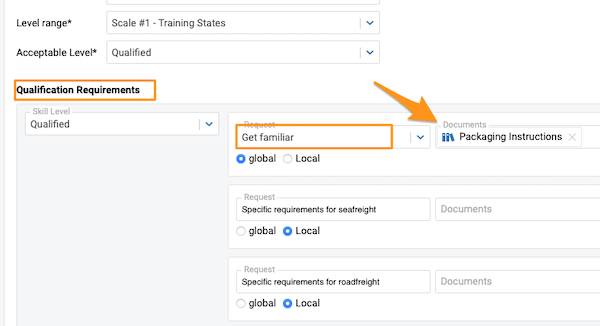
To add a linked document, go to your skill and add a document under Qualification Requirements.
No status needed for the alert
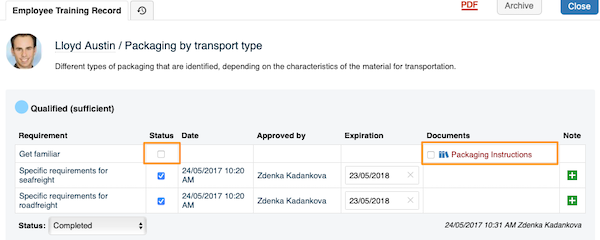
Please note that in this case, you don’t need to set any status in the employee’s training record to trigger the red triangle alert in your skill matrix (unless you want to set up expiration too). The alert is triggered automatically once the skill requirement is linked with a document and the employee is selected in the document itself to be informed about it or its new versions.
您可以手动设置技能有效期,也可以将技能与文档关联。
红色三角形警报
设置技能有效期后,技能矩阵中会显示红色三角形警报。它表示技能(要求)已过有效期,或员工必须熟悉关联文档或其新版本。
手动设置技能有效期
打开技能
首先,需要为技能添加要求。进入左侧面板中的技能矩阵模块,从子菜单中选择技能。
设置技能有效期
为技能添加资质要求。您还可以在这里设置技能的有效期:使用加号/减号按钮选择技能的有效月数,或直接输入技能到期前的月数。
为员工申请该要求
要为员工启用有效期,必须将该技能要求标记为员工所需:点击要求下方的状态字段,从子菜单中选择申请(或其他状态)。
输入到期日期
然后,要添加到期日期,请勾选要求旁的状态复选框,并输入所需日期。请注意,如果未输入日期,技能默认永不过期。
数字评分矩阵中的有效期
在使用数字评分的技能矩阵中,需要先选择已达到的级别,再勾选要求旁的状态来设置有效期。
将技能与文档关联
关联文档的警报
您可以将技能要求与TeamGuru中已有的文档关联。关联后,如果员工需要熟悉该文档或其新版本,技能矩阵中会显示红色三角形。
请注意,文档的有效期与这些警报无关。如果还需要设置有效期,请按照上述相同步骤手动设置。
添加关联文档
要添加关联文档,请进入技能,在资质要求下添加文档。
警报无需设置状态
请注意,在这种情况下,无需在员工的培训记录中设置任何状态,即可在技能矩阵中触发红色三角形警报(除非您还想设置有效期)。只要技能要求与文档关联,并且在文档中选择了该员工接收有关文档或其新版本的通知,警报就会自动触发。
还需要帮助吗?
请给我们留言。工作日我们通常会在一小时内回复。