Cómo configurar la caducidad de habilidades en la Matriz de habilidades
Traducción automática del inglés. Se muestra el original en inglés.
You can set up skill expiration manually, or link a skill with a document.
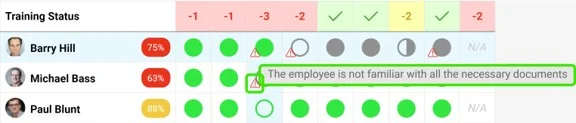
Red triangle alerts
Once you set up skill expiration, a red triangle alert is displayed in your skill matrix. It indicates either that the skill (requirement) validity has expired, or that the employee has to get familiar with a linked document or its new version.
Set up skill expiration manually
Open the skills
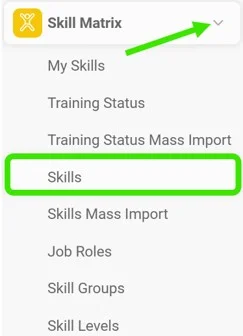
First, you have to add requirement(s) to your skill. Go to the Skill Matrix module in the left panel and choose Skills from the submenu.
Set the skill validity
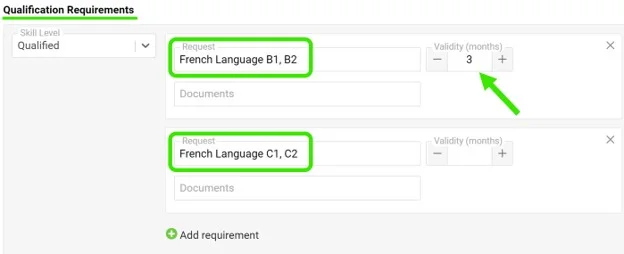
Add the Qualification Requirements for your skill. Here you can also set the validity of the skill: use the plus / minus buttons to select the number of months the skill will be valid for, or simply type in the number of months until the skill expires.
Request the requirement for the employee
To activate the expiration for employees, you have to mark the skill requirement as needed for the employee: click the Status field below the requirements and choose Request (or another status) from the submenu.
Enter the expiration date
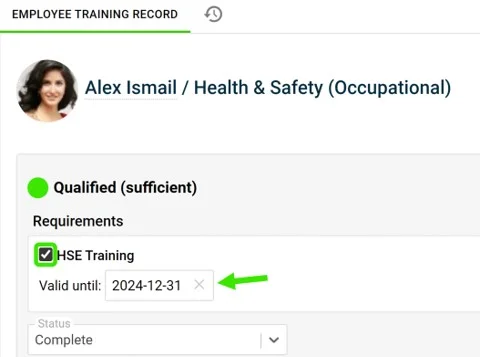
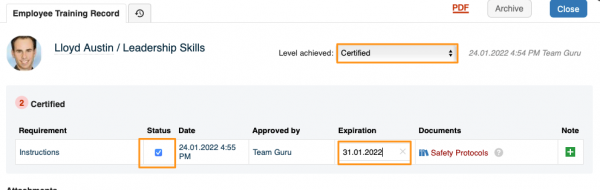
Then, to add the expiration date, tick the Status box next to the requirement and enter the date you want. Please note that if no date is entered, the skill never expires by default.
Expiration in a numerical scale matrix
In a skill matrix using a numerical scale, you activate the expiration by choosing the Level achieved first and then ticking the Status next to the requirement to set up the expiration.
Link your skill with a document
Alerts for linked documents
You can link your skill requirement with a document that already exists in TeamGuru. Once you do, you see the red triangle in your skill matrix if the employees need to get familiar with the document or its new version.
Please note that the expiration of a document plays no role in the alerts. If you also need to set up expiration, set it up manually by following the same steps as above.
Add the linked document
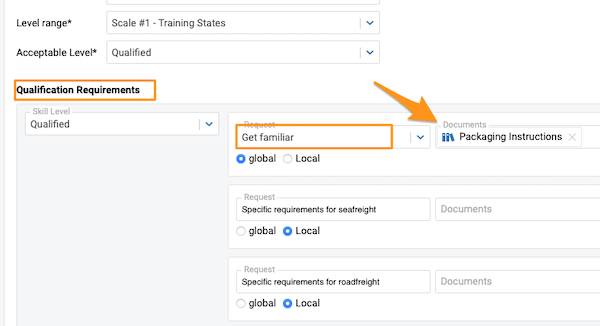
To add a linked document, go to your skill and add a document under Qualification Requirements.
No status needed for the alert
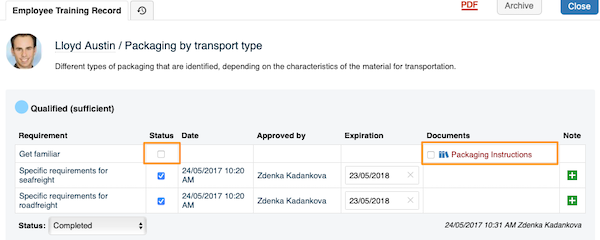
Please note that in this case, you don’t need to set any status in the employee’s training record to trigger the red triangle alert in your skill matrix (unless you want to set up expiration too). The alert is triggered automatically once the skill requirement is linked with a document and the employee is selected in the document itself to be informed about it or its new versions.
Puede configurar la caducidad de una habilidad manualmente o vincular la habilidad a un documento.
Alertas con triángulo rojo
Una vez configurada la caducidad de la habilidad, aparece una alerta con un triángulo rojo en la matriz de habilidades. Indica que la validez de la habilidad (requisito) ha caducado o que el empleado debe familiarizarse con un documento vinculado o con su nueva versión.
Configurar la caducidad manualmente
Abrir las habilidades
Primero debe agregar requisitos a la habilidad. Vaya al módulo Matriz de habilidades en el panel izquierdo y elija Habilidades en el submenú.
Definir la validez de la habilidad
Agregue los Requisitos de cualificación de la habilidad. Aquí también puede definir la validez de la habilidad: use los botones de más y menos para elegir cuántos meses será válida, o escriba directamente el número de meses hasta que caduque.
Solicitar el requisito para el empleado
Para activar la caducidad para los empleados, debe marcar el requisito de la habilidad como necesario para el empleado: haga clic en el campo Estado debajo de los requisitos y elija Solicitar (u otro estado) en el submenú.
Introducir la fecha de caducidad
Después, para agregar la fecha de caducidad, marque la casilla Estado junto al requisito e introduzca la fecha que quiera. Tenga en cuenta que, si no se introduce ninguna fecha, la habilidad no caduca nunca de forma predeterminada.
Caducidad en una matriz con escala numérica
En una matriz de habilidades con escala numérica, la caducidad se activa eligiendo primero el Nivel alcanzado y marcando después el Estado junto al requisito para configurar la caducidad.
Vincular la habilidad a un documento
Alertas de documentos vinculados
Puede vincular el requisito de la habilidad a un documento que ya exista en TeamGuru. Una vez vinculado, verá el triángulo rojo en la matriz de habilidades si los empleados deben familiarizarse con el documento o con su nueva versión.
Tenga en cuenta que la caducidad del documento no influye en las alertas. Si también necesita configurar la caducidad, hágalo manualmente siguiendo los mismos pasos descritos arriba.
Agregar el documento vinculado
Para agregar un documento vinculado, vaya a la habilidad y agregue un documento en Requisitos de cualificación.
No hace falta un estado para la alerta
Tenga en cuenta que, en este caso, no necesita definir ningún estado en el registro de formación del empleado para que aparezca la alerta con el triángulo rojo en la matriz de habilidades (salvo que también quiera configurar la caducidad). La alerta se activa automáticamente cuando el requisito de la habilidad está vinculado a un documento y el empleado está seleccionado en el propio documento para recibir información sobre él o sobre sus nuevas versiones.
¿Necesita más ayuda?
Escríbanos. En días laborables solemos responder en menos de una hora.