Jak ustawić wygasanie kompetencji w matrycy kompetencji
Tłumaczenie maszynowe z angielskiego. Wyświetlany jest oryginał po angielsku.
You can set up skill expiration manually, or link a skill with a document.
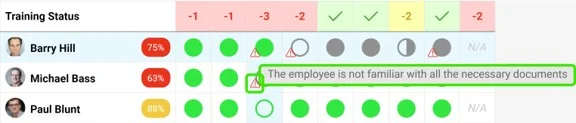
Red triangle alerts
Once you set up skill expiration, a red triangle alert is displayed in your skill matrix. It indicates either that the skill (requirement) validity has expired, or that the employee has to get familiar with a linked document or its new version.
Set up skill expiration manually
Open the skills
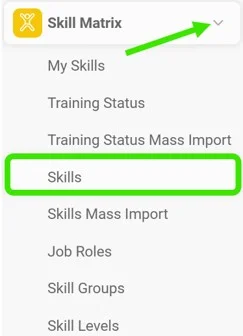
First, you have to add requirement(s) to your skill. Go to the Skill Matrix module in the left panel and choose Skills from the submenu.
Set the skill validity
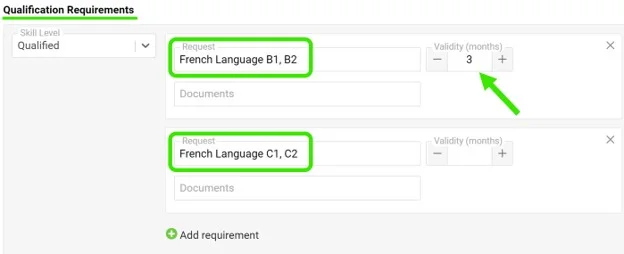
Add the Qualification Requirements for your skill. Here you can also set the validity of the skill: use the plus / minus buttons to select the number of months the skill will be valid for, or simply type in the number of months until the skill expires.
Request the requirement for the employee
To activate the expiration for employees, you have to mark the skill requirement as needed for the employee: click the Status field below the requirements and choose Request (or another status) from the submenu.
Enter the expiration date
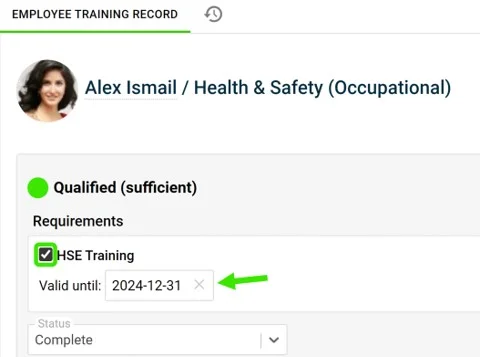
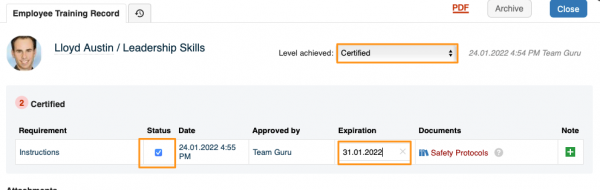
Then, to add the expiration date, tick the Status box next to the requirement and enter the date you want. Please note that if no date is entered, the skill never expires by default.
Expiration in a numerical scale matrix
In a skill matrix using a numerical scale, you activate the expiration by choosing the Level achieved first and then ticking the Status next to the requirement to set up the expiration.
Link your skill with a document
Alerts for linked documents
You can link your skill requirement with a document that already exists in TeamGuru. Once you do, you see the red triangle in your skill matrix if the employees need to get familiar with the document or its new version.
Please note that the expiration of a document plays no role in the alerts. If you also need to set up expiration, set it up manually by following the same steps as above.
Add the linked document
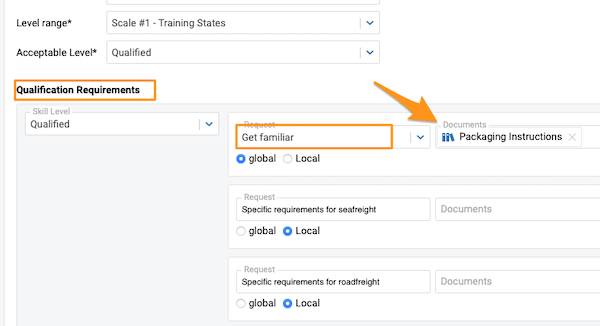
To add a linked document, go to your skill and add a document under Qualification Requirements.
No status needed for the alert
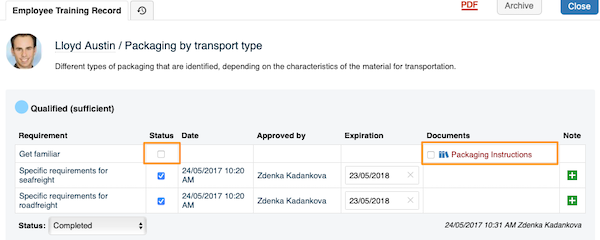
Please note that in this case, you don’t need to set any status in the employee’s training record to trigger the red triangle alert in your skill matrix (unless you want to set up expiration too). The alert is triggered automatically once the skill requirement is linked with a document and the employee is selected in the document itself to be informed about it or its new versions.
Wygasanie kompetencji możesz ustawić ręcznie albo powiązać kompetencję z dokumentem.
Alerty z czerwonym trójkątem
Po ustawieniu wygasania w matrycy kompetencji pojawia się czerwony trójkąt. Oznacza on, że ważność kompetencji (wymagania) wygasła albo że pracownik musi zapoznać się z powiązanym dokumentem lub jego nową wersją.
Ustaw wygasanie kompetencji ręcznie
Otwórz kompetencje
Najpierw dodaj do kompetencji wymagania. W lewym panelu przejdź do modułu Matryca kompetencji i wybierz z podmenu Kompetencje.
Ustaw ważność kompetencji
Dodaj Wymagania kwalifikacyjne kompetencji. Tutaj ustawisz też ważność kompetencji: przyciskami plus / minus wybierz, przez ile miesięcy kompetencja ma być ważna, albo po prostu wpisz liczbę miesięcy do jej wygaśnięcia.
Ustaw wymaganie dla pracownika
Aby włączyć wygasanie dla pracowników, oznacz wymaganie jako potrzebne dla pracownika: kliknij pole Status pod wymaganiami i wybierz z podmenu Wymagane (lub inny status).
Wpisz datę wygaśnięcia
Następnie, aby dodać datę wygaśnięcia, zaznacz pole Status obok wymagania i wpisz datę. Jeśli nie wpiszesz daty, kompetencja domyślnie nigdy nie wygasa.
Wygasanie w matrycy ze skalą liczbową
W matrycy kompetencji ze skalą liczbową wygasanie włączasz tak: najpierw wybierz Osiągnięty poziom, a potem zaznacz Status obok wymagania i ustaw wygaśnięcie.
Powiąż kompetencję z dokumentem
Alerty dla powiązanych dokumentów
Wymaganie kompetencji możesz powiązać z dokumentem, który już jest w TeamGuru. Wtedy w matrycy kompetencji pojawia się czerwony trójkąt, gdy pracownicy muszą zapoznać się z dokumentem lub jego nową wersją.
Termin ważności dokumentu nie ma wpływu na alerty. Jeśli potrzebujesz też wygasania, ustaw je ręcznie tak jak powyżej.
Dodaj powiązany dokument
Aby dodać powiązany dokument, otwórz kompetencję i dodaj dokument w sekcji Wymagania kwalifikacyjne.
Alert bez ustawiania statusu
W tym przypadku nie musisz ustawiać żadnego statusu w karcie szkoleń pracownika, żeby w matrycy kompetencji pojawił się czerwony trójkąt (chyba że chcesz też ustawić wygasanie). Alert pojawia się automatycznie, gdy wymaganie kompetencji jest powiązane z dokumentem, a pracownik jest wybrany w samym dokumencie jako osoba informowana o nim lub o jego nowych wersjach.
Potrzebujesz dalszej pomocy?
Napisz do nas. W dni robocze zwykle odpowiadamy w ciągu godziny.