Acknowledgement status – an overview of who has been informed about the document
The document Acknowledgement Status tool gives you a quick overview of who has been, has not been, or should be informed about a particular document. It makes administering your documents easier.
Open the acknowledgement status
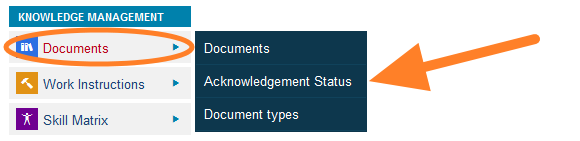
Go to Documents and select the Acknowledgement Status submenu.
Select the organization unit
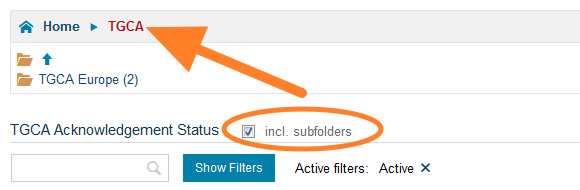
Go to the organization unit for which the status report should be printed. Tick incl. subfolders to get a complete overview of the whole folder including its subfolders, or leave it empty to see only the documents of that particular folder.
Read the status marks
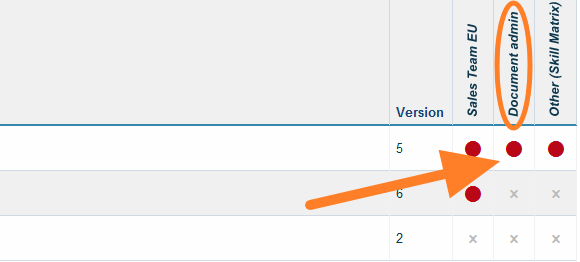
See the acknowledgement status for each document and user group.
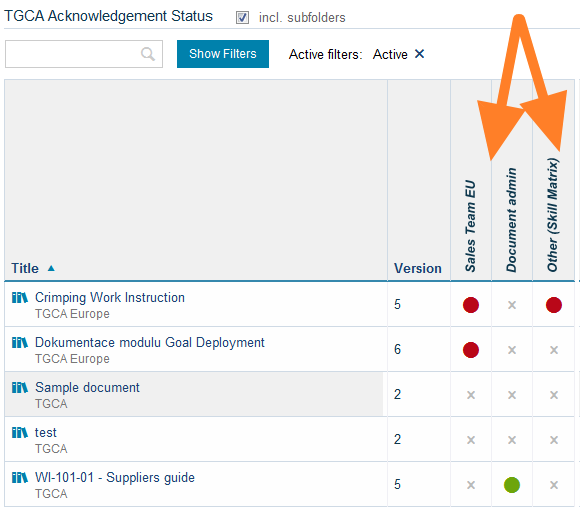
The following status marks are used:
- a red mark = not all employees have been informed
- a green mark = all required employees have been informed
- a cross mark = the document is not relevant to the user group
Mark a document as relevant
If the document is relevant to a particular user group, click the grey cross mark, tick Yes and click Confirm.
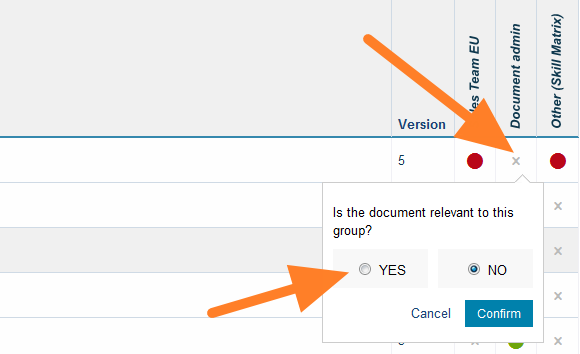
The status mark changes to red, which means the user group needs to be informed.
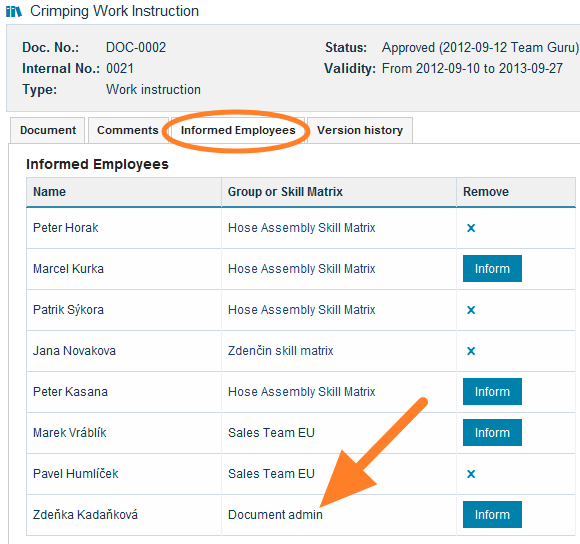
Check the added users
The to-be-informed users are added to the document automatically. This is a more convenient and faster way to add to-be-informed users to a document.
Still need help?
Write to us. We usually reply within an hour on business days.