知悉状态:查看谁已了解文档
本文由英文机器翻译。 当前显示英文原文。
The document Acknowledgement Status tool gives you a quick overview of who has been, has not been, or should be informed about a particular document. It makes administering your documents easier.
Open the acknowledgement status
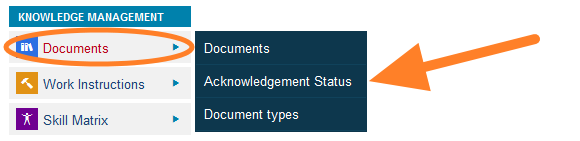
Go to Documents and select the Acknowledgement Status submenu.
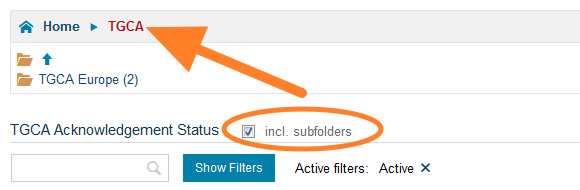
Select the organization unit
Go to the organization unit for which the status report should be printed. Tick incl. subfolders to get a complete overview of the whole folder including its subfolders, or leave it empty to see only the documents of that particular folder.
Read the status marks
See the acknowledgement status for each document and user group.
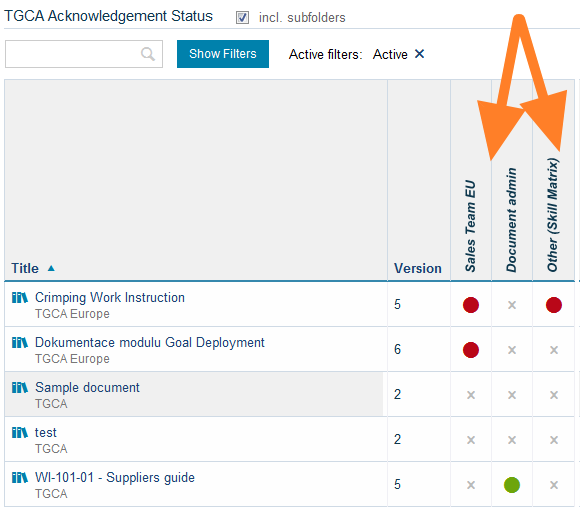
The following status marks are used:
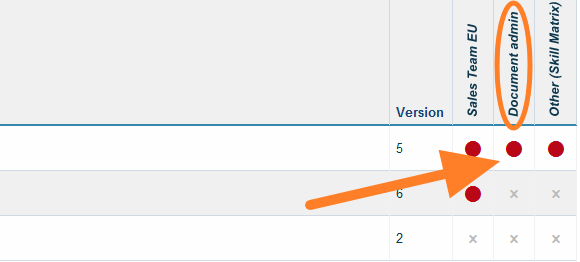
- a red mark = not all employees have been informed
- a green mark = all required employees have been informed
- a cross mark = the document is not relevant to the user group
Mark a document as relevant
If the document is relevant to a particular user group, click the grey cross mark, tick Yes and click Confirm.
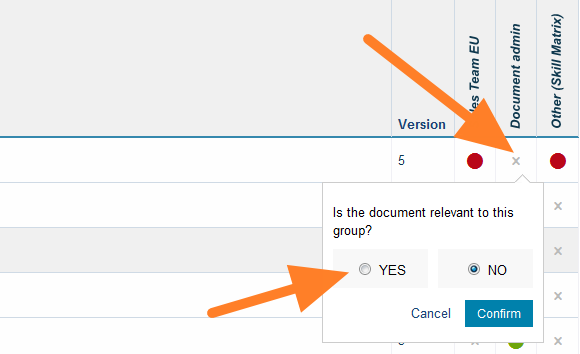
The status mark changes to red, which means the user group needs to be informed.
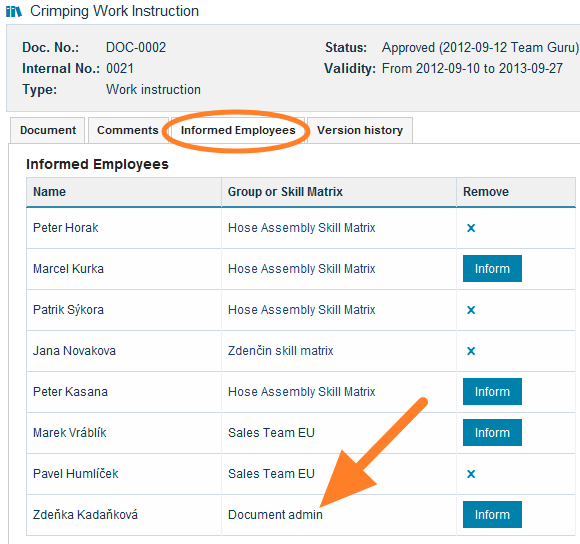
Check the added users
The to-be-informed users are added to the document automatically. This is a more convenient and faster way to add to-be-informed users to a document.
文档 知悉状态 工具可让您快速了解哪些人已经、尚未或应当了解某份文档,让文档管理更加轻松。
打开知悉状态
进入 文档,选择 知悉状态 子菜单。
选择组织单元
进入要打印状态报告的组织单元。勾选 包含子文件夹 可查看整个文件夹及其子文件夹的完整概况;不勾选则只显示该文件夹中的文档。
查看状态标记
查看每份文档和每个用户组的知悉状态。
状态标记的含义如下:
- 红色标记 = 并非所有员工都已了解
- 绿色标记 = 所有需要了解的员工都已了解
- 叉号标记 = 该文档与此用户组无关
将文档标记为相关
如果文档与某个用户组相关,请点击灰色叉号标记,勾选 是,然后点击 确认。
状态标记会变为红色,表示需要告知该用户组。
查看已添加的用户
待告知用户会自动添加到文档中。这是为文档添加待告知用户的一种更方便、更快捷的方式。
还需要帮助吗?
请给我们留言。工作日我们通常会在一小时内回复。