Lier un document à une action
Traduction automatique de l'anglais. Original en anglais affiché.
You can attach a related document to a particular task in your action list, e.g. when one of the tasks of your main action list has its own lower-level action list.
Link a document to an action
-
Go to your action list. Open the action list that contains the task.
-
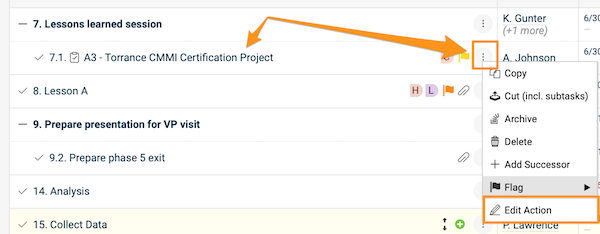
Open the action. Click the task title, or click the three dots next to the task and choose Edit action.
-
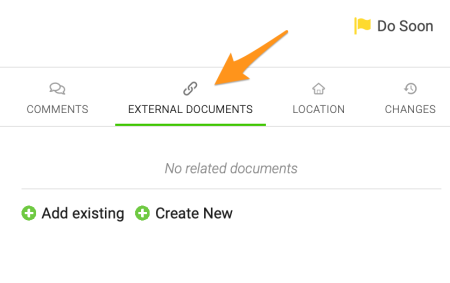
Find the External Documents section. Go to the External Documents section.
-
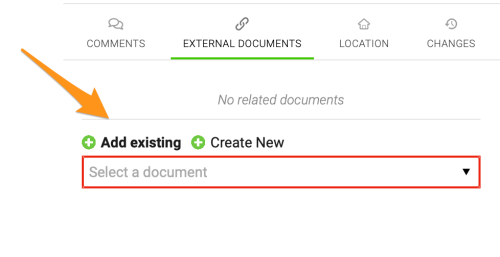
Add the document. Click the green plus button and either Add existing (select one of the existing documents in TeamGuru from the submenu) or Create New to create a new document.
-
Save. Save and close the action.
-
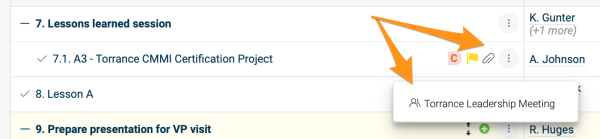
Open the related document. After you add a related document, a paperclip icon appears next to the action. Click the icon to see the title of the related document, and click the title to go directly to the document.
Please note that the related documents of individual actions and sub-actions are different from the related documents of the action list itself.
Link a document to the action list
Use the Related Documents tab
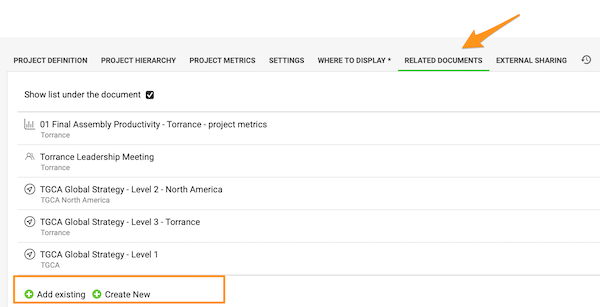
To set up related documents for the action list (not its individual actions), open the action list settings and go to the Related Documents tab. Click the green plus button to Add existing or Create New documents.
Use Related Documents above the action list
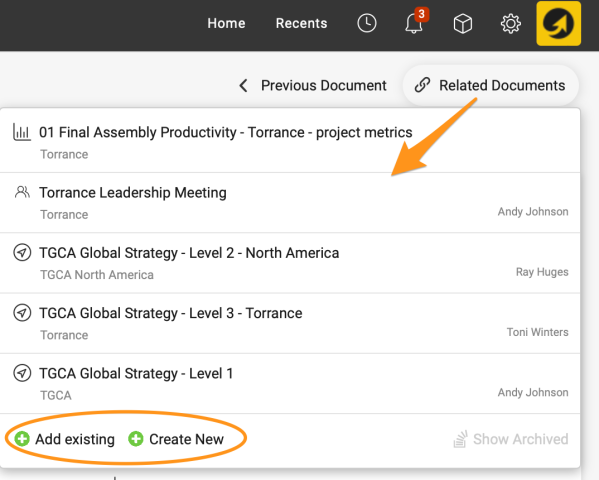
You can also set them up directly under Related Documents in the upper right corner above the action list. Here you can also view the related documents with a live link.
View related documents below the actions
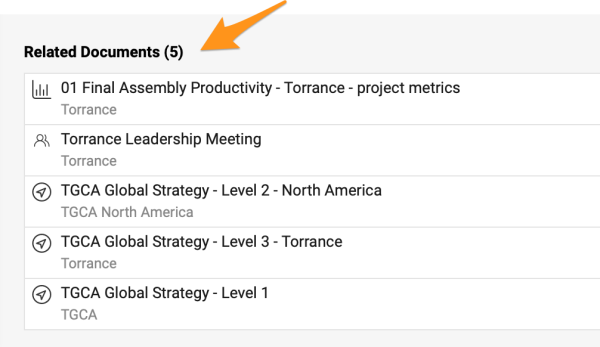
The related documents of the action list are also shown below the actions when you scroll down.
Vous pouvez joindre un document lié à une tâche de votre plan d’action, par exemple lorsqu’une des tâches du plan d’action principal a son propre plan d’action de niveau inférieur.
Lier un document à une action
-
Ouvrez votre plan d’action. Ouvrez le plan d’action qui contient la tâche.
-
Ouvrez l’action. Cliquez sur le titre de la tâche, ou sur les trois points à côté de la tâche, puis choisissez Modifier l’action.
-
Trouvez la section Documents externes. Allez à la section Documents externes.
-
Ajoutez le document. Cliquez sur le bouton plus vert, puis sur Ajouter un existant (pour sélectionner un document TeamGuru existant dans le sous-menu) ou sur Créer pour créer un document.
-
Enregistrez. Enregistrez et fermez l’action.
-
Ouvrez le document lié. Une fois le document lié ajouté, une icône de trombone s’affiche à côté de l’action. Cliquez sur l’icône pour voir le titre du document lié, puis sur le titre pour ouvrir directement le document.
Notez que les documents liés aux actions et sous-actions sont distincts des documents liés au plan d’action lui-même.
Lier un document au plan d’action
Utiliser l’onglet Documents liés
Pour configurer les documents liés au plan d’action (et non à ses actions), ouvrez les paramètres du plan d’action et allez dans l’onglet Documents liés. Cliquez sur le bouton plus vert pour choisir Ajouter un existant ou Créer.
Utiliser Documents liés au-dessus du plan d’action
Vous pouvez aussi les configurer directement sous Documents liés, en haut à droite au-dessus du plan d’action. Vous y voyez également les documents liés, avec un lien direct.
Voir les documents liés sous les actions
Les documents liés au plan d’action s’affichent aussi sous les actions, en faisant défiler la page.
Besoin d'aide supplémentaire ?
Écrivez-nous. Les jours ouvrés, nous répondons en général en moins d'une heure.