Ako prepojiť súvisiaci dokument s akciou
Strojový preklad z angličtiny. Zobrazený je anglický originál.
You can attach a related document to a particular task in your action list, e.g. when one of the tasks of your main action list has its own lower-level action list.
Link a document to an action
-
Go to your action list. Open the action list that contains the task.
-
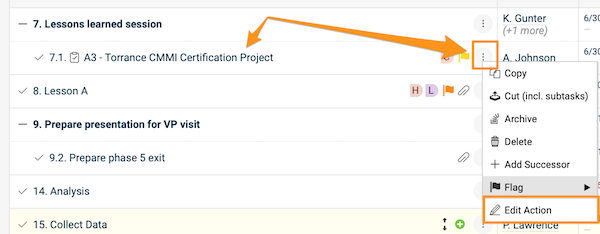
Open the action. Click the task title, or click the three dots next to the task and choose Edit action.
-
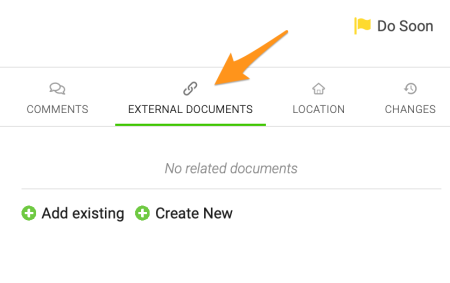
Find the External Documents section. Go to the External Documents section.
-
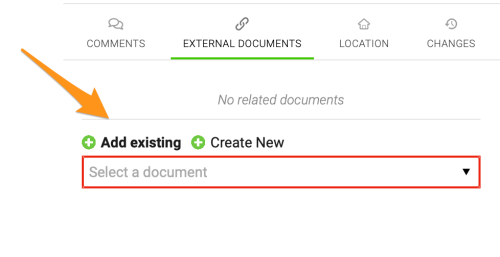
Add the document. Click the green plus button and either Add existing (select one of the existing documents in TeamGuru from the submenu) or Create New to create a new document.
-
Save. Save and close the action.
-
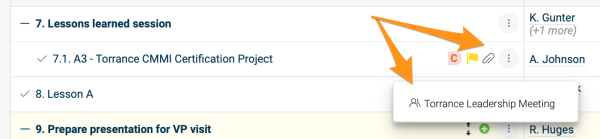
Open the related document. After you add a related document, a paperclip icon appears next to the action. Click the icon to see the title of the related document, and click the title to go directly to the document.
Please note that the related documents of individual actions and sub-actions are different from the related documents of the action list itself.
Link a document to the action list
Use the Related Documents tab
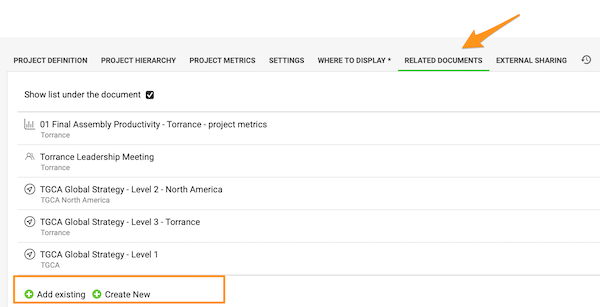
To set up related documents for the action list (not its individual actions), open the action list settings and go to the Related Documents tab. Click the green plus button to Add existing or Create New documents.
Use Related Documents above the action list
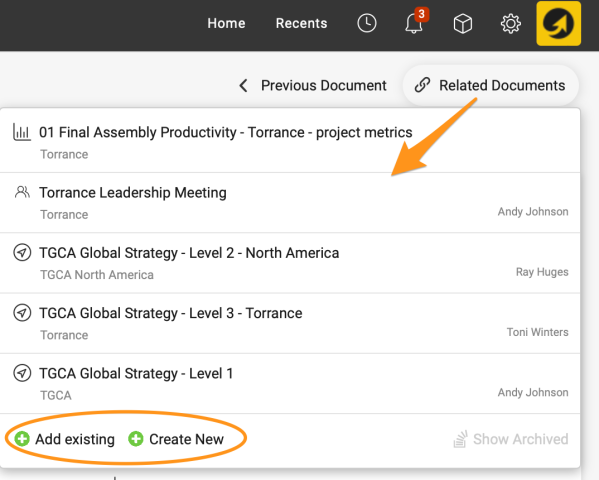
You can also set them up directly under Related Documents in the upper right corner above the action list. Here you can also view the related documents with a live link.
View related documents below the actions
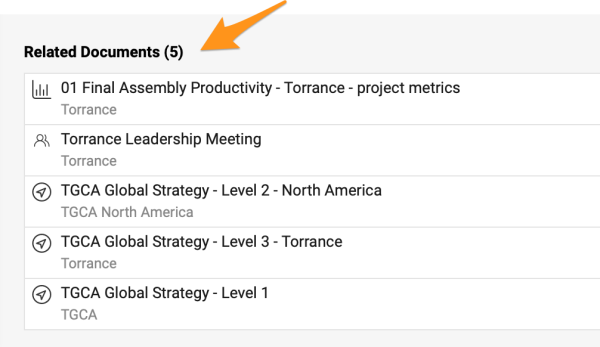
The related documents of the action list are also shown below the actions when you scroll down.
K určitej úlohe v akčnom zozname môžete pripojiť súvisiaci dokument, napríklad keď má jedna z úloh hlavného akčného zoznamu vlastný akčný zoznam nižšej úrovne.
Prepojenie dokumentu s akciou
-
Prejdite do akčného zoznamu. Otvorte akčný zoznam, ktorý úlohu obsahuje.
-
Otvorte akciu. Kliknite na názov úlohy alebo na tri bodky vedľa úlohy a zvoľte Upraviť akciu.
-
Nájdite sekciu Externé dokumenty. Prejdite do sekcie Externé dokumenty.
-
Pridajte dokument. Kliknite na zelené tlačidlo plus a zvoľte Pridať existujúci (z podmenu vyberiete niektorý z existujúcich dokumentov v TeamGuru) alebo Vytvoriť nový, ak chcete vytvoriť nový dokument.
-
Uložte. Akciu uložte a zatvorte.
-
Otvorte súvisiaci dokument. Po pridaní súvisiaceho dokumentu sa vedľa akcie zobrazí ikona kancelárskej sponky. Kliknutím na ikonu uvidíte názov súvisiaceho dokumentu a kliknutím na názov prejdete priamo do dokumentu.
Upozorňujeme, že súvisiace dokumenty jednotlivých akcií a podakcií sú iné ako súvisiace dokumenty samotného akčného zoznamu.
Prepojenie dokumentu s akčným zoznamom
Karta Súvisiace dokumenty
Ak chcete nastaviť súvisiace dokumenty pre akčný zoznam (nie pre jeho jednotlivé akcie), otvorte nastavenia akčného zoznamu a prejdite na kartu Súvisiace dokumenty. Kliknite na zelené tlačidlo plus a zvoľte Pridať existujúci alebo Vytvoriť nový.
Súvisiace dokumenty nad akčným zoznamom
Súvisiace dokumenty môžete nastaviť aj priamo cez Súvisiace dokumenty v pravom hornom rohu nad akčným zoznamom. Tu si ich môžete aj pozrieť cez aktívny odkaz.
Súvisiace dokumenty pod akciami
Súvisiace dokumenty akčného zoznamu sa zobrazujú aj pod akciami, keď sa posuniete nižšie.
Potrebujete ďalšiu pomoc?
Napíšte nám. V pracovné dni zvyčajne odpovedáme do hodiny.