Jak powiązać dokument z działaniem
Tłumaczenie maszynowe z angielskiego. Wyświetlany jest oryginał po angielsku.
You can attach a related document to a particular task in your action list, e.g. when one of the tasks of your main action list has its own lower-level action list.
Link a document to an action
-
Go to your action list. Open the action list that contains the task.
-
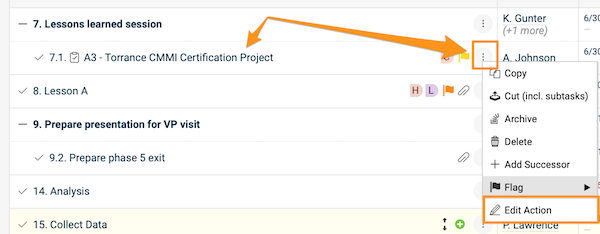
Open the action. Click the task title, or click the three dots next to the task and choose Edit action.
-
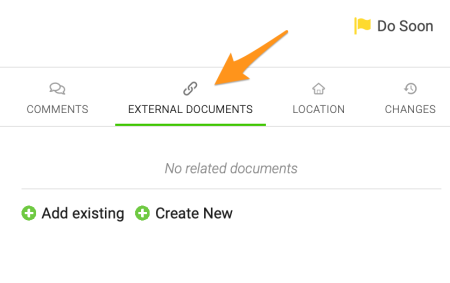
Find the External Documents section. Go to the External Documents section.
-
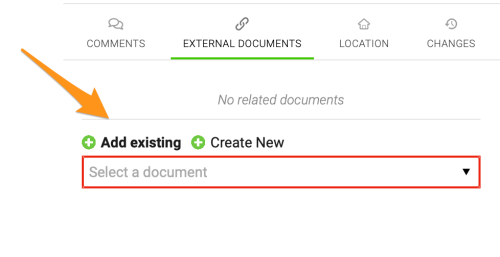
Add the document. Click the green plus button and either Add existing (select one of the existing documents in TeamGuru from the submenu) or Create New to create a new document.
-
Save. Save and close the action.
-
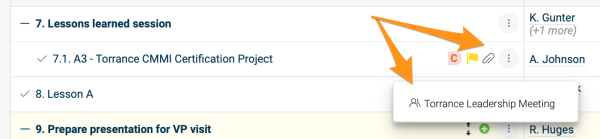
Open the related document. After you add a related document, a paperclip icon appears next to the action. Click the icon to see the title of the related document, and click the title to go directly to the document.
Please note that the related documents of individual actions and sub-actions are different from the related documents of the action list itself.
Link a document to the action list
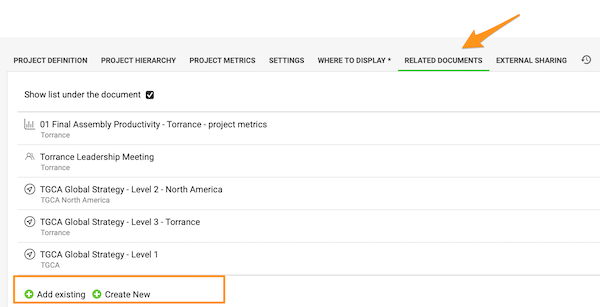
Use the Related Documents tab
To set up related documents for the action list (not its individual actions), open the action list settings and go to the Related Documents tab. Click the green plus button to Add existing or Create New documents.
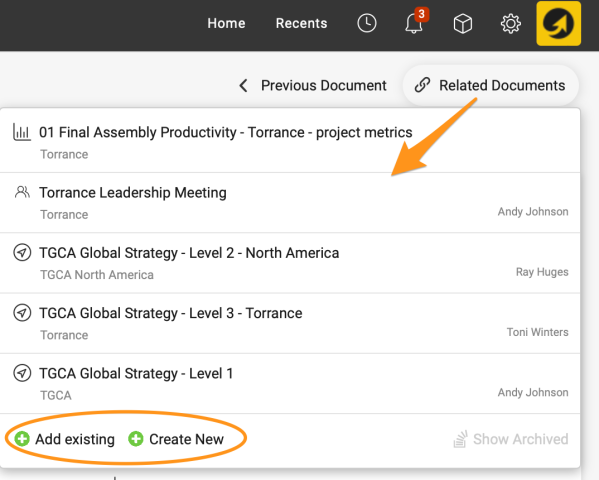
Use Related Documents above the action list
You can also set them up directly under Related Documents in the upper right corner above the action list. Here you can also view the related documents with a live link.
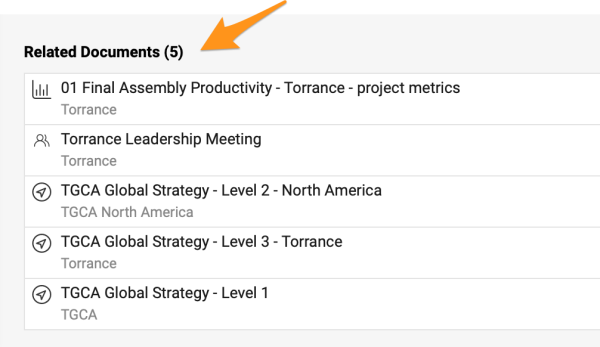
View related documents below the actions
The related documents of the action list are also shown below the actions when you scroll down.
Do konkretnego zadania na liście działań możesz dołączyć powiązany dokument, np. gdy jedno z zadań głównej listy działań ma własną listę działań niższego poziomu.
Powiąż dokument z działaniem
-
Przejdź do listy działań. Otwórz listę działań, która zawiera zadanie.
-
Otwórz działanie. Kliknij tytuł zadania albo kliknij trzy kropki obok zadania i wybierz Edytuj działanie.
-
Znajdź sekcję Dokumenty zewnętrzne. Przejdź do sekcji Dokumenty zewnętrzne.
-
Dodaj dokument. Kliknij zielony plus i wybierz Dodaj istniejący (wybierz z podmenu jeden z dokumentów w TeamGuru) lub Utwórz nowy, aby utworzyć nowy dokument.
-
Zapisz. Zapisz i zamknij działanie.
-
Otwórz powiązany dokument. Po dodaniu powiązanego dokumentu obok działania pojawia się ikona spinacza. Kliknij ją, aby zobaczyć tytuł powiązanego dokumentu, a potem kliknij tytuł, aby przejść prosto do dokumentu.
Pamiętaj, że dokumenty powiązane z poszczególnymi działaniami i działaniami podrzędnymi to coś innego niż dokumenty powiązane z samą listą działań.
Powiąż dokument z listą działań
Użyj karty Powiązane dokumenty
Aby ustawić dokumenty powiązane z listą działań (a nie z jej poszczególnymi działaniami), otwórz ustawienia listy działań i przejdź do karty Powiązane dokumenty. Kliknij zielony plus, aby wybrać Dodaj istniejący lub Utwórz nowy.
Użyj Powiązanych dokumentów nad listą działań
Możesz je też ustawić bezpośrednio w Powiązanych dokumentach w prawym górnym rogu nad listą działań. Tam też zobaczysz powiązane dokumenty z aktywnym linkiem.
Powiązane dokumenty pod działaniami
Dokumenty powiązane z listą działań widać też pod działaniami, gdy przewiniesz w dół.
Potrzebujesz dalszej pomocy?
Napisz do nas. W dni robocze zwykle odpowiadamy w ciągu godziny.