Lancer un RCCA directement depuis un tableau de bord KPI
Traduction automatique de l'anglais. Original en anglais affiché.
You can monitor and solve performance (metric) related problems via an RCCA document. The RCCA document can be linked to a specific metric/org. unit combination: an RCCA icon is then shown directly in the metric dashboard at that combination, and the details of the RCCA document can be accessed and viewed from the dashboard.
-
Open the dashboard. Go to the dashboard overview.
-
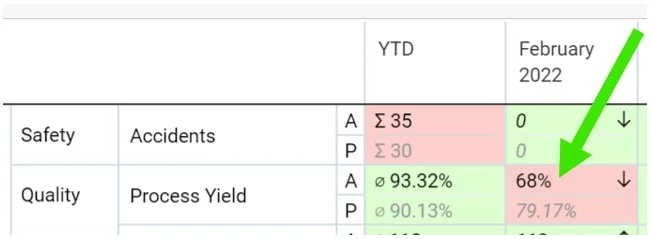
Click the metric. Click the metric for which the RCCA should be created.
-
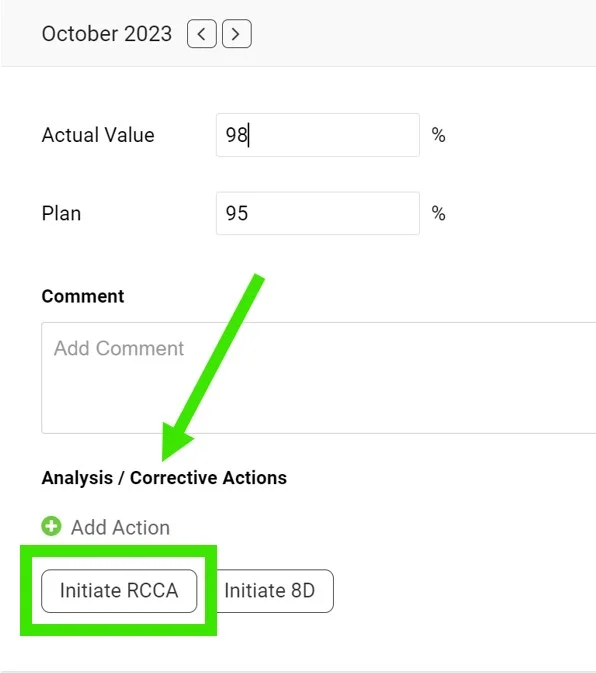
Initiate the RCCA. Scroll down and click Initiate RCCA.
-
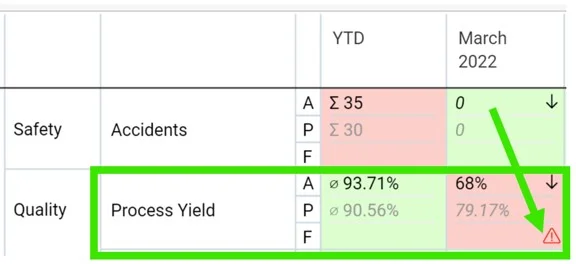
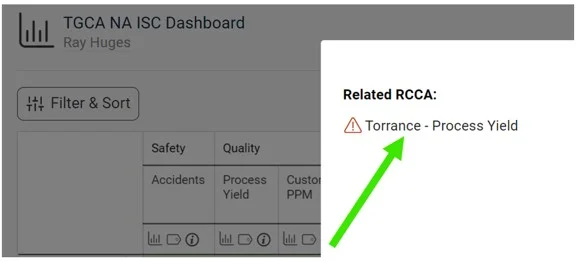
Access the RCCA from the dashboard. When you create a new RCCA, the RCCA icon is displayed in the original dashboard, and you can easily access the RCCA through it.
-
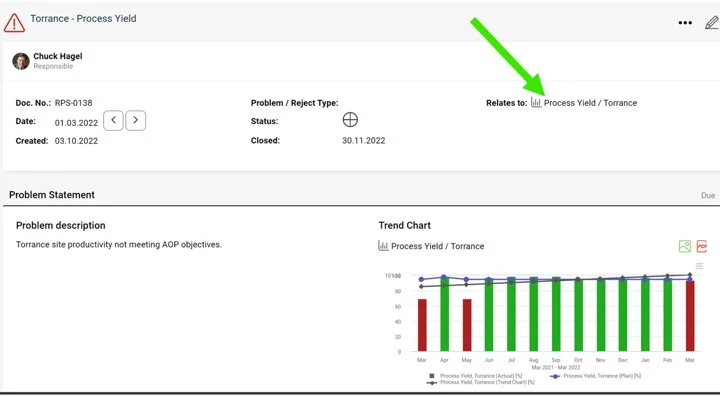
Check the RCCA graph. The metric values are automatically pulled into the RCCA graph.
Vous pouvez suivre et résoudre les problèmes de performance (liés aux indicateurs) dans un document RCCA. Le document RCCA peut être lié à une combinaison indicateur / unité organisationnelle : une icône RCCA s’affiche alors directement dans le tableau de bord, à cet endroit, et vous pouvez ouvrir le détail du document RCCA depuis le tableau de bord.
-
Ouvrez le tableau de bord. Affichez la vue d’ensemble du tableau de bord.
-
Cliquez sur l’indicateur. Cliquez sur l’indicateur pour lequel le RCCA doit être créé.
-
Lancez le RCCA. Faites défiler vers le bas et cliquez sur Lancer un RCCA.
-
Ouvrez le RCCA depuis le tableau de bord. Une fois le RCCA créé, son icône s’affiche dans le tableau de bord d’origine et vous permet d’ouvrir le RCCA en un clic.
-
Vérifiez le graphique du RCCA. Les valeurs de l’indicateur sont reprises automatiquement dans le graphique du RCCA.
Besoin d'aide supplémentaire ?
Écrivez-nous. Les jours ouvrés, nous répondons en général en moins d'une heure.