Jak zahájit RCCA přímo z metrikového dashboardu
Strojový překlad z angličtiny. Zobrazen anglický originál.
You can monitor and solve performance (metric) related problems via an RCCA document. The RCCA document can be linked to a specific metric/org. unit combination: an RCCA icon is then shown directly in the metric dashboard at that combination, and the details of the RCCA document can be accessed and viewed from the dashboard.
-
Open the dashboard. Go to the dashboard overview.
-
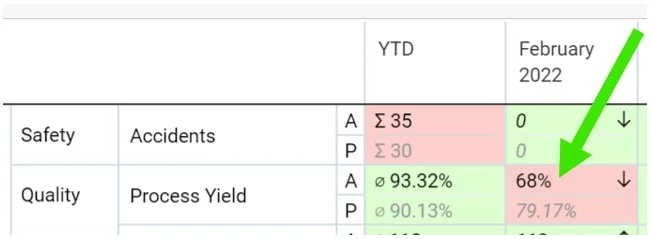
Click the metric. Click the metric for which the RCCA should be created.
-
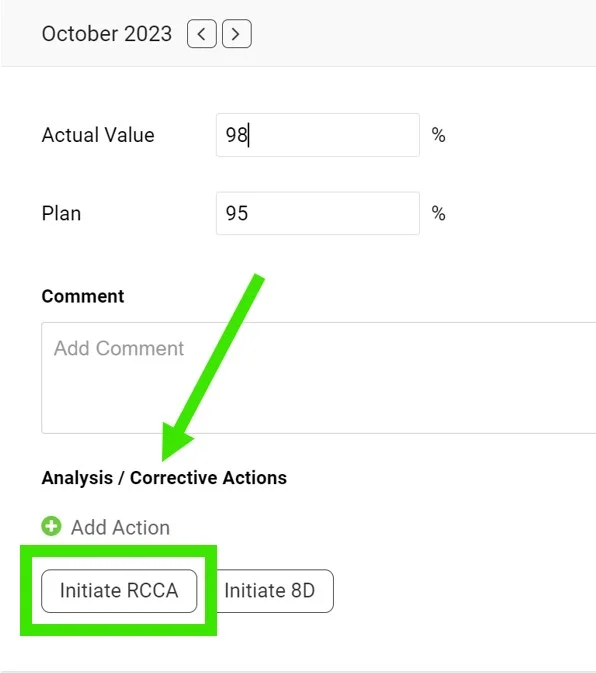
Initiate the RCCA. Scroll down and click Initiate RCCA.
-
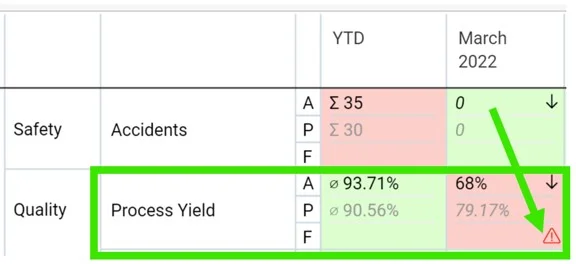
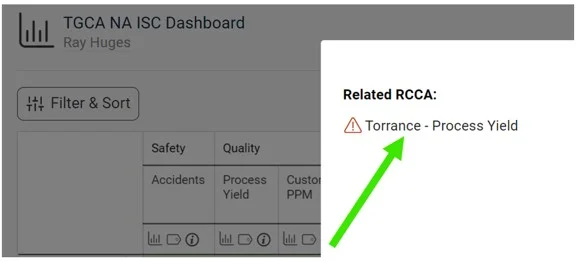
Access the RCCA from the dashboard. When you create a new RCCA, the RCCA icon is displayed in the original dashboard, and you can easily access the RCCA through it.
-
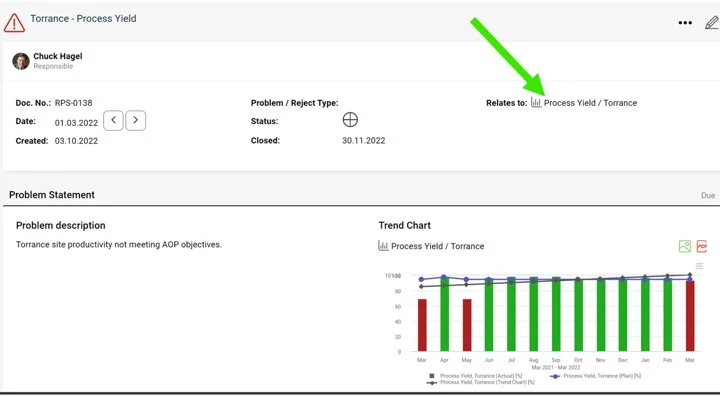
Check the RCCA graph. The metric values are automatically pulled into the RCCA graph.
Problémy s výkonem (metrikami) můžete sledovat a řešit v dokumentu RCCA. Dokument RCCA lze propojit s konkrétní kombinací metriky a organizační jednotky: v metrikovém dashboardu se pak u této kombinace zobrazí ikona RCCA a podrobnosti dokumentu RCCA otevřete přímo z dashboardu.
-
Otevřete dashboard. Přejděte na přehled dashboardu.
-
Klikněte na metriku. Klikněte na metriku, pro kterou chcete RCCA vytvořit.
-
Zahajte RCCA. Sjeďte dolů a klikněte na Zahájit RCCA.
-
Otevřete RCCA z dashboardu. Po vytvoření nového RCCA se v původním dashboardu zobrazí ikona RCCA, přes kterou RCCA snadno otevřete.
-
Zkontrolujte graf RCCA. Hodnoty metriky se do grafu RCCA přenesou automaticky.
Potřebujete další pomoc?
Napište nám. V pracovní dny obvykle odpovídáme do hodiny.