Jak uruchomić RCCA bezpośrednio z dashboardu KPI
Tłumaczenie maszynowe z angielskiego. Wyświetlany jest oryginał po angielsku.
You can monitor and solve performance (metric) related problems via an RCCA document. The RCCA document can be linked to a specific metric/org. unit combination: an RCCA icon is then shown directly in the metric dashboard at that combination, and the details of the RCCA document can be accessed and viewed from the dashboard.
-
Open the dashboard. Go to the dashboard overview.
-
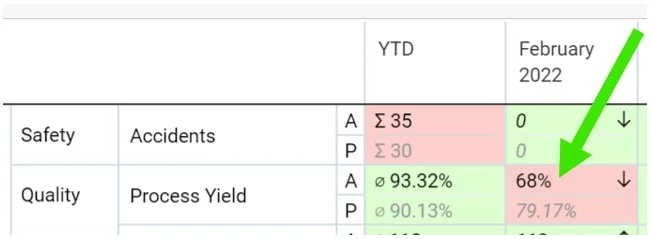
Click the metric. Click the metric for which the RCCA should be created.
-
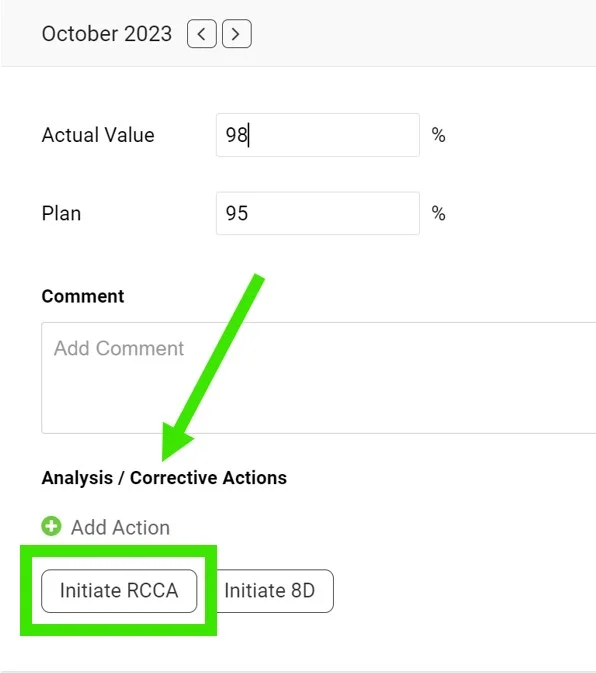
Initiate the RCCA. Scroll down and click Initiate RCCA.
-
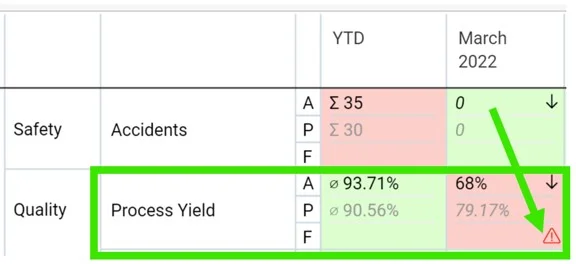
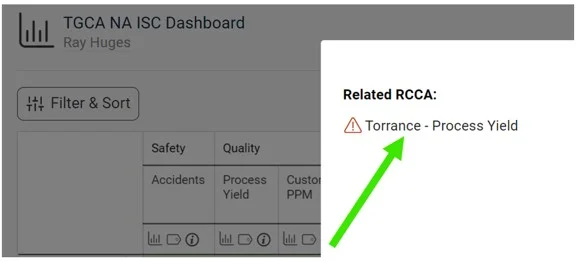
Access the RCCA from the dashboard. When you create a new RCCA, the RCCA icon is displayed in the original dashboard, and you can easily access the RCCA through it.
-
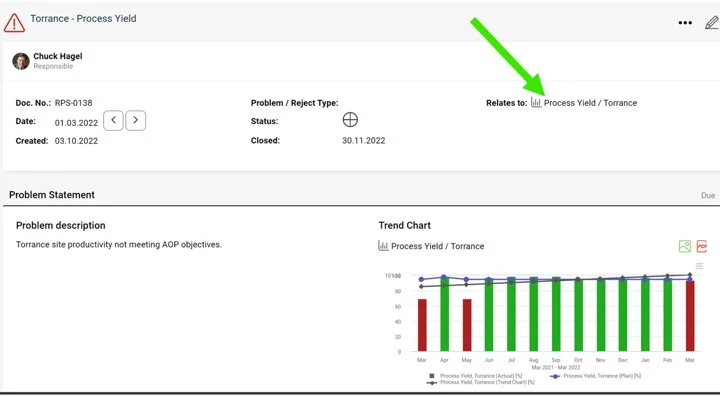
Check the RCCA graph. The metric values are automatically pulled into the RCCA graph.
Problemy z wynikami (wskaźnikami) możesz monitorować i rozwiązywać w dokumencie RCCA. Dokument RCCA można powiązać z konkretną parą wskaźnik/jednostka organizacyjna: w dashboardzie KPI pojawia się wtedy przy tej parze ikona RCCA, a szczegóły dokumentu RCCA można otworzyć i przejrzeć prosto z dashboardu.
-
Otwórz dashboard. Przejdź do przeglądu dashboardu.
-
Kliknij wskaźnik. Kliknij wskaźnik, dla którego chcesz utworzyć RCCA.
-
Rozpocznij RCCA. Przewiń w dół i kliknij Rozpocznij RCCA.
-
Otwieraj RCCA z dashboardu. Po utworzeniu nowego RCCA w dashboardzie pojawia się ikona RCCA, przez którą łatwo otworzysz dokument.
-
Sprawdź wykres RCCA. Wartości wskaźnika trafiają do wykresu RCCA automatycznie.
Potrzebujesz dalszej pomocy?
Napisz do nas. W dni robocze zwykle odpowiadamy w ciągu godziny.