Personal TeamGuru Calendar
Keep all important dates and events from across TeamGuru in one place, always at hand and up to date. Choose the events you are interested in and add the resulting calendar, for example to your phone, in iCal format.
Add a calendar
-
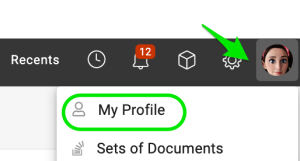
Open your profile. Click your Profile and select My Profile.
-
Add the calendar. Click Add Calendar.

-
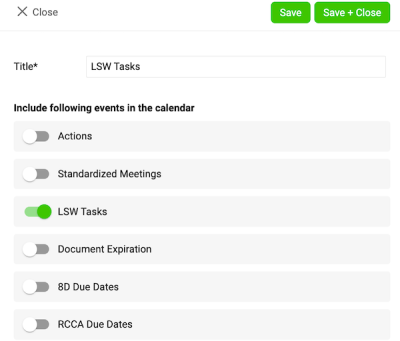
Choose the events. Choose the events you want to see in your calendar and save your settings.
-
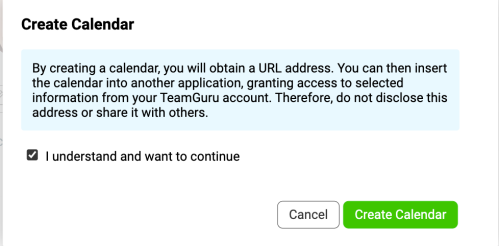
Confirm the calendar creation. After you click Save, a message appears:
- Tick the box I understand and want to continue.
- Click the Create Calendar button.
-
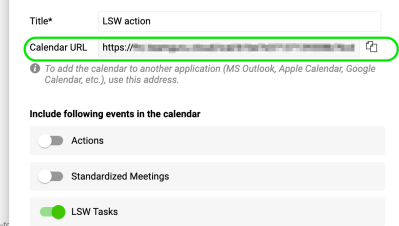
Copy the calendar link. A URL link is generated. Copy this link to add it to your Outlook calendar.
Add the URL to your Outlook calendar
-
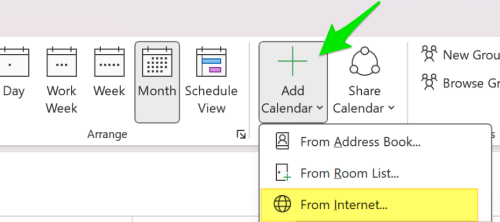
Subscribe to the calendar. In Outlook, click Add Calendar and choose From Internet (on Mac: Subscribe from Web). Paste the URL link you copied earlier.
-
Adjust the calendar settings. Adjust the calendar settings (such as name and color) as needed, then save.
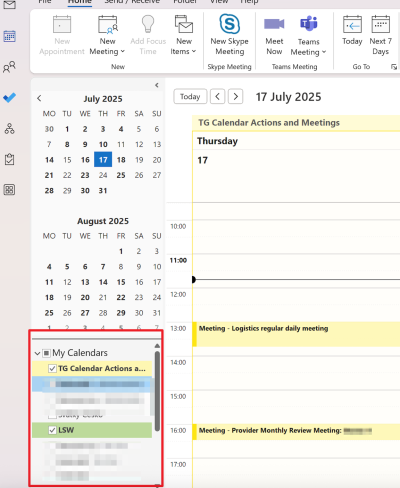
Please note: the integration works in one direction only, from TeamGuru to Outlook. Changes made in Outlook are not reflected in TG.
Still need help?
Write to us. We usually reply within an hour on business days.