个人TeamGuru日历
本文由英文机器翻译。 当前显示英文原文。
Keep all important dates and events from across TeamGuru in one place, always at hand and up to date. Choose the events you are interested in and add the resulting calendar, for example to your phone, in iCal format.
Add a calendar
-
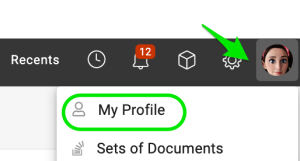
Open your profile. Click your Profile and select My Profile.
-
Add the calendar. Click Add Calendar.

-
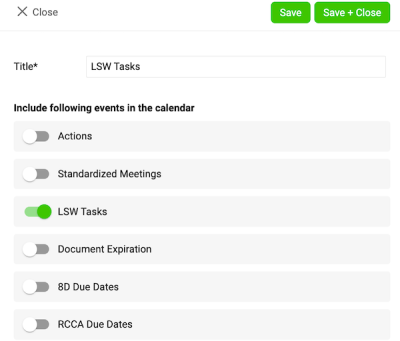
Choose the events. Choose the events you want to see in your calendar and save your settings.
-
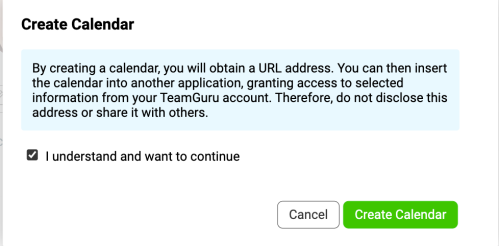
Confirm the calendar creation. After you click Save, a message appears:
- Tick the box I understand and want to continue.
- Click the Create Calendar button.
-
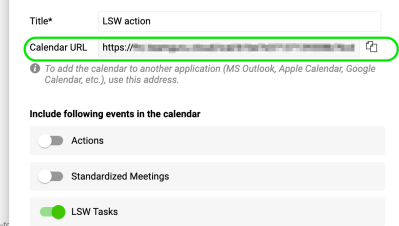
Copy the calendar link. A URL link is generated. Copy this link to add it to your Outlook calendar.
Add the URL to your Outlook calendar
-
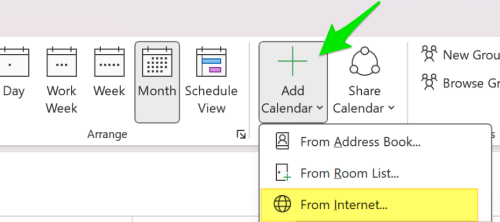
Subscribe to the calendar. In Outlook, click Add Calendar and choose From Internet (on Mac: Subscribe from Web). Paste the URL link you copied earlier.
-
Adjust the calendar settings. Adjust the calendar settings (such as name and color) as needed, then save.
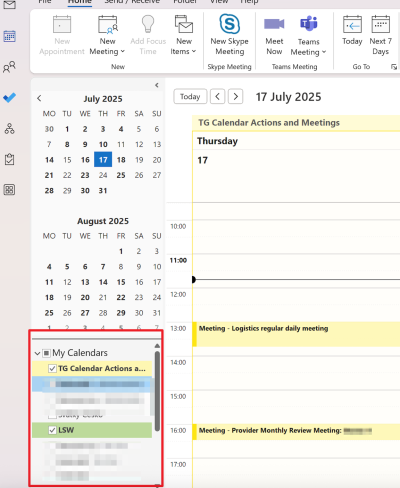
Please note: the integration works in one direction only, from TeamGuru to Outlook. Changes made in Outlook are not reflected in TG.
将TeamGuru中所有重要的日期和事件集中在一处,随时查看,始终保持最新。选择您关注的事件,并将生成的日历以iCal格式添加到手机等设备中。
添加日历
-
打开个人资料。 点击个人资料,选择我的个人资料。
-
添加日历。 点击添加日历。
-
选择事件。 选择要在日历中显示的事件,然后保存设置。
-
确认创建日历。 点击保存后,会显示一条消息:
- 勾选我已了解并希望继续复选框。
- 点击创建日历按钮。
-
复制日历链接。 系统会生成一个URL链接。复制此链接,将其添加到Outlook日历中。
将URL添加到Outlook日历
-
订阅日历。 在Outlook中点击添加日历,选择从Internet(Mac上为从Web订阅)。粘贴之前复制的URL链接。
-
调整日历设置。 根据需要调整日历设置(例如名称和颜色),然后保存。
请注意:此集成仅单向同步,即从TeamGuru同步到Outlook。在Outlook中所做的更改不会反映到TeamGuru中。
还需要帮助吗?
请给我们留言。工作日我们通常会在一小时内回复。