Download attachments from your dashboard
Besides Comments and Actions, you can also view all your Attachments right next to your dashboard and download them as a zip file.
View the attachments
Open the attachments
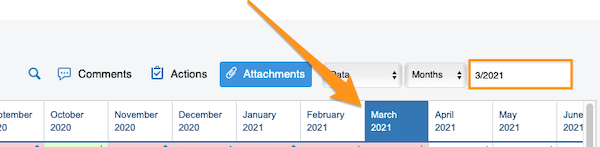
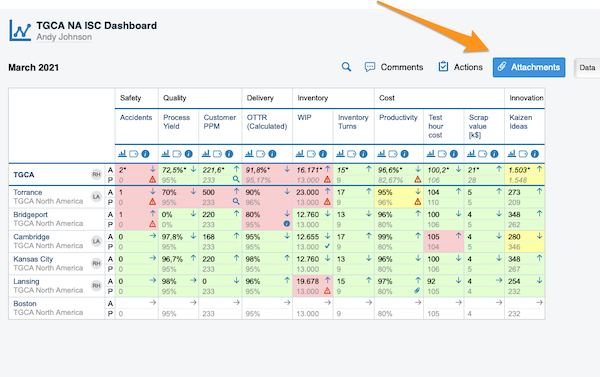
Select your time period and click the Attachments button.
Browse the files
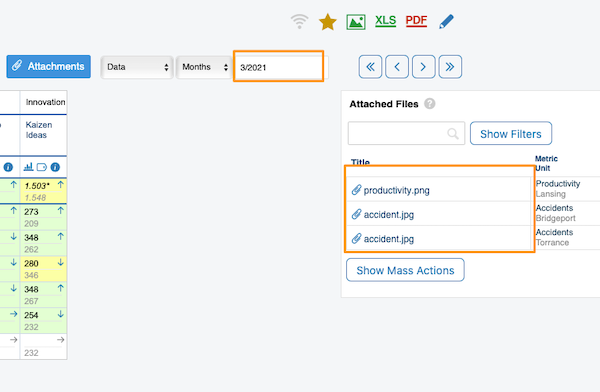
After you click the Attachments button, all the files from your dashboard for the selected time period are displayed next to your dashboard.
Download the files as a zip
Download all attachments
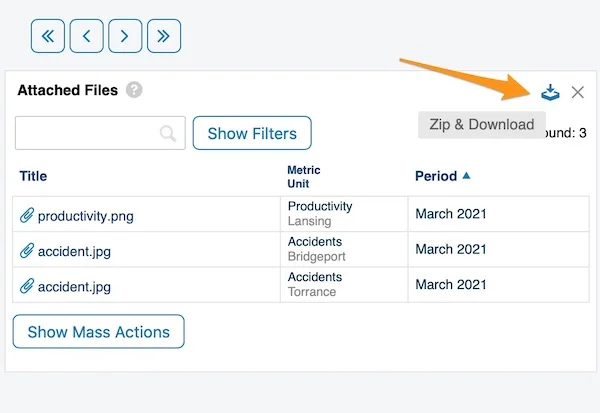
To download all attachments as a zip file, click the Zip & Download icon in the upper right corner.
Select files with mass actions
Alternatively, use the Show Mass Actions button.
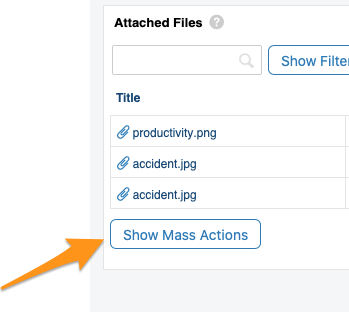
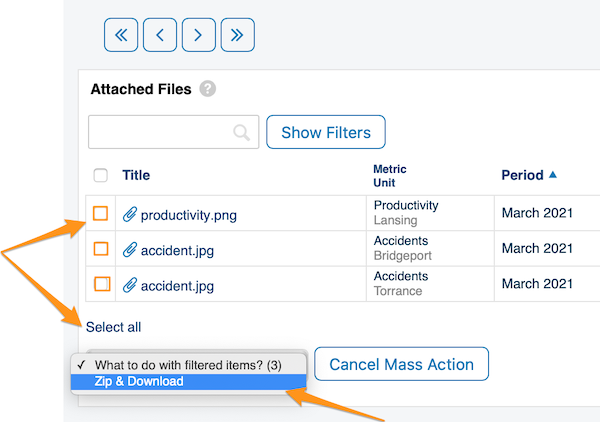
After you click Show Mass Actions, select the files you want to download: click Select all, or tick only the specific files. Then choose Zip & Download from the submenu.
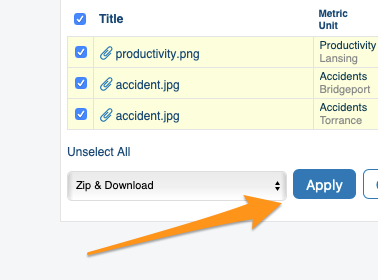
Confirm the download
Click the Apply button and confirm with OK. Your files are downloaded as a zip file to your Downloads folder.
Which attachments are displayed
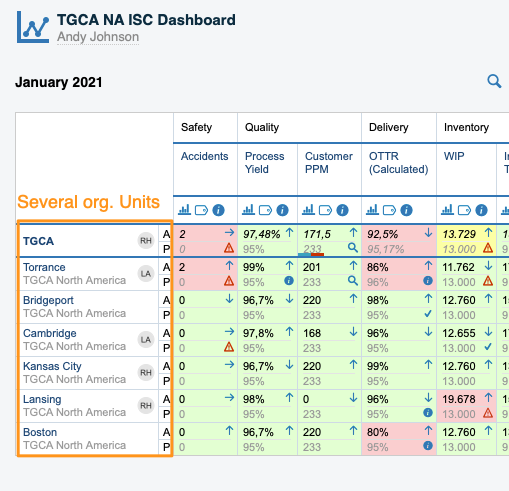
Dashboards with several org. units
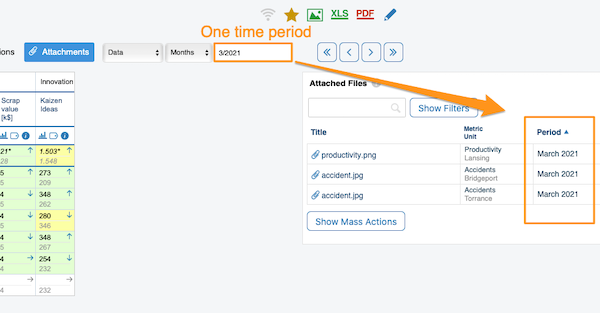
In a dashboard that shows several org. units for one time period (e.g. March), only the attachments of that active period (March) are displayed.
Dashboards in the matrix time view
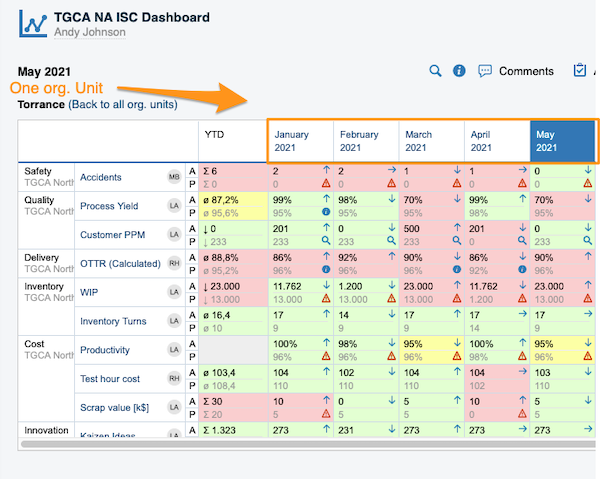
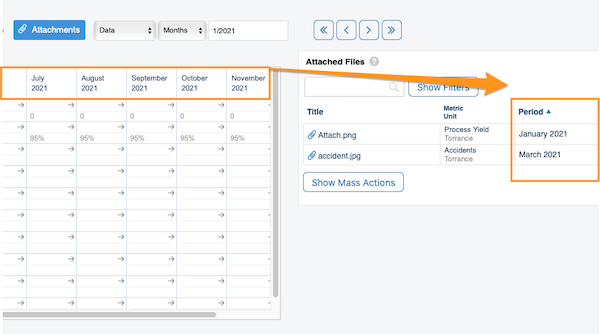
In a dashboard displayed in the matrix time view (weeks, months, etc. in columns), the attachments of the entire displayed period are shown.
If your dashboard contains more than one org. unit, you also get this time period view once you click a specific org. unit.
Show the selected period only
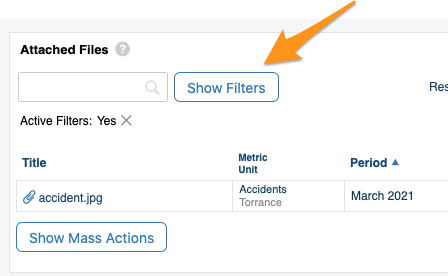
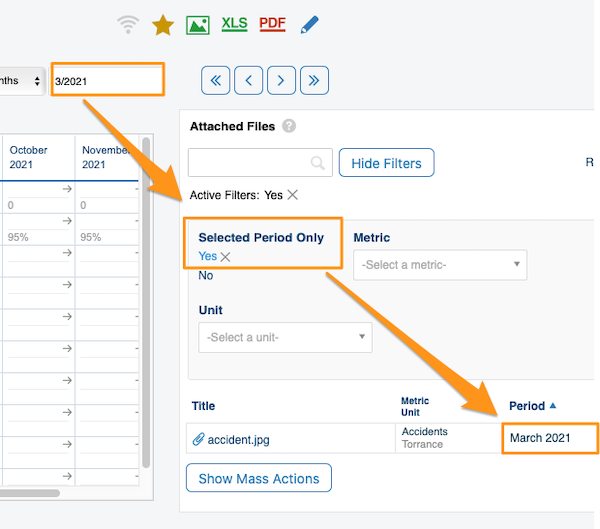
To view the attachments of a specific time period only, choose your time period, click Show Filters and set Selected Period Only to Yes.
Still need help?
Write to us. We usually reply within an hour on business days.