Descargar los archivos adjuntos del dashboard
Traducción automática del inglés. Se muestra el original en inglés.
Besides Comments and Actions, you can also view all your Attachments right next to your dashboard and download them as a zip file.
View the attachments
Open the attachments
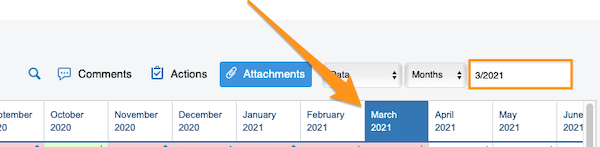
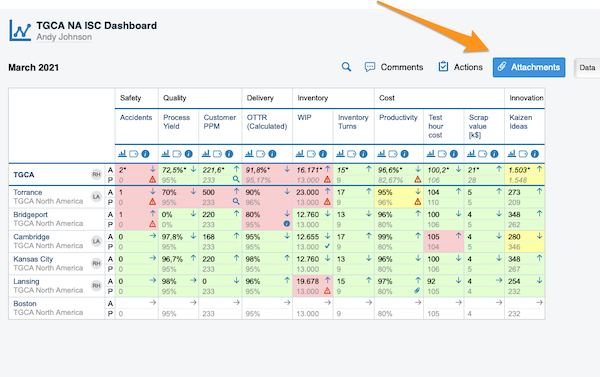
Select your time period and click the Attachments button.
Browse the files
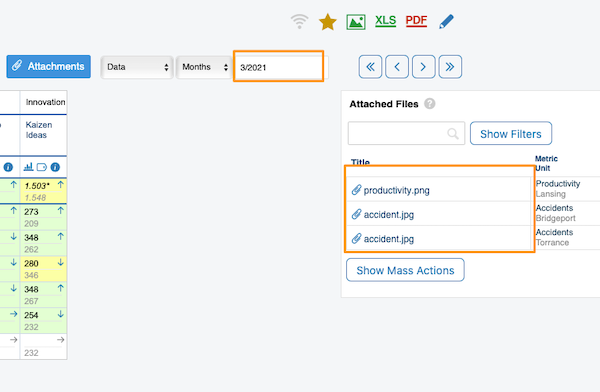
After you click the Attachments button, all the files from your dashboard for the selected time period are displayed next to your dashboard.
Download the files as a zip
Download all attachments
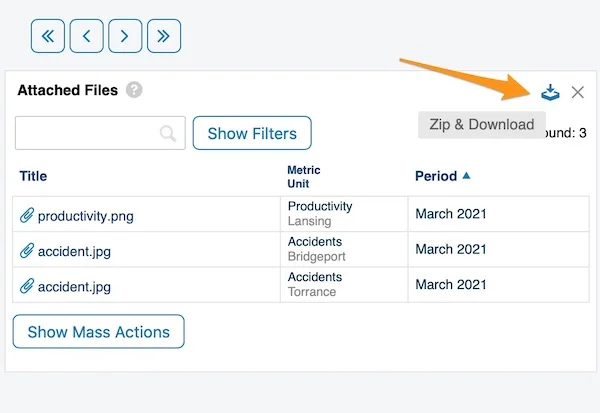
To download all attachments as a zip file, click the Zip & Download icon in the upper right corner.
Select files with mass actions
Alternatively, use the Show Mass Actions button.
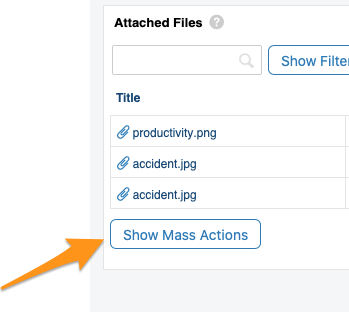
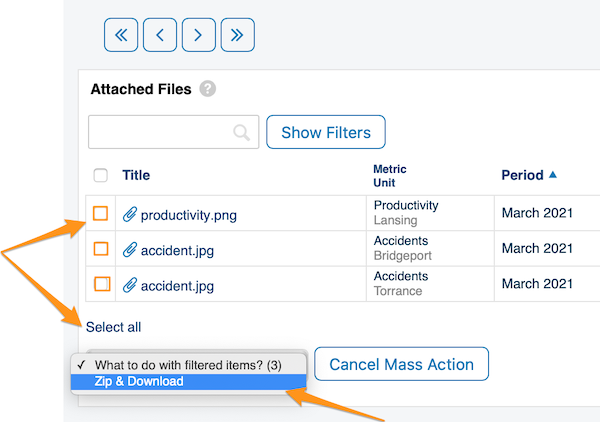
After you click Show Mass Actions, select the files you want to download: click Select all, or tick only the specific files. Then choose Zip & Download from the submenu.
Confirm the download
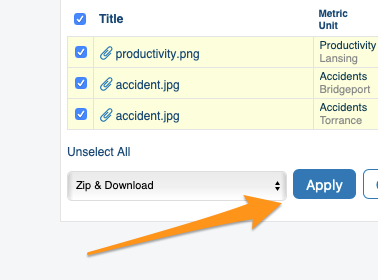
Click the Apply button and confirm with OK. Your files are downloaded as a zip file to your Downloads folder.
Which attachments are displayed
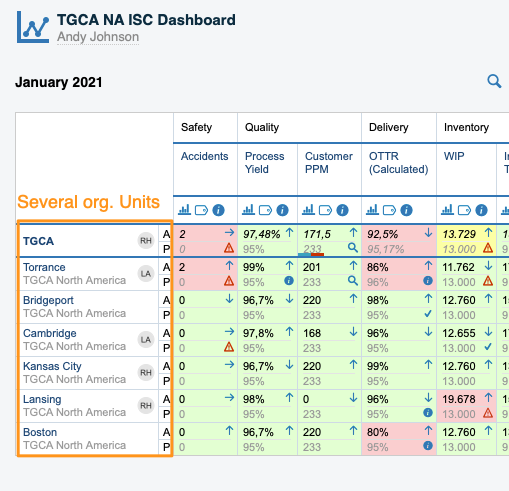
Dashboards with several org. units
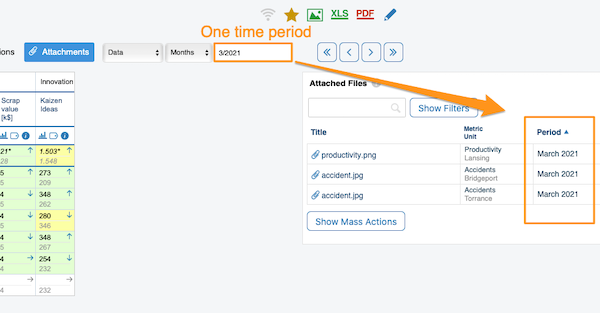
In a dashboard that shows several org. units for one time period (e.g. March), only the attachments of that active period (March) are displayed.
Dashboards in the matrix time view
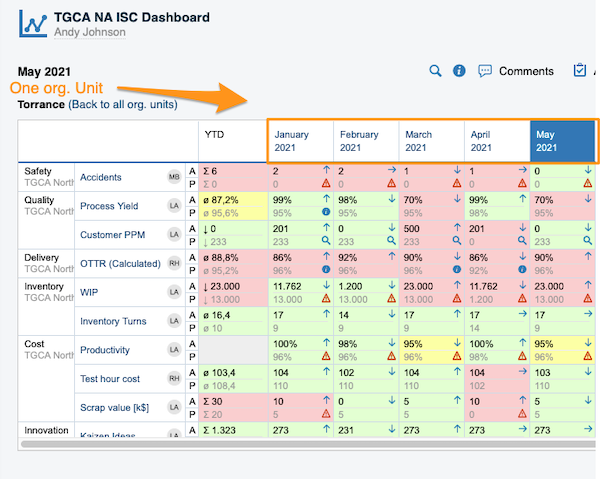
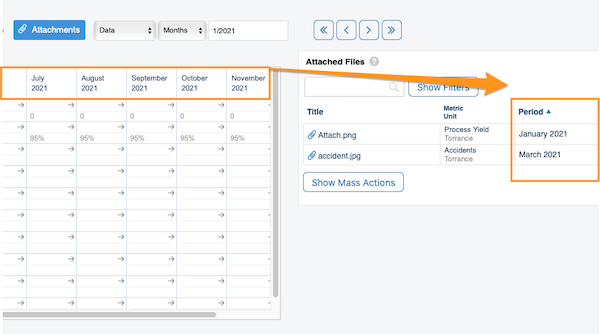
In a dashboard displayed in the matrix time view (weeks, months, etc. in columns), the attachments of the entire displayed period are shown.
If your dashboard contains more than one org. unit, you also get this time period view once you click a specific org. unit.
Show the selected period only
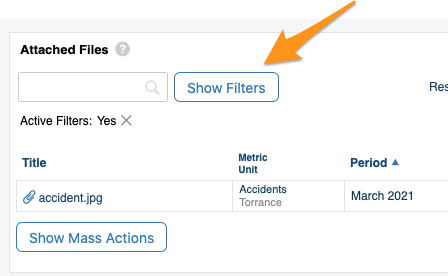
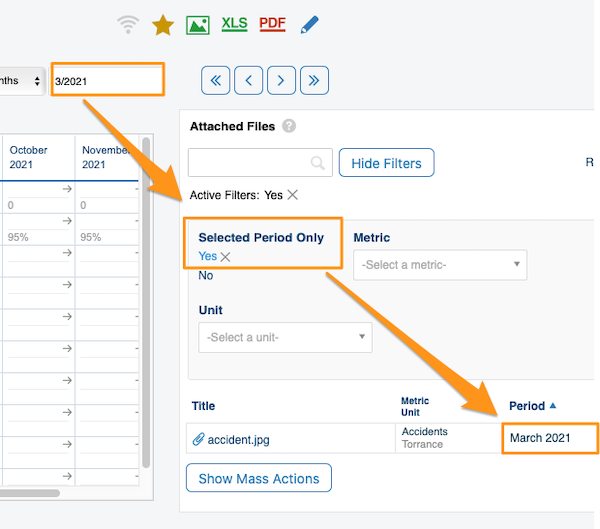
To view the attachments of a specific time period only, choose your time period, click Show Filters and set Selected Period Only to Yes.
Además de los Comentarios y las Acciones, puede ver todos sus Archivos adjuntos junto al dashboard y descargarlos en un archivo zip.
Ver los archivos adjuntos
Abrir los archivos adjuntos
Seleccione el periodo y haga clic en el botón Archivos adjuntos.
Revisar los archivos
Al hacer clic en el botón Archivos adjuntos, aparecen junto al dashboard todos los archivos del dashboard del periodo seleccionado.
Descargar los archivos en un zip
Descargar todos los archivos adjuntos
Para descargar todos los archivos adjuntos en un archivo zip, haga clic en el icono Comprimir y descargar de la esquina superior derecha.
Seleccionar archivos con las acciones masivas
También puede usar el botón Mostrar acciones masivas.
Después de hacer clic en Mostrar acciones masivas, seleccione los archivos que quiere descargar: haga clic en Seleccionar todo o marque solo los archivos concretos. Después elija Comprimir y descargar en el submenú.
Confirmar la descarga
Haga clic en el botón Aplicar y confirme con Aceptar. Los archivos se descargan en un archivo zip en su carpeta de descargas.
Qué archivos adjuntos se muestran
Dashboards con varias unidades organizativas
En un dashboard que muestra varias unidades organizativas para un periodo (por ejemplo, marzo), solo se muestran los archivos adjuntos de ese periodo activo (marzo).
Dashboards en la vista de matriz temporal
En un dashboard con la vista de matriz temporal (semanas, meses, etc. en columnas), se muestran los archivos adjuntos de todo el periodo mostrado.
Si el dashboard contiene más de una unidad organizativa, también obtiene esta vista por periodos al hacer clic en una unidad concreta.
Mostrar solo el periodo seleccionado
Para ver solo los archivos adjuntos de un periodo concreto, elija el periodo, haga clic en Mostrar filtros y ponga Solo el periodo seleccionado en Sí.
¿Necesita más ayuda?
Escríbanos. En días laborables solemos responder en menos de una hora.