Stiahnutie príloh z dashboardu
Strojový preklad z angličtiny. Zobrazený je anglický originál.
Besides Comments and Actions, you can also view all your Attachments right next to your dashboard and download them as a zip file.
View the attachments
Open the attachments
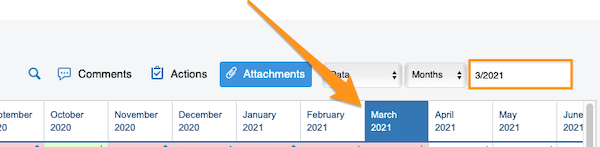
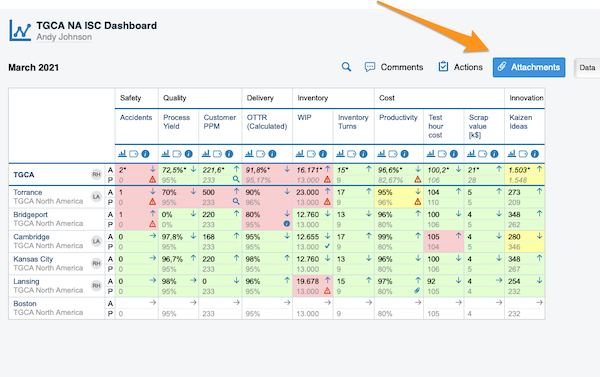
Select your time period and click the Attachments button.
Browse the files
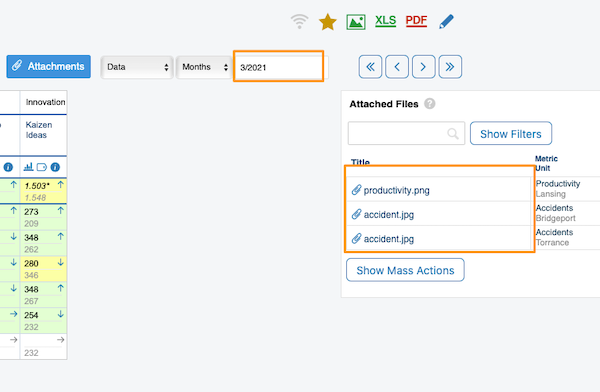
After you click the Attachments button, all the files from your dashboard for the selected time period are displayed next to your dashboard.
Download the files as a zip
Download all attachments
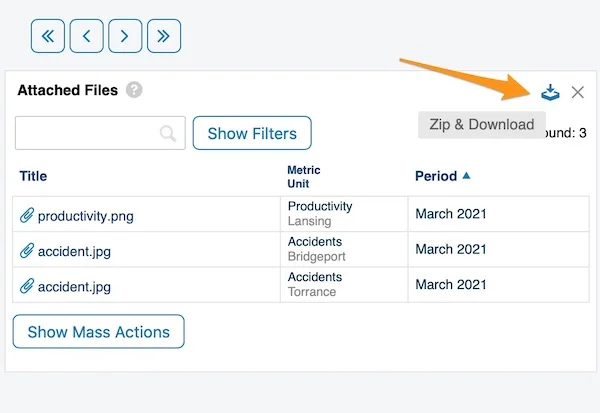
To download all attachments as a zip file, click the Zip & Download icon in the upper right corner.
Select files with mass actions
Alternatively, use the Show Mass Actions button.
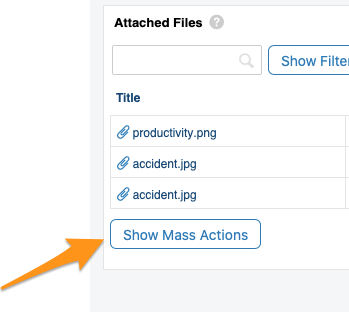
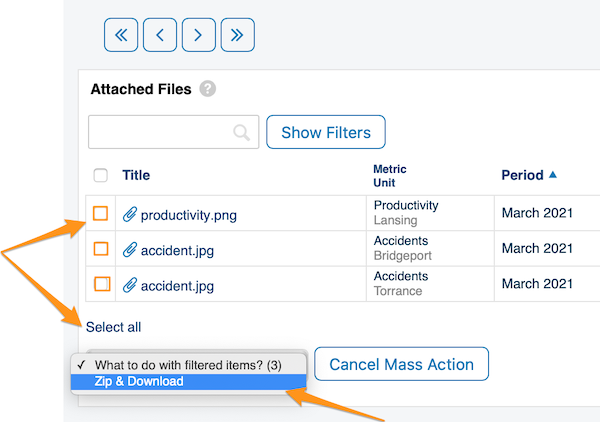
After you click Show Mass Actions, select the files you want to download: click Select all, or tick only the specific files. Then choose Zip & Download from the submenu.
Confirm the download
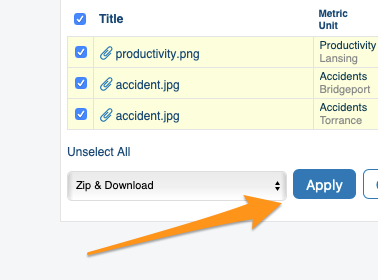
Click the Apply button and confirm with OK. Your files are downloaded as a zip file to your Downloads folder.
Which attachments are displayed
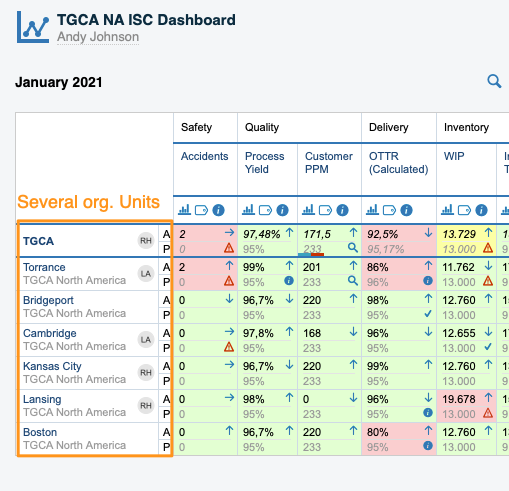
Dashboards with several org. units
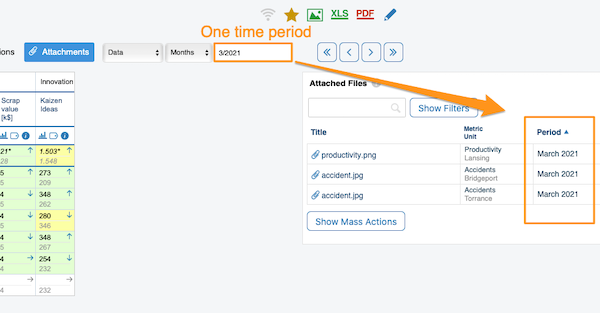
In a dashboard that shows several org. units for one time period (e.g. March), only the attachments of that active period (March) are displayed.
Dashboards in the matrix time view
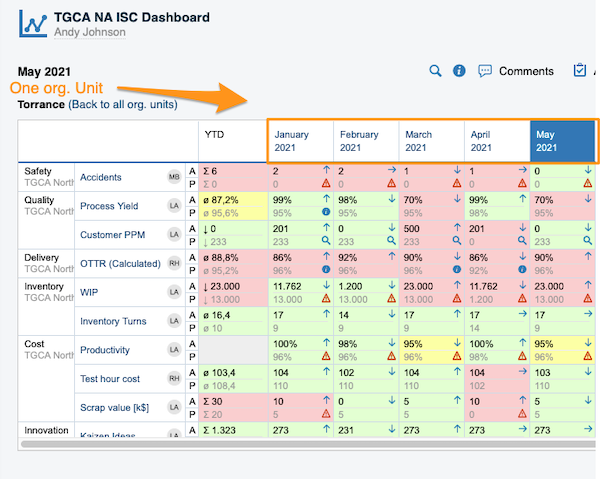
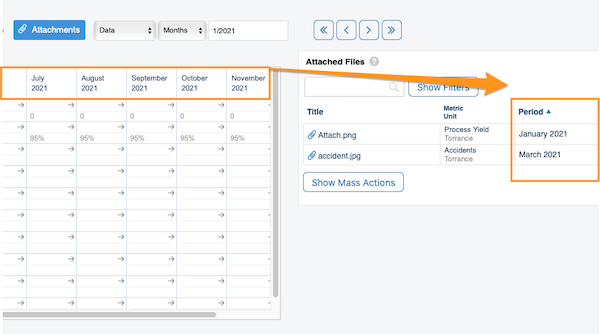
In a dashboard displayed in the matrix time view (weeks, months, etc. in columns), the attachments of the entire displayed period are shown.
If your dashboard contains more than one org. unit, you also get this time period view once you click a specific org. unit.
Show the selected period only
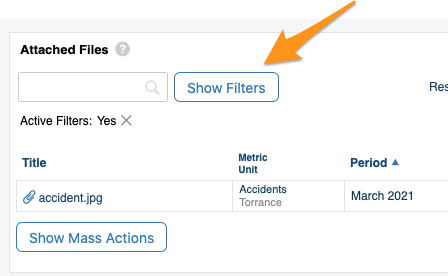
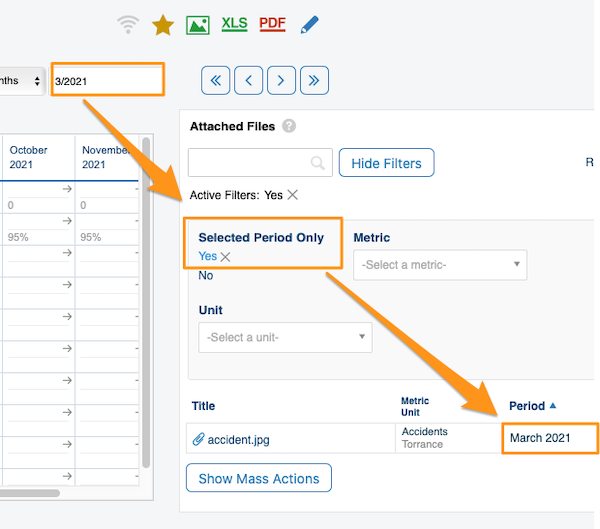
To view the attachments of a specific time period only, choose your time period, click Show Filters and set Selected Period Only to Yes.
Okrem Komentárov a Akcií môžete priamo pri dashboarde zobraziť aj všetky Prílohy a stiahnuť ich ako súbor ZIP.
Zobrazenie príloh
Otvorte prílohy
Vyberte obdobie a kliknite na tlačidlo Prílohy.
Prezrite si súbory
Po kliknutí na tlačidlo Prílohy sa vedľa dashboardu zobrazia všetky súbory z dashboardu za vybrané obdobie.
Stiahnutie súborov ako ZIP
Stiahnite všetky prílohy
Ak chcete stiahnuť všetky prílohy ako súbor ZIP, kliknite na ikonu Zabaliť a stiahnuť v pravom hornom rohu.
Vyberte súbory cez hromadné akcie
Môžete použiť aj tlačidlo Zobraziť hromadné akcie.
Po kliknutí na Zobraziť hromadné akcie vyberte súbory, ktoré chcete stiahnuť: kliknite na Vybrať všetko alebo začiarknite len konkrétne súbory. Potom v podmenu zvoľte Zabaliť a stiahnuť.
Potvrďte stiahnutie
Kliknite na tlačidlo Použiť a potvrďte tlačidlom OK. Súbory sa stiahnu ako ZIP do priečinka Stiahnuté súbory.
Ktoré prílohy sa zobrazia
Dashboardy s viacerými org. jednotkami
V dashboarde, ktorý zobrazuje viac org. jednotiek za jedno obdobie (napr. marec), sa zobrazia len prílohy tohto aktívneho obdobia (marca).
Dashboardy v maticovom časovom zobrazení
V dashboarde zobrazenom v maticovom časovom zobrazení (týždne, mesiace atď. v stĺpcoch) sa zobrazia prílohy za celé zobrazené obdobie.
Ak dashboard obsahuje viac ako jednu org. jednotku, toto časové zobrazenie dostanete aj po kliknutí na konkrétnu org. jednotku.
Zobrazte len vybrané obdobie
Ak chcete vidieť len prílohy z konkrétneho obdobia, vyberte obdobie, kliknite na Zobraziť filtre a filter Len vybrané obdobie nastavte na Áno.
Potrebujete ďalšiu pomoc?
Napíšte nám. V pracovné dni zvyčajne odpovedáme do hodiny.