How to create a dashboard template
TeamGuru lets you set up standardized KPI dashboards to track performance at different locations of your business. This article shows how to use templates to manage your standardized dashboards easily.
Dashboard templates let you maintain dashboards with the same metric settings from one place. You modify the list of metrics and the dashboard settings in the template, instead of making these changes in each individual dashboard.
Video guide
The text instructions follow below the video.
Create a new dashboard template
-
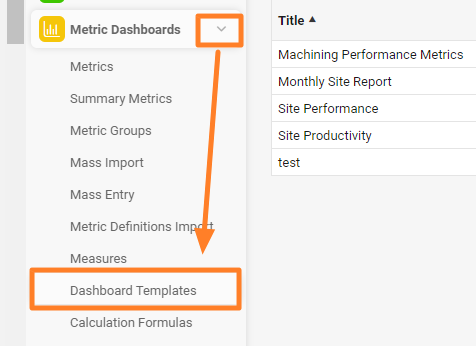
Open the dashboard templates. Go to the Metric Dashboards module and select Dashboard Templates from the submenu.
-
Add a new template. Click the green plus button in the upper right corner.

-
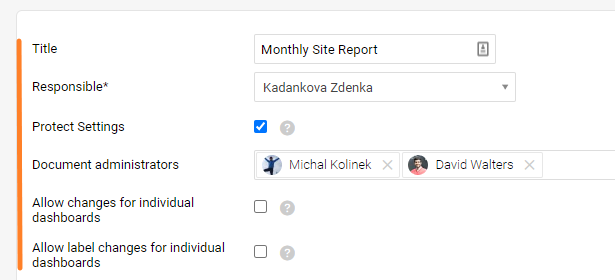
Complete the template settings. Fill in the dashboard template settings, such as Title, Responsible, etc.
-
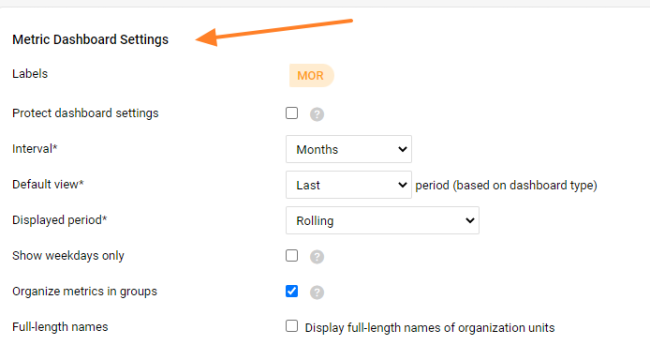
Complete the dashboard settings. Fill in the metric dashboard settings (see also the video guide).
-
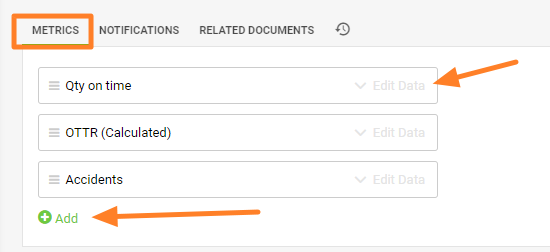
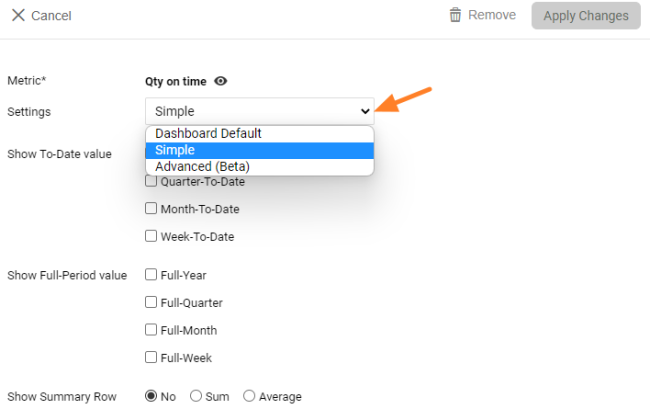
Add the metrics. Add the metrics and their settings. When you click Edit Data, you can choose whether the Simple, Advanced (Beta) or Dashboard Default settings of the metric are used. For more details, see Advanced (Beta) - Metric Dashboard Settings.
-
Save the template. Click Save & Return, or, to create dashboards from the template, click Save and Mass Create Dashboards.

Mass create dashboards from the template
-
Complete the settings. Fill in the Title, Responsible and the display settings of the dashboards (see the note on the display folder below).
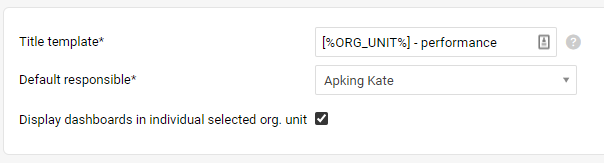
In the Title, place a dash or a space after the placeholder and then enter the title’s name.

-
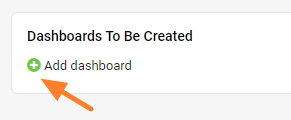
Add dashboards. Add the dashboards you want to create.
-
Select the org. unit and responsible. Select the Org. unit and Responsible; the title is completed automatically.

Your dashboards are displayed in the folder of their org. unit (Liverpool in our example).
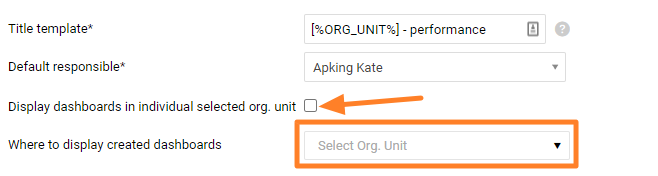
If you want your dashboards to be displayed in a different folder, uncheck the Display dashboards in the currently selected org. unit box in the settings and select the org. unit under Where to display created dashboards.
-
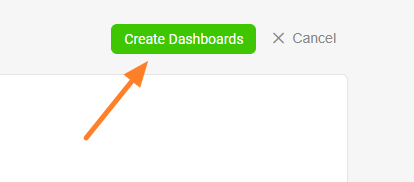
Create the dashboards. When you complete all the settings, click the Create Dashboards button.
You can see all the dashboards that use the template, with live links to them.
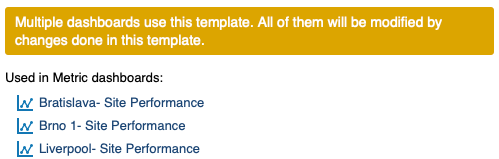
-
Save the template. Click the Save & Return button.
Work with existing dashboards
Apply template changes to dashboards
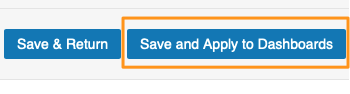
When you modify your template, you have two options after making the changes: click Save & Return, or click Save and Apply to Dashboards to apply your changes right away to all dashboards that use the template.
Use a template for an existing dashboard
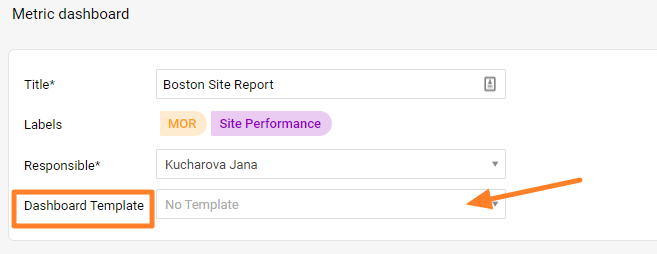
If you already have a metric dashboard and want it to use a dashboard template, go to the settings of your metric dashboard and select the Dashboard Template. You have to create the template first to be able to select it from the menu.
Still need help?
Write to us. We usually reply within an hour on business days.