Cómo crear una plantilla de dashboard
Traducción automática del inglés. Se muestra el original en inglés.
TeamGuru lets you set up standardized KPI dashboards to track performance at different locations of your business. This article shows how to use templates to manage your standardized dashboards easily.
Dashboard templates let you maintain dashboards with the same metric settings from one place. You modify the list of metrics and the dashboard settings in the template, instead of making these changes in each individual dashboard.
Video guide
The text instructions follow below the video.
Create a new dashboard template
-
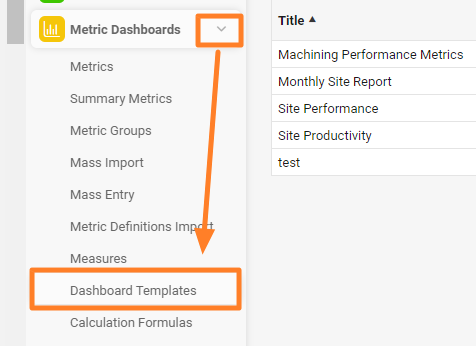
Open the dashboard templates. Go to the Metric Dashboards module and select Dashboard Templates from the submenu.
-
Add a new template. Click the green plus button in the upper right corner.

-
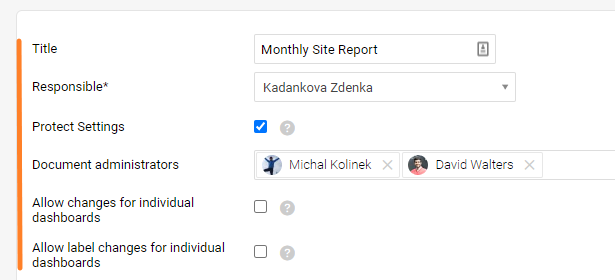
Complete the template settings. Fill in the dashboard template settings, such as Title, Responsible, etc.
-
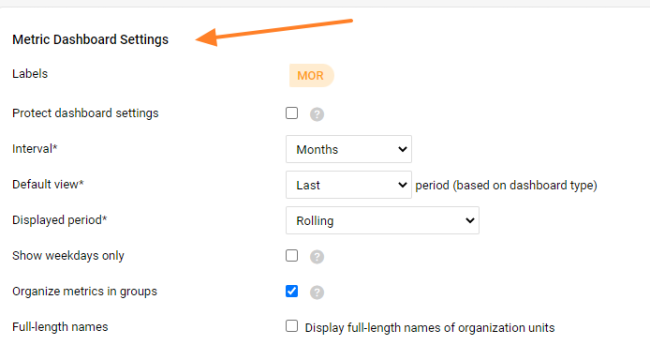
Complete the dashboard settings. Fill in the metric dashboard settings (see also the video guide).
-
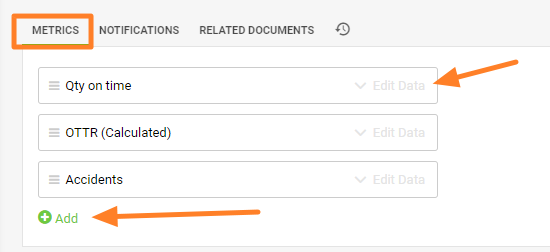
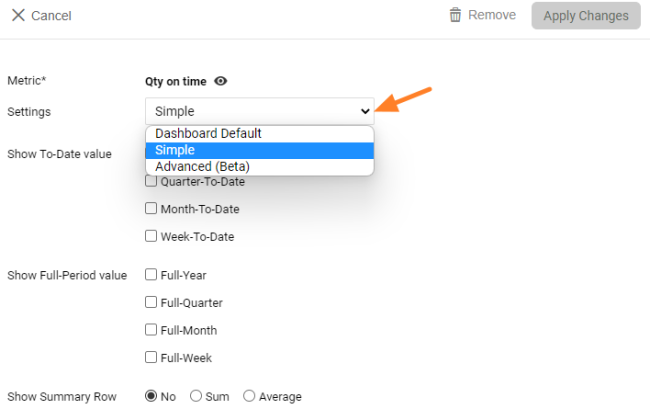
Add the metrics. Add the metrics and their settings. When you click Edit Data, you can choose whether the Simple, Advanced (Beta) or Dashboard Default settings of the metric are used. For more details, see Advanced (Beta) - Metric Dashboard Settings.
-
Save the template. Click Save & Return, or, to create dashboards from the template, click Save and Mass Create Dashboards.

Mass create dashboards from the template
-
Complete the settings. Fill in the Title, Responsible and the display settings of the dashboards (see the note on the display folder below).
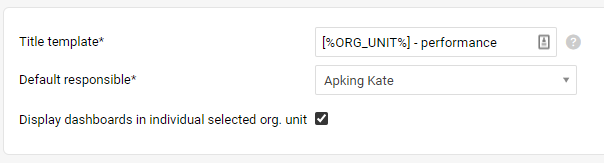
In the Title, place a dash or a space after the placeholder and then enter the title’s name.

-
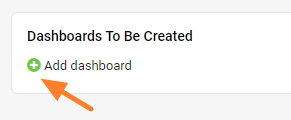
Add dashboards. Add the dashboards you want to create.
-
Select the org. unit and responsible. Select the Org. unit and Responsible; the title is completed automatically.

Your dashboards are displayed in the folder of their org. unit (Liverpool in our example).
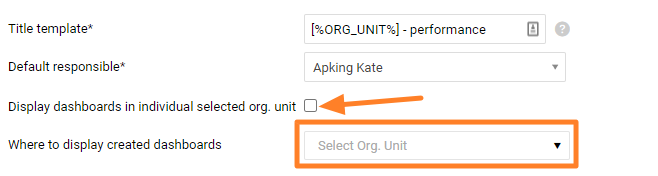
If you want your dashboards to be displayed in a different folder, uncheck the Display dashboards in the currently selected org. unit box in the settings and select the org. unit under Where to display created dashboards.
-
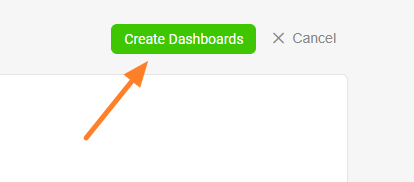
Create the dashboards. When you complete all the settings, click the Create Dashboards button.
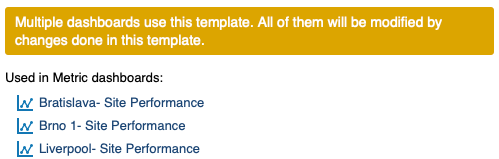
You can see all the dashboards that use the template, with live links to them.
-
Save the template. Click the Save & Return button.
Work with existing dashboards
Apply template changes to dashboards
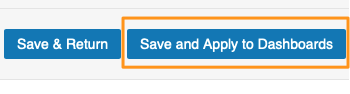
When you modify your template, you have two options after making the changes: click Save & Return, or click Save and Apply to Dashboards to apply your changes right away to all dashboards that use the template.
Use a template for an existing dashboard
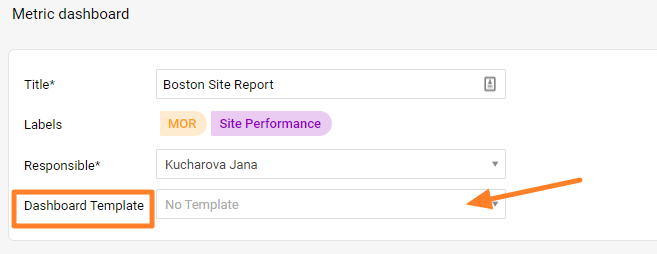
If you already have a metric dashboard and want it to use a dashboard template, go to the settings of your metric dashboard and select the Dashboard Template. You have to create the template first to be able to select it from the menu.
TeamGuru le permite configurar dashboards de KPI estandarizados para seguir el desempeño en las distintas ubicaciones de su empresa. Este artículo muestra cómo usar plantillas para gestionar fácilmente sus dashboards estandarizados.
Las plantillas de dashboard le permiten mantener desde un solo lugar dashboards con la misma configuración de métricas. La lista de métricas y la configuración del dashboard se modifican en la plantilla, no en cada dashboard por separado.
Video
Las instrucciones escritas están debajo del video.
Crear una plantilla de dashboard
-
Abra las plantillas de dashboard. Vaya al módulo Dashboards de KPI y seleccione Plantillas de dashboard en el submenú.
-
Agregue una plantilla. Haga clic en el botón verde con el signo más en la esquina superior derecha.
-
Complete la configuración de la plantilla. Complete la configuración de la plantilla de dashboard, como Título, Responsable, etc.
-
Complete la configuración del dashboard. Complete la configuración del dashboard de KPI (vea también el video).
-
Agregue las métricas. Agregue las métricas y su configuración. Al hacer clic en Editar datos, puede elegir si se usa la configuración Simple, Avanzada (Beta) o Predeterminada del dashboard de la métrica. Para más detalles, consulte Avanzada (Beta): configuración del dashboard de KPI.
-
Guarde la plantilla. Haga clic en Guardar y volver o, para crear dashboards a partir de la plantilla, haga clic en Guardar y crear dashboards en masa.
Crear dashboards en masa a partir de la plantilla
-
Complete la configuración. Complete el Título, el Responsable y la configuración de visualización de los dashboards (vea la nota sobre la carpeta de visualización más abajo).
En el Título, ponga un guion o un espacio después del marcador de posición y luego escriba el nombre del título.
-
Agregue dashboards. Agregue los dashboards que quiere crear.
-
Seleccione la unidad organizativa y el responsable. Seleccione la Unidad org. y el Responsable; el título se completa automáticamente.
Sus dashboards aparecen en la carpeta de su unidad organizativa (Liverpool en nuestro ejemplo).
Si quiere que los dashboards aparezcan en otra carpeta, desmarque la casilla Mostrar los dashboards en la unidad org. seleccionada en la configuración y seleccione la unidad organizativa en Dónde mostrar los dashboards creados.
-
Cree los dashboards. Cuando haya completado toda la configuración, haga clic en el botón Crear dashboards.
Puede ver todos los dashboards que usan la plantilla, con enlaces directos a ellos.
-
Guarde la plantilla. Haga clic en el botón Guardar y volver.
Trabajar con dashboards existentes
Aplicar los cambios de la plantilla a los dashboards
Después de modificar la plantilla, tiene dos opciones: hacer clic en Guardar y volver, o hacer clic en Guardar y aplicar a los dashboards para aplicar los cambios de inmediato a todos los dashboards que usan la plantilla.
Usar una plantilla en un dashboard existente
Si ya tiene un dashboard de KPI y quiere que use una plantilla de dashboard, vaya a la configuración del dashboard y seleccione la Plantilla de dashboard. Primero debe crear la plantilla para poder seleccionarla en el menú.
¿Necesita más ayuda?
Escríbanos. En días laborables solemos responder en menos de una hora.