如何创建仪表板模板
本文由英文机器翻译。 当前显示英文原文。
TeamGuru lets you set up standardized KPI dashboards to track performance at different locations of your business. This article shows how to use templates to manage your standardized dashboards easily.
Dashboard templates let you maintain dashboards with the same metric settings from one place. You modify the list of metrics and the dashboard settings in the template, instead of making these changes in each individual dashboard.
Video guide
The text instructions follow below the video.
Create a new dashboard template
-
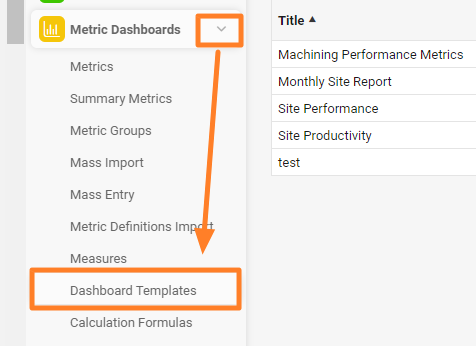
Open the dashboard templates. Go to the Metric Dashboards module and select Dashboard Templates from the submenu.
-
Add a new template. Click the green plus button in the upper right corner.

-
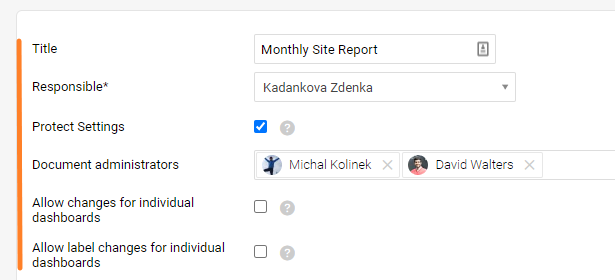
Complete the template settings. Fill in the dashboard template settings, such as Title, Responsible, etc.
-
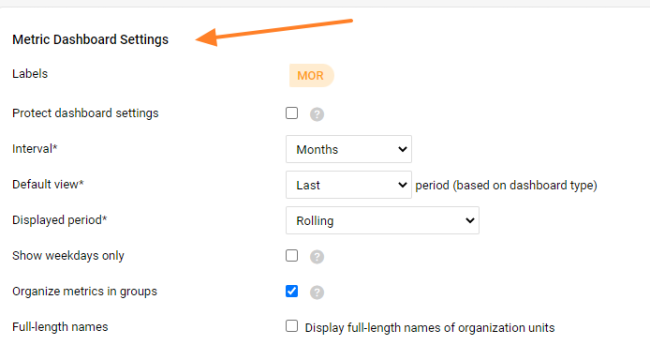
Complete the dashboard settings. Fill in the metric dashboard settings (see also the video guide).
-
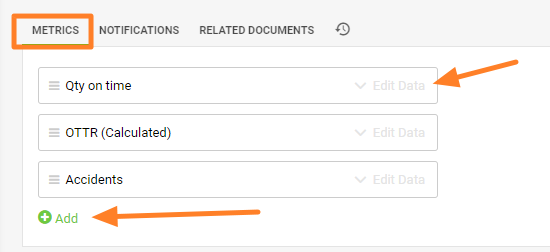
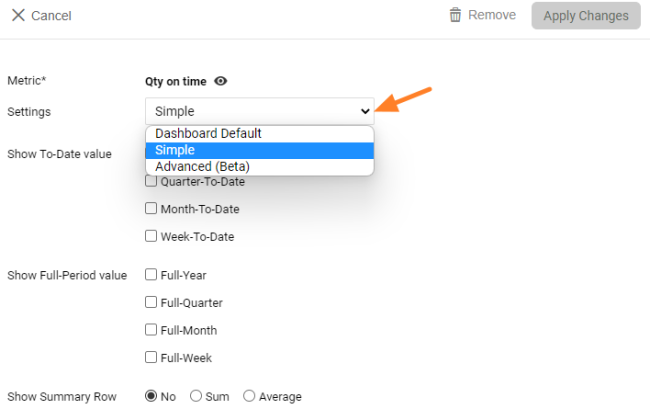
Add the metrics. Add the metrics and their settings. When you click Edit Data, you can choose whether the Simple, Advanced (Beta) or Dashboard Default settings of the metric are used. For more details, see Advanced (Beta) - Metric Dashboard Settings.
-
Save the template. Click Save & Return, or, to create dashboards from the template, click Save and Mass Create Dashboards.

Mass create dashboards from the template
-
Complete the settings. Fill in the Title, Responsible and the display settings of the dashboards (see the note on the display folder below).
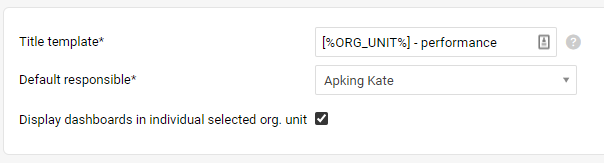
In the Title, place a dash or a space after the placeholder and then enter the title’s name.

-
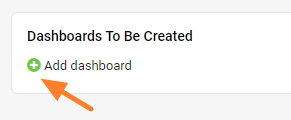
Add dashboards. Add the dashboards you want to create.
-
Select the org. unit and responsible. Select the Org. unit and Responsible; the title is completed automatically.

Your dashboards are displayed in the folder of their org. unit (Liverpool in our example).
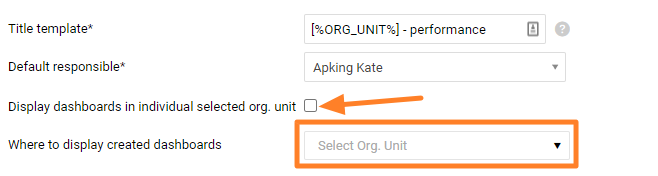
If you want your dashboards to be displayed in a different folder, uncheck the Display dashboards in the currently selected org. unit box in the settings and select the org. unit under Where to display created dashboards.
-
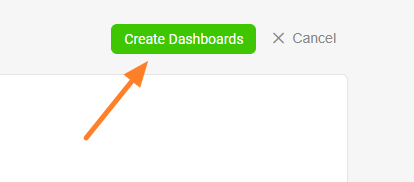
Create the dashboards. When you complete all the settings, click the Create Dashboards button.
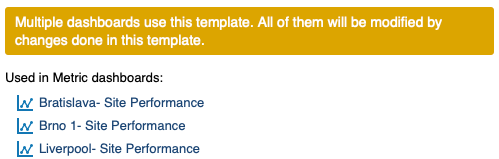
You can see all the dashboards that use the template, with live links to them.
-
Save the template. Click the Save & Return button.
Work with existing dashboards
Apply template changes to dashboards
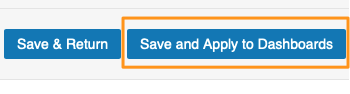
When you modify your template, you have two options after making the changes: click Save & Return, or click Save and Apply to Dashboards to apply your changes right away to all dashboards that use the template.
Use a template for an existing dashboard
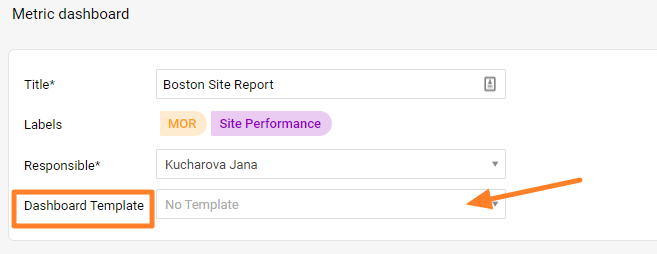
If you already have a metric dashboard and want it to use a dashboard template, go to the settings of your metric dashboard and select the Dashboard Template. You have to create the template first to be able to select it from the menu.
TeamGuru支持设置标准化的KPI仪表板,用于跟踪企业各地点的绩效。本文介绍如何使用模板轻松管理标准化仪表板。
仪表板模板 让您在一处统一维护指标设置相同的多个仪表板。您只需在模板中修改指标列表和仪表板设置,无需逐个修改每个仪表板。
视频指南
文字说明见视频下方。
创建仪表板模板
-
打开仪表板模板。 进入 指标仪表板 模块,从子菜单中选择 仪表板模板。
-
添加新模板。 点击右上角的绿色加号按钮。
-
完成模板设置。 填写仪表板模板设置,例如 标题、负责人 等。
-
-
添加指标。 添加指标及其设置。点击 编辑数据 时,可以选择使用该指标的 简单、高级(Beta) 或 仪表板默认 设置。详情请参阅高级(Beta):指标仪表板设置。
-
保存模板。 点击 保存并返回;如需从模板创建仪表板,请点击 保存并批量创建仪表板。
从模板批量创建仪表板
-
完成设置。 填写仪表板的 标题、负责人 和显示设置(参见下文关于显示文件夹的说明)。
在 标题 中,先在占位符后加一个短横线或空格,再输入标题名称。
-
添加仪表板。 添加要创建的仪表板。
-
选择组织单元和负责人。 选择 组织单元 和 负责人,标题会自动补全。
仪表板会显示在其所属组织单元的文件夹中(本例中为Liverpool)。
如果希望仪表板显示在其他文件夹中,请在设置中取消勾选 在当前所选组织单元中显示仪表板 复选框,并在 已创建仪表板的显示位置 下选择组织单元。
-
创建仪表板。 完成所有设置后,点击 创建仪表板 按钮。
您可以看到使用该模板的所有仪表板,并可通过链接直接打开。
-
保存模板。 点击 保存并返回 按钮。
管理现有仪表板
将模板更改应用到仪表板
修改模板后有两种选择:点击 保存并返回,或点击 保存并应用到仪表板,将更改立即应用到使用该模板的所有仪表板。
为现有仪表板使用模板
如果您已有指标仪表板,并希望其使用某个仪表板模板,请进入该指标仪表板的设置,选择 仪表板模板。模板必须先创建,才能在菜单中选择。
还需要帮助吗?
请给我们留言。工作日我们通常会在一小时内回复。