How to enter data into a metric dashboard
Learn how to enter data into a metric dashboard, either in the Data view or in the Spreadsheet view.
Video guide
The text instructions follow below the video.
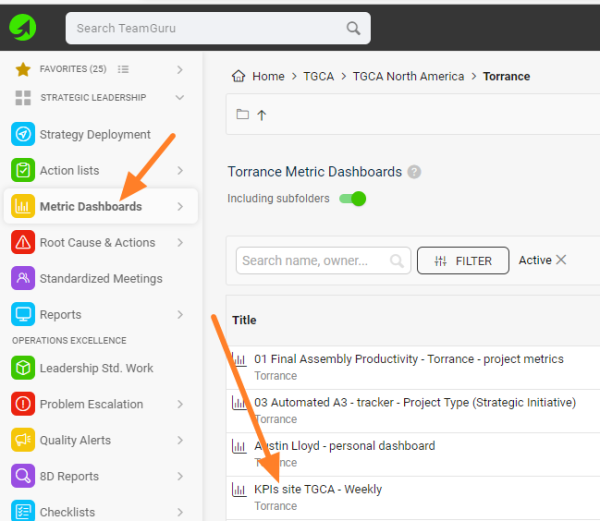
Open your metric dashboard
In the Metric Dashboards module, click the dashboard’s title.
Option 1: Data view
Enter values in a cell
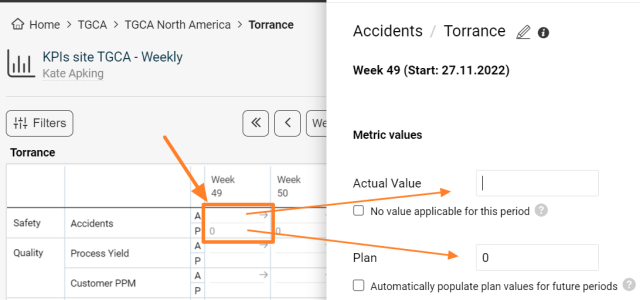
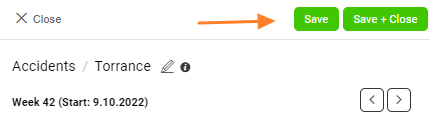
In the Data view, click into your org. unit/metric cell, enter the Actual and/or Plan values, and click the Save & Close button.
Option 2: Spreadsheet view
-
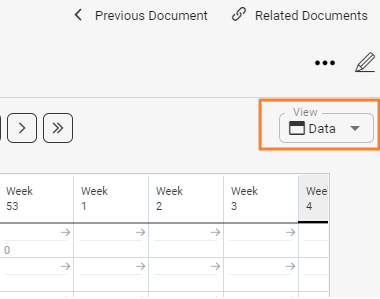
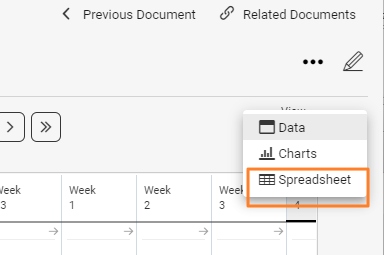
Switch to the spreadsheet. Select the Spreadsheet view.
-
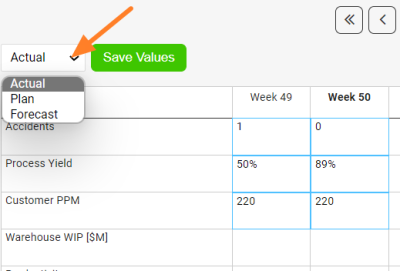
Choose the type of values. Choose whether you want to enter Actual, Planned or Forecasted data. This is very important, so that you don’t overwrite values that are already entered.
-
Enter the values. You can use the standard copy and paste function.
-
Save the values. Save the entered values.
-
Review the data. Change the view back to the Data view to review the entered data.
Related articles: How to display forecast values in a dashboard, Data Entry and View Restrictions
Still need help?
Write to us. We usually reply within an hour on business days.