How to set up metric dashboard notifications
Would you like to keep data entry up to date in all your metric dashboards with ease? You can receive automatic notifications before your data entry due date, and you can also be notified if any data is missing and overdue.
Watch the video guide, or follow the text instructions below.
Set up automatic notifications
-
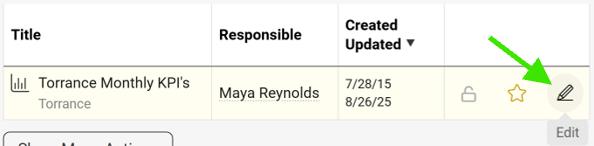
Open the dashboard settings. Go to your metric dashboard’s settings (click the edit pencil).
-
Define the notification settings. Scroll down, click the Automatic Notifications tab and define your settings.
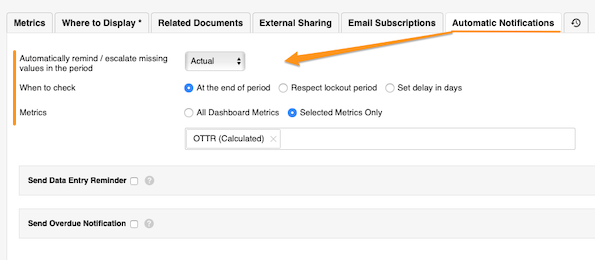
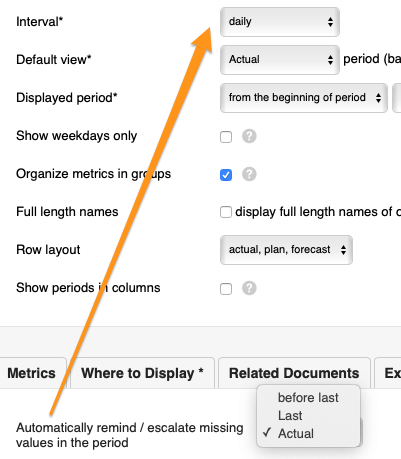
The Automatically remind/escalate missing values in the period setting is based on your dashboard’s interval.
-
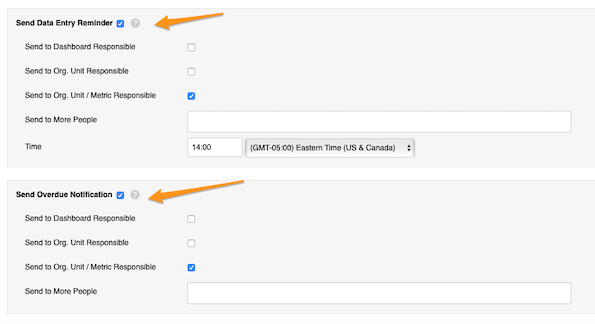
Set up reminders and overdue notifications. Set up your Send Data Entry Reminder and Send Overdue Notification settings.
Set up the responsible
Dashboard responsible
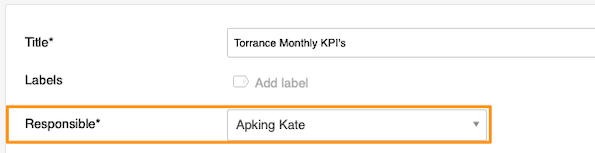
Select a user under Responsible at the top of the settings.
Org. unit responsible
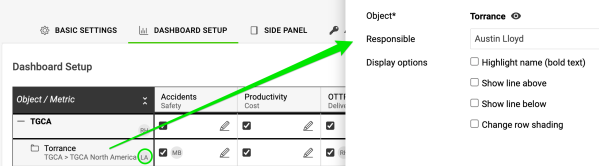
Go to the Dashboard Setup tab, click your object and select the responsible. Their initials are displayed next to the object.
Org. unit and metric responsible
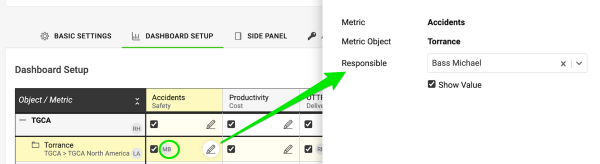
Click the edit pencil for the combination of your metric and object and select the responsible. Their initials are displayed as well.
Still need help?
Write to us. We usually reply within an hour on business days.