Ako nastaviť notifikácie KPI dashboardu
Strojový preklad z angličtiny. Zobrazený je anglický originál.
Would you like to keep data entry up to date in all your metric dashboards with ease? You can receive automatic notifications before your data entry due date, and you can also be notified if any data is missing and overdue.
Watch the video guide, or follow the text instructions below.
Set up automatic notifications
-
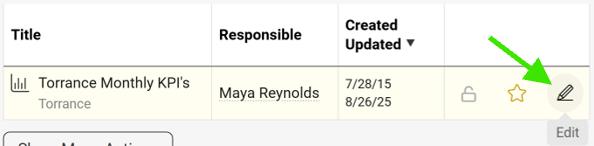
Open the dashboard settings. Go to your metric dashboard’s settings (click the edit pencil).
-
Define the notification settings. Scroll down, click the Automatic Notifications tab and define your settings.
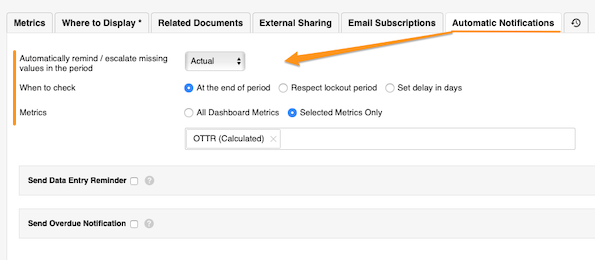
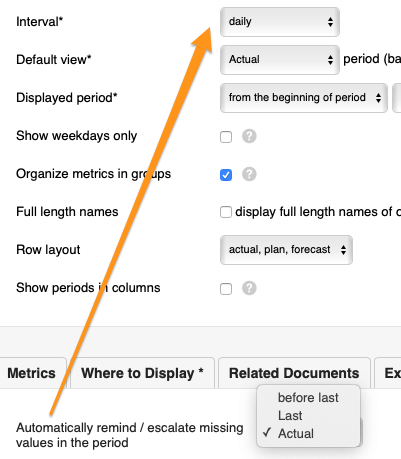
The Automatically remind/escalate missing values in the period setting is based on your dashboard’s interval.
-
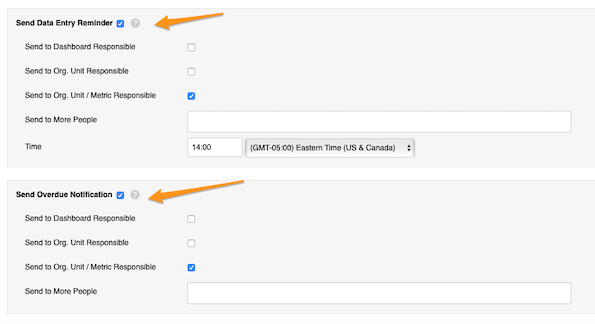
Set up reminders and overdue notifications. Set up your Send Data Entry Reminder and Send Overdue Notification settings.
Set up the responsible
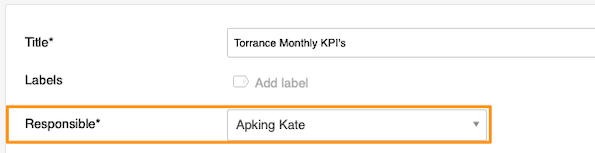
Dashboard responsible
Select a user under Responsible at the top of the settings.
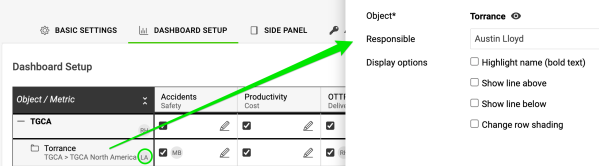
Org. unit responsible
Go to the Dashboard Setup tab, click your object and select the responsible. Their initials are displayed next to the object.
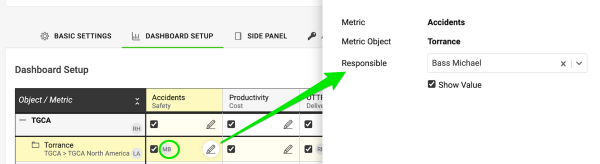
Org. unit and metric responsible
Click the edit pencil for the combination of your metric and object and select the responsible. Their initials are displayed as well.
Chcete mať zadávanie údajov vo všetkých KPI dashboardoch ľahko pod kontrolou? Pred termínom zadania údajov vám môžu chodiť automatické notifikácie a dostanete aj upozornenie, ak nejaké údaje chýbajú a sú po termíne.
Pozrite si video návod alebo postupujte podľa textu nižšie.
Nastavenie automatických notifikácií
-
Otvorte nastavenia dashboardu. Prejdite do nastavení KPI dashboardu (kliknite na ceruzku na úpravu).
-
Nastavte notifikácie. Posuňte sa nižšie, kliknite na kartu Automatické notifikácie a zadajte nastavenia.
Nastavenie Automaticky pripomínať/eskalovať chýbajúce hodnoty v období vychádza z intervalu dashboardu.
-
Nastavte pripomienky a upozornenia na omeškanie. Nastavte Odoslať pripomienku zadania údajov a Odoslať notifikáciu o omeškaní.
Nastavenie zodpovedných osôb
Zodpovedný za dashboard
V hornej časti nastavení vyberte používateľa v poli Zodpovedný.
Zodpovedný za org. jednotku
Prejdite na kartu Nastavenie dashboardu, kliknite na objekt a vyberte zodpovednú osobu. Jej iniciály sa zobrazia vedľa objektu.
Zodpovedný za org. jednotku a metriku
Kliknite na ceruzku na úpravu pri kombinácii metriky a objektu a vyberte zodpovednú osobu. Aj jej iniciály sa zobrazia.
Potrebujete ďalšiu pomoc?
Napíšte nám. V pracovné dni zvyčajne odpovedáme do hodiny.