Jak nastavit notifikace metrikového dashboardu
Strojový překlad z angličtiny. Zobrazen anglický originál.
Would you like to keep data entry up to date in all your metric dashboards with ease? You can receive automatic notifications before your data entry due date, and you can also be notified if any data is missing and overdue.
Watch the video guide, or follow the text instructions below.
Set up automatic notifications
-
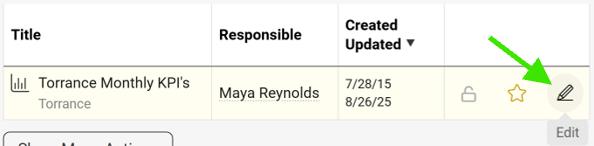
Open the dashboard settings. Go to your metric dashboard’s settings (click the edit pencil).
-
Define the notification settings. Scroll down, click the Automatic Notifications tab and define your settings.
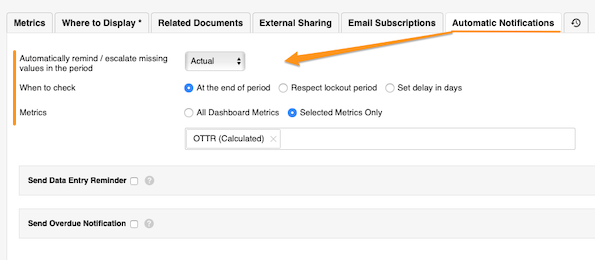
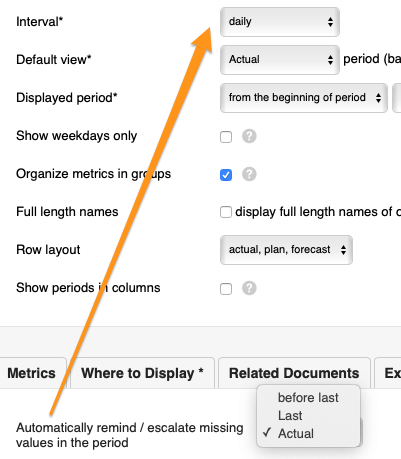
The Automatically remind/escalate missing values in the period setting is based on your dashboard’s interval.
-
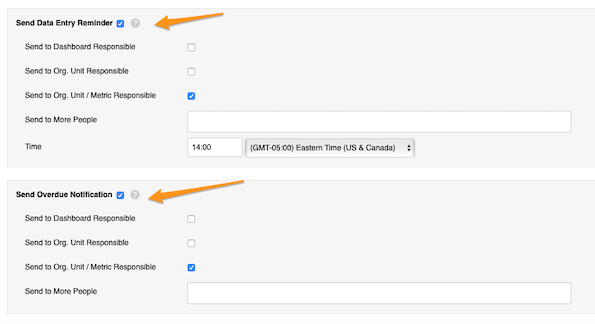
Set up reminders and overdue notifications. Set up your Send Data Entry Reminder and Send Overdue Notification settings.
Set up the responsible
Dashboard responsible
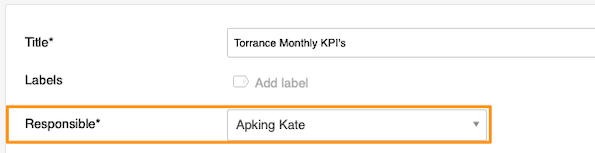
Select a user under Responsible at the top of the settings.
Org. unit responsible
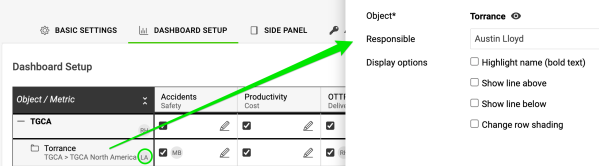
Go to the Dashboard Setup tab, click your object and select the responsible. Their initials are displayed next to the object.
Org. unit and metric responsible
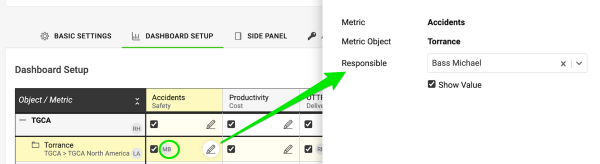
Click the edit pencil for the combination of your metric and object and select the responsible. Their initials are displayed as well.
Chcete mít zadávání dat ve všech metrikových dashboardech snadno pod kontrolou? Můžete dostávat automatické notifikace před termínem zadání dat a také upozornění, když nějaká data chybí a jsou po termínu.
Podívejte se na video návod, nebo postupujte podle textového návodu níže.
Nastavení automatických notifikací
-
Otevřete nastavení dashboardu. Přejděte do nastavení metrikového dashboardu (klikněte na tužku pro úpravy).
-
Nastavte notifikace. Sjeďte dolů, klikněte na záložku Automatické notifikace a nastavte, co potřebujete.
Nastavení Automaticky připomínat/eskalovat chybějící hodnoty v období vychází z intervalu vašeho dashboardu.
-
Nastavte připomínky a upozornění po termínu. Nastavte Odeslat připomínku zadání dat a Odeslat upozornění po termínu.
Nastavení odpovědných osob
Odpovědná osoba dashboardu
Vyberte uživatele v poli Odpovědná osoba nahoře v nastavení.
Odpovědná osoba org. jednotky
Přejděte na záložku Nastavení dashboardu, klikněte na svůj objekt a vyberte odpovědnou osobu. Vedle objektu se zobrazí její iniciály.
Odpovědná osoba org. jednotky a metriky
Klikněte na tužku pro úpravy u kombinace metriky a objektu a vyberte odpovědnou osobu. I zde se zobrazí její iniciály.
Potřebujete další pomoc?
Napište nám. V pracovní dny obvykle odpovídáme do hodiny.