如何设置指标仪表板通知
本文由英文机器翻译。 当前显示英文原文。
Would you like to keep data entry up to date in all your metric dashboards with ease? You can receive automatic notifications before your data entry due date, and you can also be notified if any data is missing and overdue.
Watch the video guide, or follow the text instructions below.
Set up automatic notifications
-
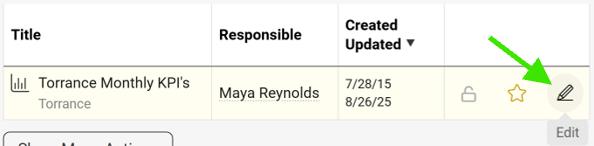
Open the dashboard settings. Go to your metric dashboard’s settings (click the edit pencil).
-
Define the notification settings. Scroll down, click the Automatic Notifications tab and define your settings.
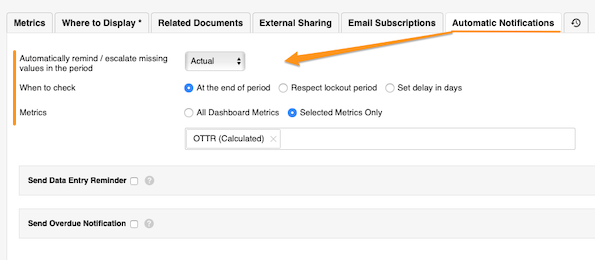
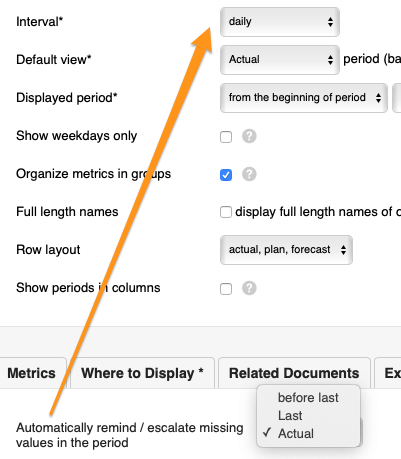
The Automatically remind/escalate missing values in the period setting is based on your dashboard’s interval.
-
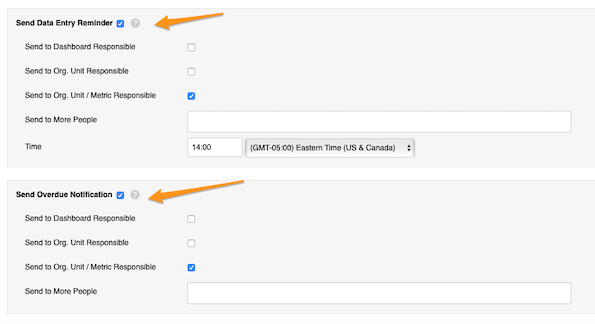
Set up reminders and overdue notifications. Set up your Send Data Entry Reminder and Send Overdue Notification settings.
Set up the responsible
Dashboard responsible
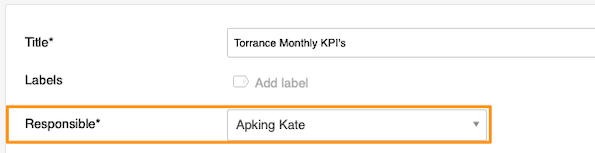
Select a user under Responsible at the top of the settings.
Org. unit responsible
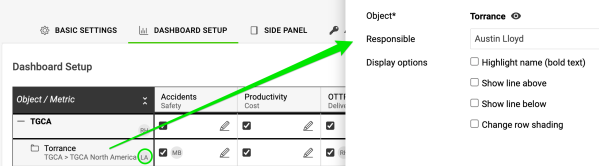
Go to the Dashboard Setup tab, click your object and select the responsible. Their initials are displayed next to the object.
Org. unit and metric responsible
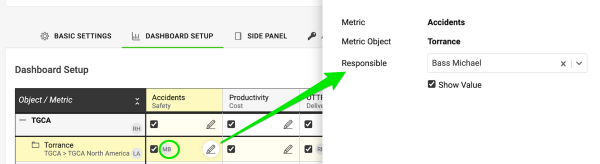
Click the edit pencil for the combination of your metric and object and select the responsible. Their initials are displayed as well.
想要轻松确保所有指标仪表板的数据都及时录入?您可以在数据录入截止日期前收到自动提醒,也可以在数据缺失或逾期时收到通知。
观看视频指南,或按照下方的文字说明操作。
设置自动通知
-
打开仪表板设置。 进入指标仪表板的设置(点击 编辑铅笔)。
-
定义通知设置。 向下滚动,点击 自动通知 选项卡并定义设置。
其中,自动提醒/升级本周期内的缺失值 设置以仪表板的间隔为准。
-
设置提醒和逾期通知。 设置 发送数据录入提醒 和 发送逾期通知。
设置负责人
仪表板负责人
在设置顶部的 负责人 下选择一名用户。
组织单元负责人
进入 仪表板配置 选项卡,点击对象并选择负责人。负责人的姓名首字母会显示在对象旁。
组织单元和指标负责人
点击指标与对象组合的 编辑铅笔,选择负责人。负责人的姓名首字母同样会显示出来。
还需要帮助吗?
请给我们留言。工作日我们通常会在一小时内回复。