Metrics mass import troubleshooting
If your metrics mass upload has not been processed successfully, there may be a few possible reasons. To troubleshoot, follow the error message you were given.
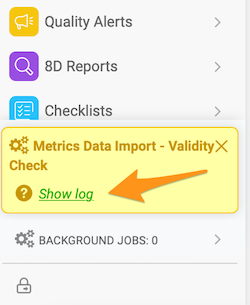
The most common reasons are described below.
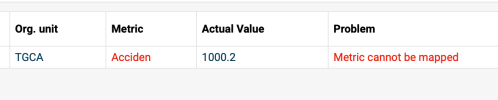
Metrics cannot be mapped
-
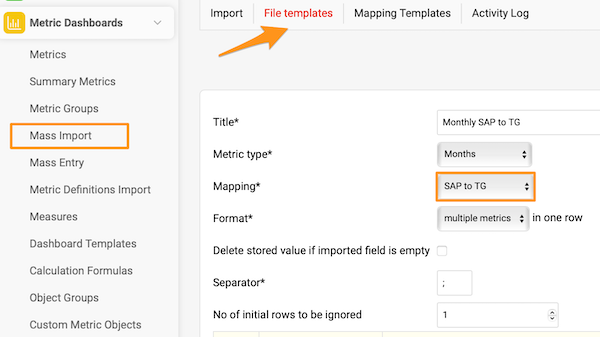
Open the file template. Go to File templates and open the file template you used for the import (e.g. Monthly SAP to TG).
-
Check the mapping. Check which Mapping is used in the file template (e.g. SAP to TG).
-
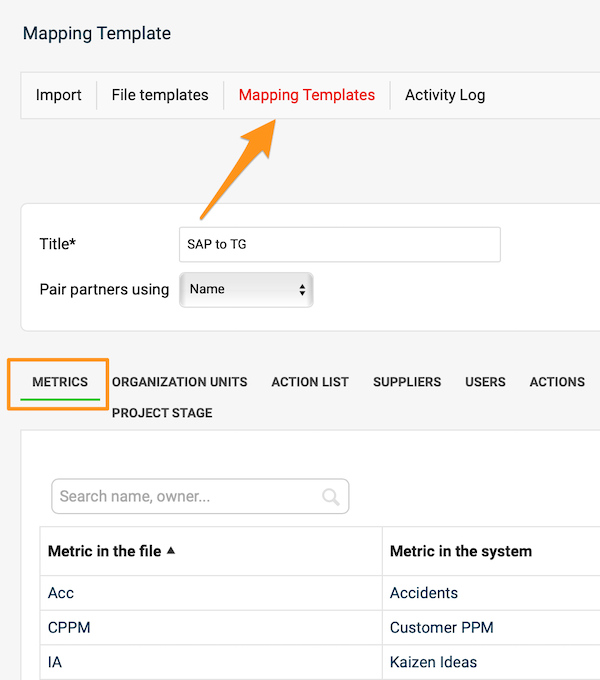
Open the mapping template. Go to Mapping templates and select that template.
-
Check the mapped metrics. On the Metrics tab, check whether all the metrics in the file you want to upload are mapped.
-
Check the spelling. If all the metrics are there, check whether each metric in the file is written exactly as in the mapping table (typos, upper and lower case letters). If you find a mistake in the mapping table, correct it, save and try the import again.
Organization unit cannot be mapped
If an organization unit (or another object, such as an action list or a supplier) cannot be mapped, follow the same steps as above.
Invalid value – date format

- Check whether the date format in the source file corresponds to the supported formats:
- Daily values: D.M.YYYY or YYYY-M-D (e.g. 1.3.2013 for March 1st, 2013)
- Weekly values: W.YYYY or W/YYYY (e.g. 1.2013 for week 1 in 2013)
- Monthly values: M.YYYY or M/YYYY (e.g. 1.2013 for January 2013)
- Correct the date format, save the file and do not open it again until you upload it (in some cases, MS Excel automatically rewrites the date format when you open the file).
Check the separator
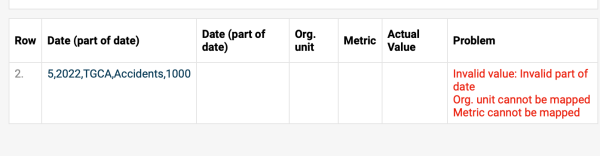
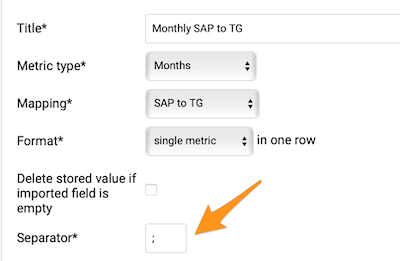
Check the Separator in your file template: depending on your location, you might have to use either a comma or a semicolon.
Check the file format
Check the format of the file used for the upload. It needs to be saved in the .csv format.
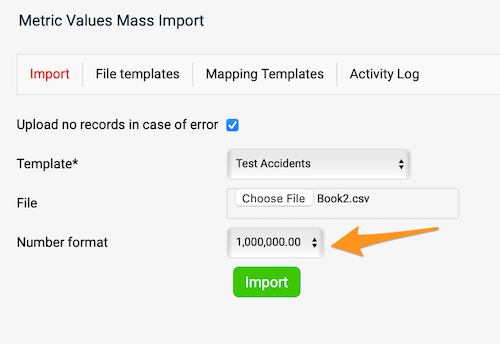
Match the number format
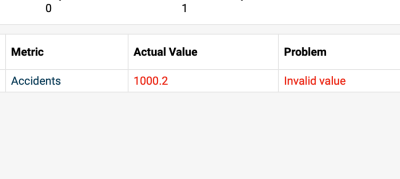
The number format needs to match your file.
If you are still having trouble uploading your file, please don’t hesitate to contact our team at support@teamguru.com.
Still need help?
Write to us. We usually reply within an hour on business days.