Rozwiązywanie problemów z importem masowym wskaźników
Tłumaczenie maszynowe z angielskiego. Wyświetlany jest oryginał po angielsku.
If your metrics mass upload has not been processed successfully, there may be a few possible reasons. To troubleshoot, follow the error message you were given.
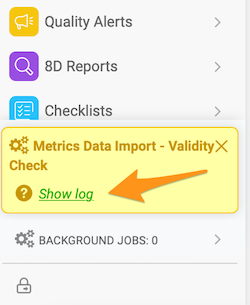
The most common reasons are described below.
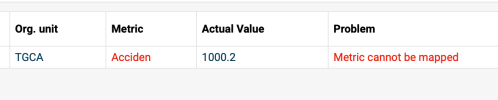
Metrics cannot be mapped
-
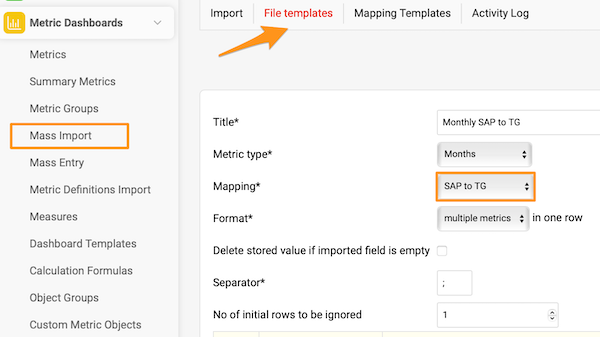
Open the file template. Go to File templates and open the file template you used for the import (e.g. Monthly SAP to TG).
-
Check the mapping. Check which Mapping is used in the file template (e.g. SAP to TG).
-
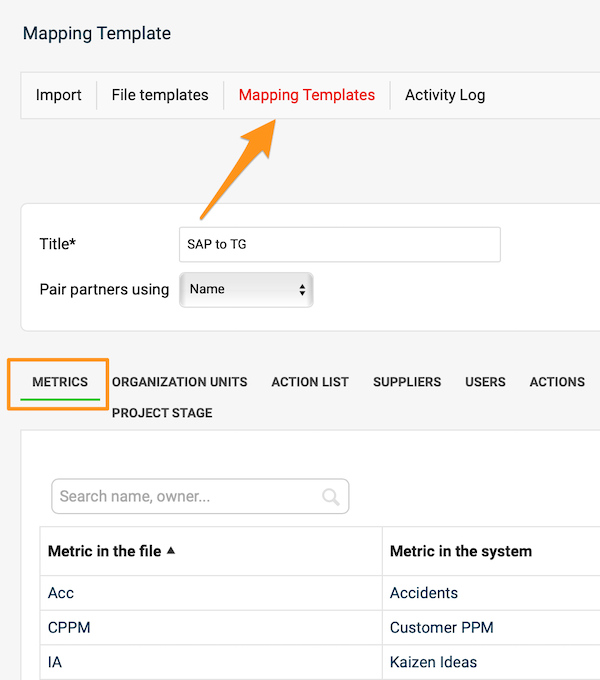
Open the mapping template. Go to Mapping templates and select that template.
-
Check the mapped metrics. On the Metrics tab, check whether all the metrics in the file you want to upload are mapped.
-
Check the spelling. If all the metrics are there, check whether each metric in the file is written exactly as in the mapping table (typos, upper and lower case letters). If you find a mistake in the mapping table, correct it, save and try the import again.
Organization unit cannot be mapped
If an organization unit (or another object, such as an action list or a supplier) cannot be mapped, follow the same steps as above.
Invalid value – date format

- Check whether the date format in the source file corresponds to the supported formats:
- Daily values: D.M.YYYY or YYYY-M-D (e.g. 1.3.2013 for March 1st, 2013)
- Weekly values: W.YYYY or W/YYYY (e.g. 1.2013 for week 1 in 2013)
- Monthly values: M.YYYY or M/YYYY (e.g. 1.2013 for January 2013)
- Correct the date format, save the file and do not open it again until you upload it (in some cases, MS Excel automatically rewrites the date format when you open the file).
Check the separator
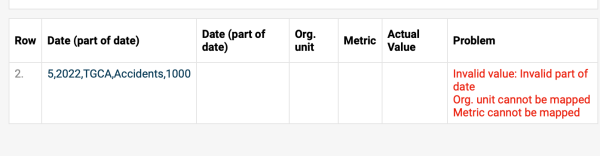
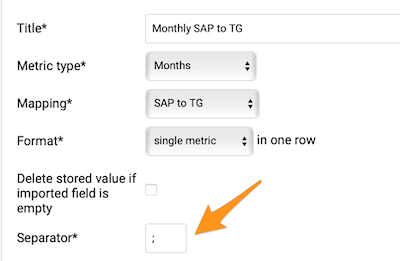
Check the Separator in your file template: depending on your location, you might have to use either a comma or a semicolon.
Check the file format
Check the format of the file used for the upload. It needs to be saved in the .csv format.
Match the number format
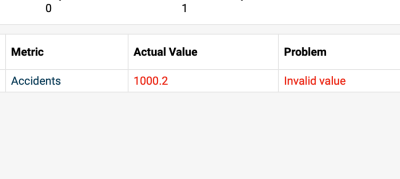
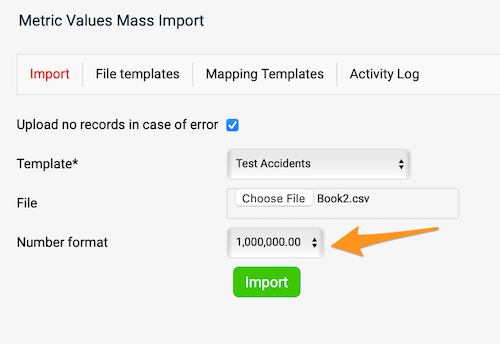
The number format needs to match your file.
If you are still having trouble uploading your file, please don’t hesitate to contact our team at support@teamguru.com.
Jeśli masowe wgrywanie wskaźników się nie powiodło, może być kilka przyczyn. Kieruj się komunikatem o błędzie, który wyświetlił system.
Najczęstsze przyczyny opisujemy poniżej.
Nie można zmapować wskaźników
-
Otwórz szablon pliku. Przejdź do Szablonów plików i otwórz szablon użyty do importu (np. Monthly SAP to TG).
-
Sprawdź mapowanie. Sprawdź, które Mapowanie jest użyte w szablonie pliku (np. SAP to TG).
-
Otwórz szablon mapowania. Przejdź do Szablonów mapowania i wybierz ten szablon.
-
Sprawdź zmapowane wskaźniki. Na karcie Wskaźniki sprawdź, czy wszystkie wskaźniki z wgrywanego pliku są zmapowane.
-
Sprawdź pisownię. Jeśli wszystkie wskaźniki są na liście, sprawdź, czy każdy wskaźnik w pliku jest zapisany dokładnie tak jak w tabeli mapowania (literówki, wielkie i małe litery). Jeśli znajdziesz błąd w tabeli mapowania, popraw go, zapisz i ponów import.
Nie można zmapować jednostki organizacyjnej
Jeśli nie da się zmapować jednostki organizacyjnej (lub innego obiektu, np. listy działań albo dostawcy), wykonaj te same kroki co powyżej.
Nieprawidłowa wartość – format daty
- Sprawdź, czy format daty w pliku źródłowym jest zgodny z obsługiwanymi formatami:
- Wartości dzienne: D.M.YYYY lub YYYY-M-D (np. 1.3.2013 dla 1 marca 2013)
- Wartości tygodniowe: W.YYYY lub W/YYYY (np. 1.2013 dla 1. tygodnia 2013)
- Wartości miesięczne: M.YYYY lub M/YYYY (np. 1.2013 dla stycznia 2013)
- Popraw format daty, zapisz plik i nie otwieraj go ponownie aż do wgrania (MS Excel czasem sam zmienia format daty przy otwieraniu pliku).
Sprawdź separator
Sprawdź Separator w szablonie pliku: zależnie od lokalizacji może być potrzebny przecinek albo średnik.
Sprawdź format pliku
Sprawdź format wgrywanego pliku. Musi być zapisany w formacie .csv.
Dopasuj format liczb
Format liczb musi odpowiadać Twojemu plikowi.
Jeśli nadal masz problem z wgraniem pliku, napisz do nas na support@teamguru.com.
Potrzebujesz dalszej pomocy?
Napisz do nas. W dni robocze zwykle odpowiadamy w ciągu godziny.