指标批量导入故障排除
本文由英文机器翻译。 当前显示英文原文。
If your metrics mass upload has not been processed successfully, there may be a few possible reasons. To troubleshoot, follow the error message you were given.
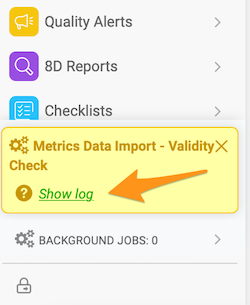
The most common reasons are described below.
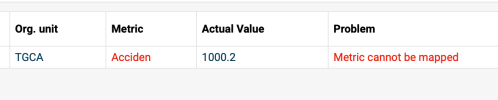
Metrics cannot be mapped
-
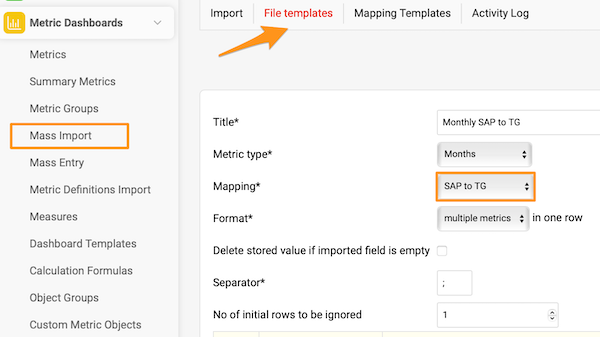
Open the file template. Go to File templates and open the file template you used for the import (e.g. Monthly SAP to TG).
-
Check the mapping. Check which Mapping is used in the file template (e.g. SAP to TG).
-
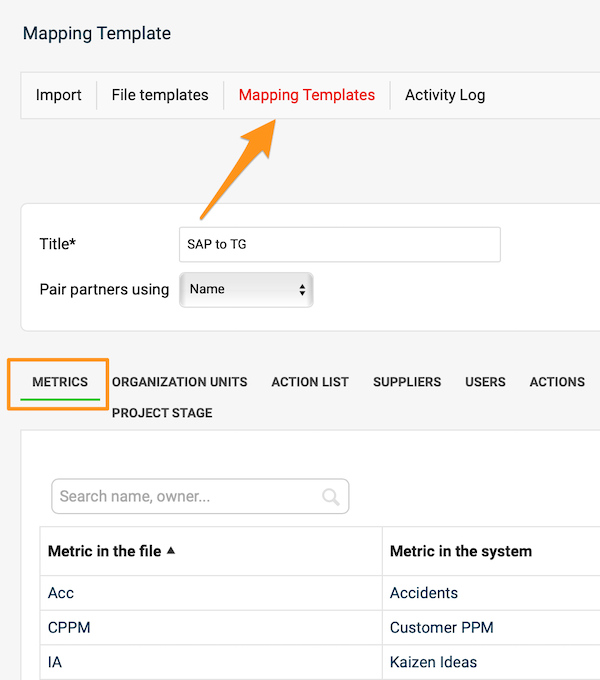
Open the mapping template. Go to Mapping templates and select that template.
-
Check the mapped metrics. On the Metrics tab, check whether all the metrics in the file you want to upload are mapped.
-
Check the spelling. If all the metrics are there, check whether each metric in the file is written exactly as in the mapping table (typos, upper and lower case letters). If you find a mistake in the mapping table, correct it, save and try the import again.
Organization unit cannot be mapped
If an organization unit (or another object, such as an action list or a supplier) cannot be mapped, follow the same steps as above.
Invalid value – date format

- Check whether the date format in the source file corresponds to the supported formats:
- Daily values: D.M.YYYY or YYYY-M-D (e.g. 1.3.2013 for March 1st, 2013)
- Weekly values: W.YYYY or W/YYYY (e.g. 1.2013 for week 1 in 2013)
- Monthly values: M.YYYY or M/YYYY (e.g. 1.2013 for January 2013)
- Correct the date format, save the file and do not open it again until you upload it (in some cases, MS Excel automatically rewrites the date format when you open the file).
Check the separator
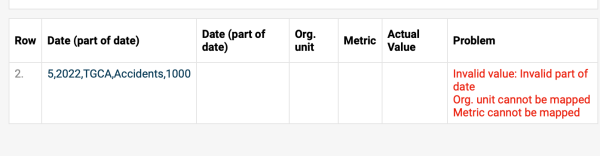
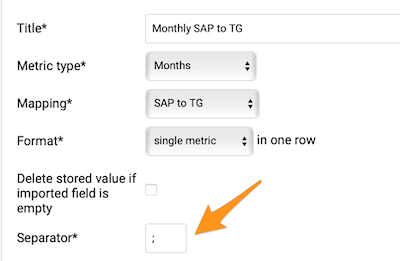
Check the Separator in your file template: depending on your location, you might have to use either a comma or a semicolon.
Check the file format
Check the format of the file used for the upload. It needs to be saved in the .csv format.
Match the number format
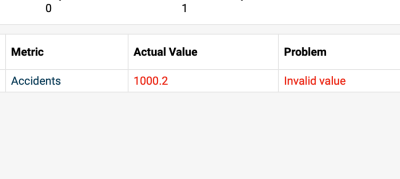
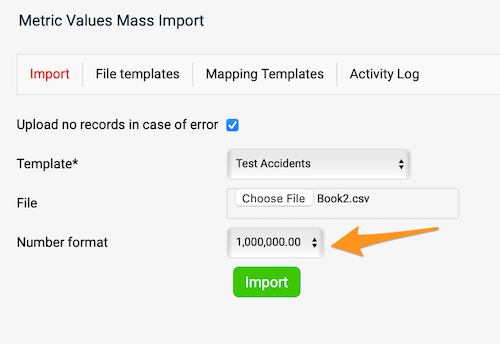
The number format needs to match your file.
If you are still having trouble uploading your file, please don’t hesitate to contact our team at support@teamguru.com.
如果指标批量上传未能成功处理,可能有多种原因。请根据系统给出的错误消息进行排查。
下面介绍最常见的原因。
无法映射指标
-
打开文件模板。 进入 文件模板,打开导入时使用的文件模板(例如Monthly SAP to TG)。
-
检查映射。 查看该文件模板使用的是哪个 映射(例如SAP to TG)。
-
打开映射模板。 进入 映射模板,选择该模板。
-
检查已映射的指标。 在 指标 选项卡中,检查要上传的文件中的所有指标是否都已映射。
-
检查拼写。 如果所有指标都在,请检查文件中每个指标的写法是否与映射表完全一致(拼写错误、大小写)。如果发现映射表中有错误,请更正并保存,然后重新导入。
无法映射组织单元
如果无法映射组织单元(或其他对象,例如行动清单或供应商),请按上述相同步骤操作。
无效值:日期格式
- 检查源文件中的日期格式是否符合支持的格式:
- 每日值:D.M.YYYY 或 YYYY-M-D(例如1.3.2013表示2013年3月1日)
- 每周值:W.YYYY 或 W/YYYY(例如1.2013表示2013年第1周)
- 每月值:M.YYYY 或 M/YYYY(例如1.2013表示2013年1月)
- 更正日期格式并保存文件,上传之前不要再次打开该文件(某些情况下,打开文件时MS Excel会自动改写日期格式)。
检查分隔符
检查文件模板中的 分隔符:根据您所在的地区,可能需要使用逗号或分号。
检查文件格式
检查上传所用文件的格式。文件必须保存为.csv格式。
匹配数字格式
数字格式必须与您的文件一致。
如果仍无法上传文件,欢迎随时 发送邮件至support@teamguru.com联系我们的团队。
还需要帮助吗?
请给我们留言。工作日我们通常会在一小时内回复。