Riešenie problémov s hromadným importom metrík
Strojový preklad z angličtiny. Zobrazený je anglický originál.
If your metrics mass upload has not been processed successfully, there may be a few possible reasons. To troubleshoot, follow the error message you were given.
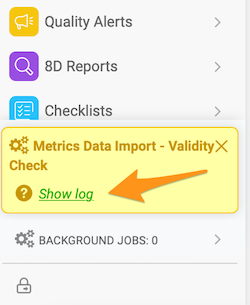
The most common reasons are described below.
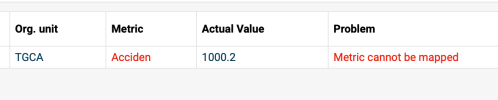
Metrics cannot be mapped
-
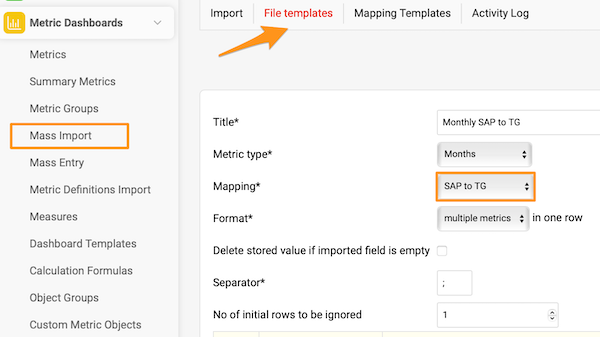
Open the file template. Go to File templates and open the file template you used for the import (e.g. Monthly SAP to TG).
-
Check the mapping. Check which Mapping is used in the file template (e.g. SAP to TG).
-
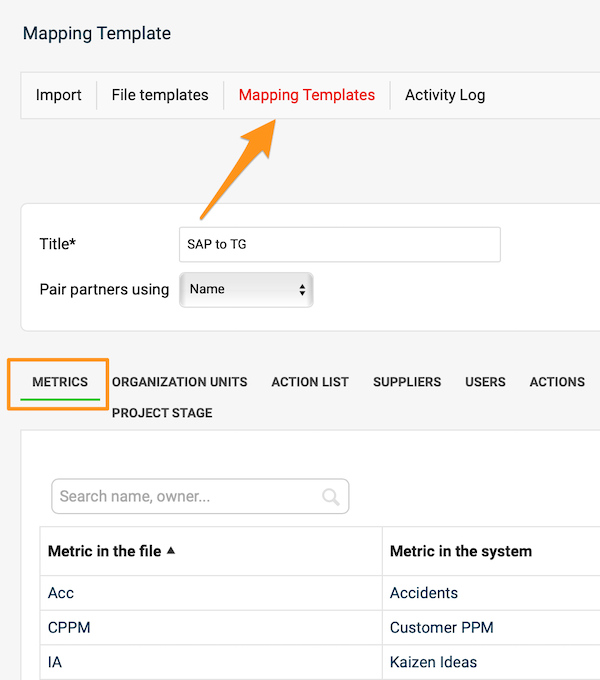
Open the mapping template. Go to Mapping templates and select that template.
-
Check the mapped metrics. On the Metrics tab, check whether all the metrics in the file you want to upload are mapped.
-
Check the spelling. If all the metrics are there, check whether each metric in the file is written exactly as in the mapping table (typos, upper and lower case letters). If you find a mistake in the mapping table, correct it, save and try the import again.
Organization unit cannot be mapped
If an organization unit (or another object, such as an action list or a supplier) cannot be mapped, follow the same steps as above.
Invalid value – date format

- Check whether the date format in the source file corresponds to the supported formats:
- Daily values: D.M.YYYY or YYYY-M-D (e.g. 1.3.2013 for March 1st, 2013)
- Weekly values: W.YYYY or W/YYYY (e.g. 1.2013 for week 1 in 2013)
- Monthly values: M.YYYY or M/YYYY (e.g. 1.2013 for January 2013)
- Correct the date format, save the file and do not open it again until you upload it (in some cases, MS Excel automatically rewrites the date format when you open the file).
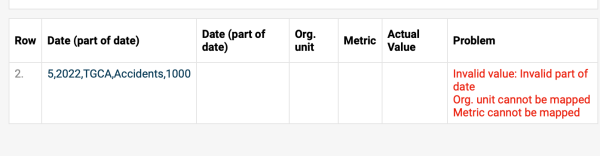
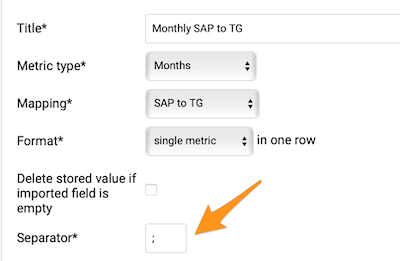
Check the separator
Check the Separator in your file template: depending on your location, you might have to use either a comma or a semicolon.
Check the file format
Check the format of the file used for the upload. It needs to be saved in the .csv format.
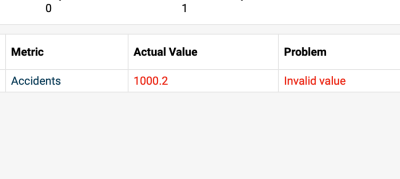
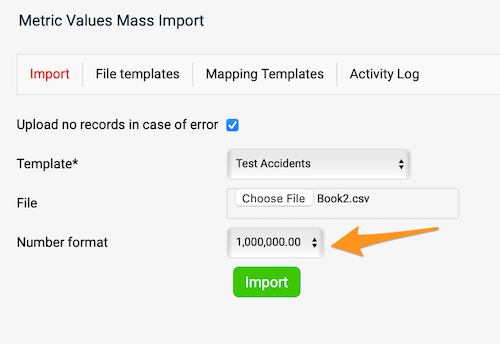
Match the number format
The number format needs to match your file.
If you are still having trouble uploading your file, please don’t hesitate to contact our team at support@teamguru.com.
Ak sa hromadné nahratie metrík nepodarilo spracovať, môže to mať niekoľko príčin. Pri riešení sa riaďte chybovou správou, ktorú ste dostali.
Najčastejšie príčiny sú opísané nižšie.
Metriky sa nedajú namapovať
-
Otvorte šablónu súboru. Prejdite do Šablóny súborov a otvorte šablónu súboru, ktorú ste pri importe použili (napr. Monthly SAP to TG).
-
Skontrolujte mapovanie. Skontrolujte, ktoré Mapovanie šablóna súboru používa (napr. SAP to TG).
-
Otvorte šablónu mapovania. Prejdite do Šablóny mapovania a vyberte túto šablónu.
-
Skontrolujte namapované metriky. Na karte Metriky skontrolujte, či sú namapované všetky metriky zo súboru, ktorý chcete nahrať.
-
Skontrolujte presný zápis. Ak sú tam všetky metriky, skontrolujte, či je každá metrika v súbore zapísaná presne ako v tabuľke mapovania (preklepy, veľké a malé písmená). Ak v tabuľke mapovania nájdete chybu, opravte ju, uložte a import skúste znova.
Organizačná jednotka sa nedá namapovať
Ak sa nedá namapovať organizačná jednotka (alebo iný objekt, napríklad akčný zoznam či dodávateľ), postupujte rovnako ako vyššie.
Neplatná hodnota – formát dátumu
- Skontrolujte, či formát dátumu v zdrojovom súbore zodpovedá podporovaným formátom:
- Denné hodnoty: D.M.YYYY alebo YYYY-M-D (napr. 1.3.2013 pre 1. marec 2013)
- Týždenné hodnoty: W.YYYY alebo W/YYYY (napr. 1.2013 pre 1. týždeň roka 2013)
- Mesačné hodnoty: M.YYYY alebo M/YYYY (napr. 1.2013 pre január 2013)
- Opravte formát dátumu, uložte súbor a až do nahratia ho už neotvárajte (MS Excel niekedy pri otvorení súboru formát dátumu automaticky prepíše).
Skontrolujte oddeľovač
V šablóne súboru skontrolujte Oddeľovač: podľa vašej krajiny môže byť potrebná čiarka alebo bodkočiarka.
Skontrolujte formát súboru
Skontrolujte formát súboru, ktorý nahrávate. Musí byť uložený vo formáte .csv.
Zosúlaďte formát čísel
Formát čísel musí zodpovedať vášmu súboru.
Ak máte s nahratím súboru stále problémy, kontaktujte náš tím na support@teamguru.com.
Potrebujete ďalšiu pomoc?
Napíšte nám. V pracovné dni zvyčajne odpovedáme do hodiny.