Como copiar um dashboard
Tradução automática do inglês. Exibindo o original em inglês.
You can easily copy an existing dashboard and reuse all its settings to define a new dashboard.
-
Open the dashboard settings. Click the dashboard Edit icon.

-
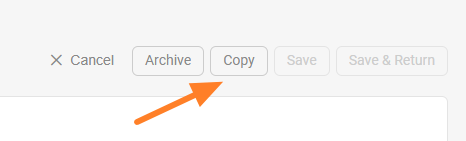
Copy the dashboard. Click the Copy button to create a copy of the dashboard.
-
Find the new dashboard. A new dashboard is created, named after the original one with “– new” appended.
-
Rename the dashboard. Change the title of the new dashboard as needed.
-
Set the org. unit and responsible people. Select the organization unit and the responsible people for the new dashboard.
-
Choose where to display it. Set Where to display (a location) and choose the folder of your org. structure where the new dashboard should be saved.
-
Save the dashboard. Click Save & Return.
Você pode copiar um dashboard existente e reaproveitar todas as configurações dele para criar um novo.
-
Abra as configurações do dashboard. Clique no ícone Editar do dashboard.
-
Copie o dashboard. Clique no botão Copiar para criar uma cópia do dashboard.
-
Encontre o novo dashboard. Um novo dashboard é criado com o nome do original seguido de “– new”.
-
Renomeie o dashboard. Altere o título do novo dashboard como quiser.
-
Defina a unidade organizacional e os responsáveis. Selecione a unidade organizacional e os responsáveis pelo novo dashboard.
-
Escolha onde exibir. Defina Onde exibir (um local) e escolha a pasta da estrutura organizacional em que o novo dashboard será salvo.
-
Salve o dashboard. Clique em Salvar e voltar.
Precisa de mais ajuda?
Escreva para nós. Em dias úteis, costumamos responder em até uma hora.