Jak skopiować dashboard
Tłumaczenie maszynowe z angielskiego. Wyświetlany jest oryginał po angielsku.
You can easily copy an existing dashboard and reuse all its settings to define a new dashboard.
-
Open the dashboard settings. Click the dashboard Edit icon.

-
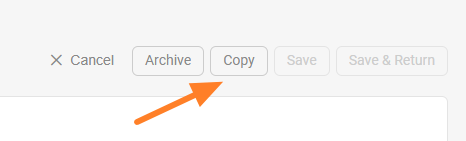
Copy the dashboard. Click the Copy button to create a copy of the dashboard.
-
Find the new dashboard. A new dashboard is created, named after the original one with “– new” appended.
-
Rename the dashboard. Change the title of the new dashboard as needed.
-
Set the org. unit and responsible people. Select the organization unit and the responsible people for the new dashboard.
-
Choose where to display it. Set Where to display (a location) and choose the folder of your org. structure where the new dashboard should be saved.
-
Save the dashboard. Click Save & Return.
Istniejący dashboard łatwo skopiujesz i wykorzystasz wszystkie jego ustawienia w nowym dashboardzie.
-
Otwórz ustawienia dashboardu. Kliknij ikonę Edytuj dashboardu.
-
Skopiuj dashboard. Kliknij przycisk Kopiuj, aby utworzyć kopię dashboardu.
-
Znajdź nowy dashboard. Powstaje nowy dashboard o nazwie oryginału z dopiskiem „– new”.
-
Zmień nazwę dashboardu. W razie potrzeby zmień tytuł nowego dashboardu.
-
Ustaw jednostkę i osoby odpowiedzialne. Wybierz jednostkę organizacyjną i osoby odpowiedzialne za nowy dashboard.
-
Wybierz miejsce wyświetlania. W polu Gdzie wyświetlać (lokalizacja) wybierz folder struktury organizacyjnej, w którym ma zostać zapisany nowy dashboard.
-
Zapisz dashboard. Kliknij Zapisz i wróć.
Potrzebujesz dalszej pomocy?
Napisz do nas. W dni robocze zwykle odpowiadamy w ciągu godziny.