如何复制仪表板
本文由英文机器翻译。 当前显示英文原文。
You can easily copy an existing dashboard and reuse all its settings to define a new dashboard.
-
Open the dashboard settings. Click the dashboard Edit icon.

-
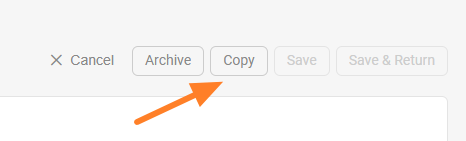
Copy the dashboard. Click the Copy button to create a copy of the dashboard.
-
Find the new dashboard. A new dashboard is created, named after the original one with “– new” appended.
-
Rename the dashboard. Change the title of the new dashboard as needed.
-
Set the org. unit and responsible people. Select the organization unit and the responsible people for the new dashboard.
-
Choose where to display it. Set Where to display (a location) and choose the folder of your org. structure where the new dashboard should be saved.
-
Save the dashboard. Click Save & Return.
您可以轻松复制现有仪表板,沿用其全部设置来定义新仪表板。
-
打开仪表板设置。 点击仪表板的 编辑 图标。
-
复制仪表板。 点击 复制 按钮,创建仪表板副本。
-
找到新仪表板。 系统会创建一个新仪表板,名称为原仪表板名称后加“– new”。
-
重命名仪表板。 根据需要修改新仪表板的标题。
-
设置组织单元和负责人。 为新仪表板选择组织单元和负责人。
-
选择显示位置。 设置 显示位置,选择组织结构中用于保存新仪表板的文件夹。
-
保存仪表板。 点击 保存并返回。
还需要帮助吗?
请给我们留言。工作日我们通常会在一小时内回复。