Cómo copiar un dashboard
Traducción automática del inglés. Se muestra el original en inglés.
You can easily copy an existing dashboard and reuse all its settings to define a new dashboard.
-
Open the dashboard settings. Click the dashboard Edit icon.

-
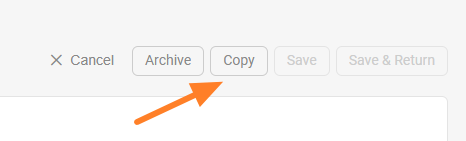
Copy the dashboard. Click the Copy button to create a copy of the dashboard.
-
Find the new dashboard. A new dashboard is created, named after the original one with “– new” appended.
-
Rename the dashboard. Change the title of the new dashboard as needed.
-
Set the org. unit and responsible people. Select the organization unit and the responsible people for the new dashboard.
-
Choose where to display it. Set Where to display (a location) and choose the folder of your org. structure where the new dashboard should be saved.
-
Save the dashboard. Click Save & Return.
Puede copiar fácilmente un dashboard existente y reutilizar toda su configuración para definir uno nuevo.
-
Abra la configuración del dashboard. Haga clic en el ícono Editar del dashboard.
-
Copie el dashboard. Haga clic en el botón Copiar para crear una copia del dashboard.
-
Busque el nuevo dashboard. Se crea un nuevo dashboard con el nombre del original seguido de “– new”.
-
Cambie el nombre. Cambie el título del nuevo dashboard según lo necesite.
-
Indique la unidad organizativa y los responsables. Seleccione la unidad organizativa y los responsables del nuevo dashboard.
-
Elija dónde se muestra. Configure Dónde mostrar (una ubicación) y elija la carpeta de su estructura organizativa donde se guardará el nuevo dashboard.
-
Guarde el dashboard. Haga clic en Guardar y volver.
¿Necesita más ayuda?
Escríbanos. En días laborables solemos responder en menos de una hora.