Como ativar a conversão de unidades
Tradução automática do inglês. Exibindo o original em inglês.
TeamGuru lets you set up automatic unit conversion for your KPIs.
For example, does one of your locations track production in pounds and another in kilograms? No problem: both can use a single metric, and the rollup can be displayed in either “lbs” or “kg”.
How unit conversion works
- Choose the unit of measure. You can select the unit of measure for your metric.
- Standardized data. TeamGuru automatically standardizes the data from your various units of measure across your entire org. structure.
- Display in the units you want. Metrics in the dashboard are displayed in the base unit, but you can change it to the units you want.
Enable units conversion in the metric’s settings
Open the metric’s settings
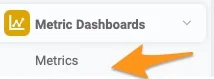
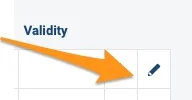
Go to your metric’s settings.
Turn on units conversion
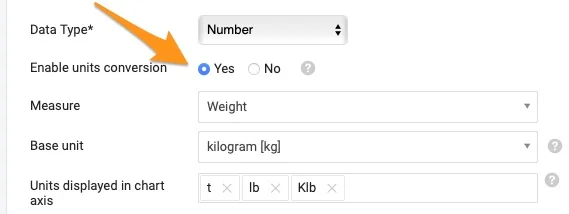
Set Enable units conversion to Yes.
Select the measure and base unit
Select the Measure and the Base unit.
Most standard measures are already defined in the system. If you don’t find the measure you need, contact our team at support@teamguru.com or your system administrators to add it, since a sufficient role is required. How to set up a measure is described at the end of this article.
Choose the chart axis units
In Units displayed in chart axis, select the units you want to use in the chart axis. Based on the data in the chart, TeamGuru chooses the most appropriate of these units.
How the base unit is used
TeamGuru uses the base unit to store metric values in the database. Users can still display the data in the dashboards in their preferred unit of measure (e.g. the base unit is pounds, but you display the data in a dashboard in kilograms). Values in the user’s preferred units are converted from the base unit.
If you are modifying a metric that already has values, make sure the base unit fits the unit of the stored data. Changing the base unit of a metric that is already in use can inadvertently change the meaning of its stored data.
Also, if you use Mass import or API to transfer data to TeamGuru, the values must be uploaded in the base unit.
Set a preferred unit of measure in the dashboard
Open the dashboard settings
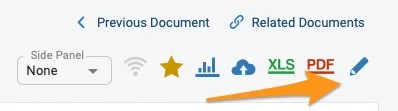
Go to your dashboard’s settings.
Select the metric
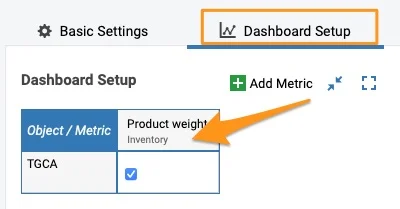
Click your metric on the Dashboard Setup tab.
Select the unit
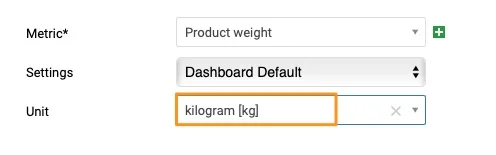
Select your unit.
Check the unit in the dashboard
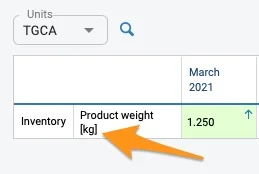
The unit is shown in the dashboard in square brackets after the metric.
Enter values in another unit
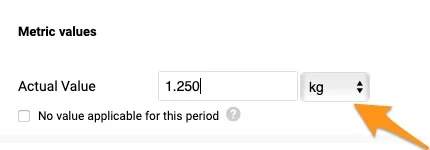
When you click to enter values, your predefined unit is selected by default. You can still select a different unit from the menu if needed.
If you export values from your dashboard to an XLS file using the Custom interval option, the values are exported converted to the base units.
Set up a measure
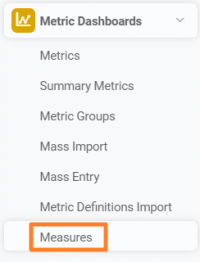
Open the measures
Go to the Metric Dashboards module and select Measures from the submenu.
Create a new measure
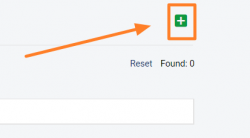
Click the green plus button in the upper right corner to create a new measure.
Define the measure and its units
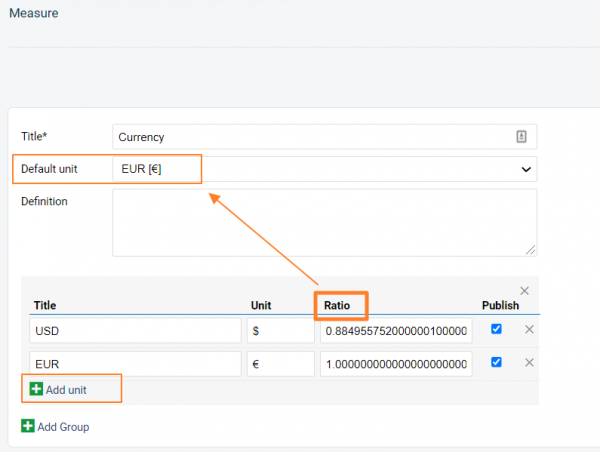
Define your measure: set up the title of the unit, the Default unit and the Definition.
Add other units and their ratio to the default unit by clicking the green plus button Add unit. Fill in the title, the unit’s symbol and the Ratio, and save your settings.
Video guide
O TeamGuru permite configurar a conversão automática de unidades dos seus KPIs.
Por exemplo, uma unidade da empresa mede a produção em libras e outra em quilos? Sem problema: as duas podem usar a mesma métrica, e a consolidação pode ser exibida em “lbs” ou em “kg”.
Como funciona a conversão de unidades
- Escolha a unidade de medida. Você pode selecionar a unidade de medida da métrica.
- Dados padronizados. O TeamGuru padroniza automaticamente os dados das diferentes unidades de medida em toda a estrutura organizacional.
- Exibição nas unidades que você quiser. As métricas aparecem no dashboard na unidade base, mas você pode trocá-la pelas unidades que preferir.
Ativar a conversão de unidades nas configurações da métrica
Abrir as configurações da métrica
Abra as configurações da métrica.
Ativar a conversão de unidades
Defina Ativar conversão de unidades como Sim.
Selecionar a grandeza e a unidade base
Selecione a Grandeza e a Unidade base.
A maioria das grandezas padrão já está definida no sistema. Se não encontrar a grandeza de que precisa, peça à nossa equipe em support@teamguru.com ou aos administradores do sistema para adicioná-la, pois é preciso ter uma função com permissão suficiente. Como configurar uma grandeza está descrito no final deste artigo.
Escolher as unidades do eixo do gráfico
Em Unidades exibidas no eixo do gráfico, selecione as unidades que quer usar no eixo do gráfico. Com base nos dados do gráfico, o TeamGuru escolhe a mais adequada entre elas.
Como a unidade base é usada
O TeamGuru usa a unidade base para gravar os valores da métrica no banco de dados. Os usuários ainda podem exibir os dados nos dashboards na unidade de medida que preferirem (por exemplo, a unidade base é libra, mas você exibe os dados de um dashboard em quilos). Os valores na unidade preferida do usuário são convertidos a partir da unidade base.
Se você estiver alterando uma métrica que já tem valores, confira se a unidade base corresponde à unidade dos dados gravados. Trocar a unidade base de uma métrica já em uso pode mudar sem querer o significado dos dados gravados.
Além disso, se você usa Importação em massa ou API para transferir dados para o TeamGuru, os valores precisam ser enviados na unidade base.
Definir uma unidade de medida preferida no dashboard
Abrir as configurações do dashboard
Abra as configurações do dashboard.
Selecionar a métrica
Clique na métrica na aba Configuração do dashboard.
Selecionar a unidade
Selecione a unidade.
Conferir a unidade no dashboard
A unidade aparece no dashboard entre colchetes, depois da métrica.
Informar valores em outra unidade
Ao clicar para informar valores, a unidade predefinida vem selecionada. Se precisar, você ainda pode escolher outra unidade no menu.
Se você exportar valores do dashboard para um arquivo XLS com a opção Intervalo personalizado, os valores são exportados convertidos para as unidades base.
Configurar uma grandeza
Abrir as grandezas
Acesse o módulo Dashboards de KPI e selecione Grandezas no submenu.
Criar uma nova grandeza
Clique no botão de mais verde no canto superior direito para criar uma nova grandeza.
Definir a grandeza e as unidades
Defina a grandeza: informe o título da unidade, a Unidade padrão e a Definição.
Adicione outras unidades e a proporção delas em relação à unidade padrão clicando no botão de mais verde Adicionar unidade. Preencha o título, o símbolo da unidade e a Proporção e salve as configurações.
Vídeo
Precisa de mais ajuda?
Escreva para nós. Em dias úteis, costumamos responder em até uma hora.