如何启用单位换算
本文由英文机器翻译。 当前显示英文原文。
TeamGuru lets you set up automatic unit conversion for your KPIs.
For example, does one of your locations track production in pounds and another in kilograms? No problem: both can use a single metric, and the rollup can be displayed in either “lbs” or “kg”.
How unit conversion works
- Choose the unit of measure. You can select the unit of measure for your metric.
- Standardized data. TeamGuru automatically standardizes the data from your various units of measure across your entire org. structure.
- Display in the units you want. Metrics in the dashboard are displayed in the base unit, but you can change it to the units you want.
Enable units conversion in the metric’s settings
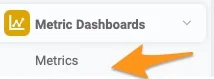
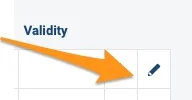
Open the metric’s settings
Go to your metric’s settings.
Turn on units conversion
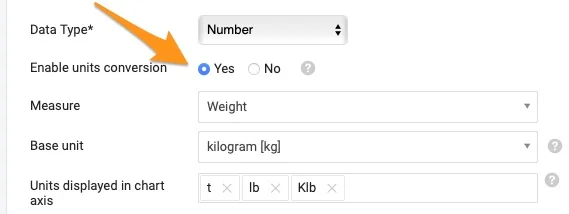
Set Enable units conversion to Yes.
Select the measure and base unit
Select the Measure and the Base unit.
Most standard measures are already defined in the system. If you don’t find the measure you need, contact our team at support@teamguru.com or your system administrators to add it, since a sufficient role is required. How to set up a measure is described at the end of this article.
Choose the chart axis units
In Units displayed in chart axis, select the units you want to use in the chart axis. Based on the data in the chart, TeamGuru chooses the most appropriate of these units.
How the base unit is used
TeamGuru uses the base unit to store metric values in the database. Users can still display the data in the dashboards in their preferred unit of measure (e.g. the base unit is pounds, but you display the data in a dashboard in kilograms). Values in the user’s preferred units are converted from the base unit.
If you are modifying a metric that already has values, make sure the base unit fits the unit of the stored data. Changing the base unit of a metric that is already in use can inadvertently change the meaning of its stored data.
Also, if you use Mass import or API to transfer data to TeamGuru, the values must be uploaded in the base unit.
Set a preferred unit of measure in the dashboard
Open the dashboard settings
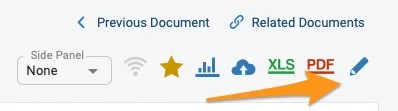
Go to your dashboard’s settings.
Select the metric
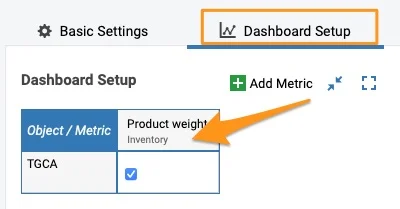
Click your metric on the Dashboard Setup tab.
Select the unit
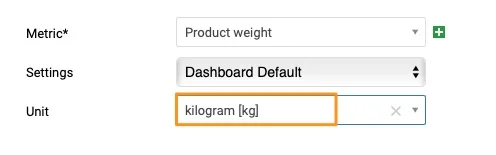
Select your unit.
Check the unit in the dashboard
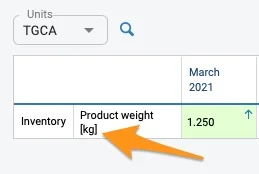
The unit is shown in the dashboard in square brackets after the metric.
Enter values in another unit
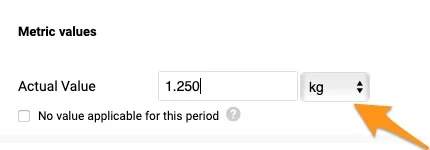
When you click to enter values, your predefined unit is selected by default. You can still select a different unit from the menu if needed.
If you export values from your dashboard to an XLS file using the Custom interval option, the values are exported converted to the base units.
Set up a measure
Open the measures
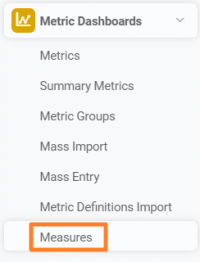
Go to the Metric Dashboards module and select Measures from the submenu.
Create a new measure
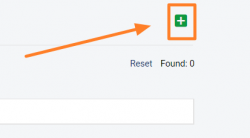
Click the green plus button in the upper right corner to create a new measure.
Define the measure and its units
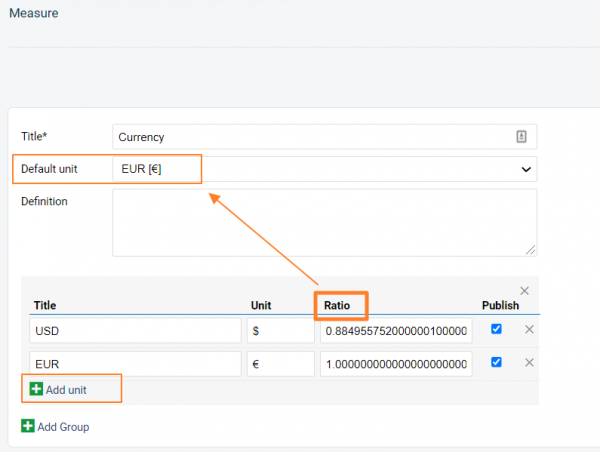
Define your measure: set up the title of the unit, the Default unit and the Definition.
Add other units and their ratio to the default unit by clicking the green plus button Add unit. Fill in the title, the unit’s symbol and the Ratio, and save your settings.
Video guide
TeamGuru支持为KPI设置自动单位换算。
例如,您的一个地点以磅为单位跟踪产量,另一个地点以千克为单位?没问题:两者可以使用同一个指标,汇总值可以用“lbs”或“kg”显示。
单位换算的工作原理
- 选择计量单位。 您可以为指标选择计量单位。
- 标准化数据。 TeamGuru会自动将整个组织结构中不同计量单位的数据标准化。
- 以所需单位显示。 仪表板中的指标以基本单位显示,但您可以将其更改为所需的单位。
在指标设置中启用单位换算
打开指标设置
进入指标设置。
开启单位换算
将启用单位换算设为是。
选择度量和基本单位
选择度量和基本单位。
大多数标准度量已在系统中定义。如果找不到所需的度量,请联系我们的团队(support@teamguru.com)或系统管理员添加,因为此操作需要具备相应的角色。设置度量的方法见本文末尾。
选择图表坐标轴单位
在图表坐标轴显示的单位中,选择要在图表坐标轴中使用的单位。TeamGuru会根据图表中的数据,从这些单位中选择最合适的一个。
基本单位的用途
TeamGuru使用基本单位在数据库中存储指标值。用户仍然可以在仪表板中以自己偏好的计量单位显示数据(例如基本单位为磅,但在仪表板中以千克显示数据)。用户偏好单位中的数值由基本单位换算而来。
如果修改的指标已有数值,请确保基本单位与已存储数据的单位一致。更改已在使用的指标的基本单位,可能会无意中改变其已存储数据的含义。
此外,如果使用批量导入或API向TeamGuru传输数据,必须以基本单位上传数值。
在仪表板中设置偏好的计量单位
打开仪表板设置
进入仪表板设置。
选择指标
在仪表板设置选项卡中点击指标。
选择单位
选择单位。
在仪表板中查看单位
单位会以方括号的形式显示在仪表板中的指标名称后。
以其他单位输入数值
点击输入数值时,默认选中您预设的单位。如有需要,您仍可以从菜单中选择其他单位。
如果使用自定义区间选项将仪表板中的数值导出为XLS文件,导出的数值会换算为基本单位。
设置度量
打开度量
进入指标仪表板模块,从子菜单中选择度量。
创建新度量
点击右上角的绿色加号按钮,创建新度量。
定义度量及其单位
定义度量:设置单位标题、默认单位和定义。
点击绿色加号按钮添加单位,添加其他单位及其与默认单位的换算比例。填写标题、单位符号和比例,然后保存设置。
视频教程
还需要帮助吗?
请给我们留言。工作日我们通常会在一小时内回复。