Jak włączyć przeliczanie jednostek
Tłumaczenie maszynowe z angielskiego. Wyświetlany jest oryginał po angielsku.
TeamGuru lets you set up automatic unit conversion for your KPIs.
For example, does one of your locations track production in pounds and another in kilograms? No problem: both can use a single metric, and the rollup can be displayed in either “lbs” or “kg”.
How unit conversion works
- Choose the unit of measure. You can select the unit of measure for your metric.
- Standardized data. TeamGuru automatically standardizes the data from your various units of measure across your entire org. structure.
- Display in the units you want. Metrics in the dashboard are displayed in the base unit, but you can change it to the units you want.
Enable units conversion in the metric’s settings
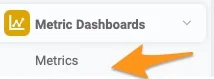
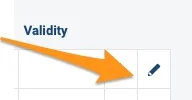
Open the metric’s settings
Go to your metric’s settings.
Turn on units conversion
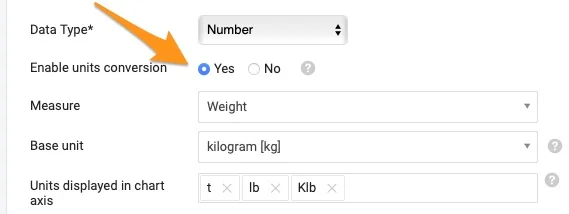
Set Enable units conversion to Yes.
Select the measure and base unit
Select the Measure and the Base unit.
Most standard measures are already defined in the system. If you don’t find the measure you need, contact our team at support@teamguru.com or your system administrators to add it, since a sufficient role is required. How to set up a measure is described at the end of this article.
Choose the chart axis units
In Units displayed in chart axis, select the units you want to use in the chart axis. Based on the data in the chart, TeamGuru chooses the most appropriate of these units.
How the base unit is used
TeamGuru uses the base unit to store metric values in the database. Users can still display the data in the dashboards in their preferred unit of measure (e.g. the base unit is pounds, but you display the data in a dashboard in kilograms). Values in the user’s preferred units are converted from the base unit.
If you are modifying a metric that already has values, make sure the base unit fits the unit of the stored data. Changing the base unit of a metric that is already in use can inadvertently change the meaning of its stored data.
Also, if you use Mass import or API to transfer data to TeamGuru, the values must be uploaded in the base unit.
Set a preferred unit of measure in the dashboard
Open the dashboard settings
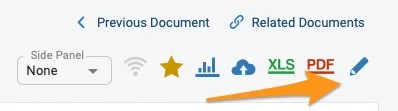
Go to your dashboard’s settings.
Select the metric
Click your metric on the Dashboard Setup tab.
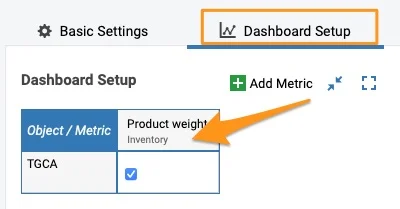
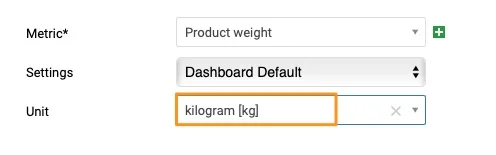
Select the unit
Select your unit.
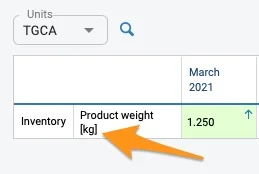
Check the unit in the dashboard
The unit is shown in the dashboard in square brackets after the metric.
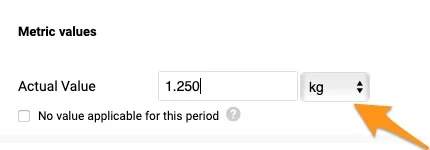
Enter values in another unit
When you click to enter values, your predefined unit is selected by default. You can still select a different unit from the menu if needed.
If you export values from your dashboard to an XLS file using the Custom interval option, the values are exported converted to the base units.
Set up a measure
Open the measures
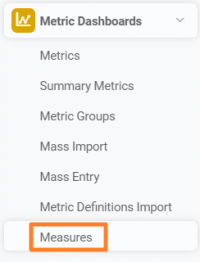
Go to the Metric Dashboards module and select Measures from the submenu.
Create a new measure
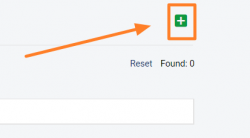
Click the green plus button in the upper right corner to create a new measure.
Define the measure and its units
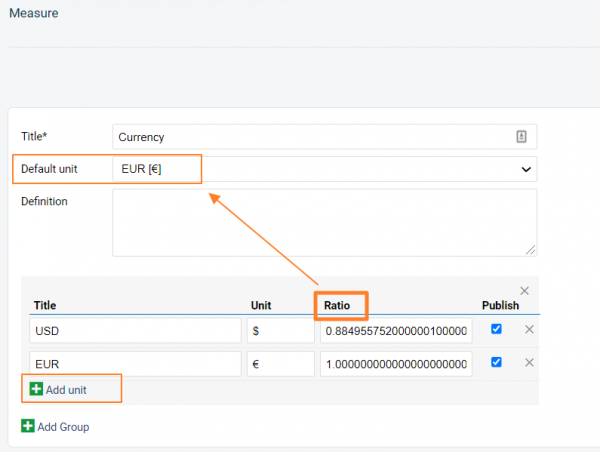
Define your measure: set up the title of the unit, the Default unit and the Definition.
Add other units and their ratio to the default unit by clicking the green plus button Add unit. Fill in the title, the unit’s symbol and the Ratio, and save your settings.
Video guide
TeamGuru pozwala ustawić automatyczne przeliczanie jednostek dla KPI.
Na przykład jedna lokalizacja mierzy produkcję w funtach, a druga w kilogramach? Żaden problem: obie mogą używać jednego wskaźnika, a wartość zbiorczą można pokazać w „lbs” albo w „kg”.
Jak działa przeliczanie jednostek
- Wybierz jednostkę miary. Możesz wybrać jednostkę miary wskaźnika.
- Ujednolicone dane. TeamGuru automatycznie ujednolica dane w różnych jednostkach miary w całej strukturze organizacyjnej.
- Wyświetlanie w wybranych jednostkach. Wskaźniki w dashboardzie wyświetlają się w jednostce bazowej, ale możesz ją zmienić na dowolną inną.
Włącz przeliczanie jednostek w ustawieniach wskaźnika
Otwórz ustawienia wskaźnika
Przejdź do ustawień wskaźnika.
Włącz przeliczanie jednostek
Ustaw Włącz przeliczanie jednostek na Tak.
Wybierz wielkość i jednostkę bazową
Wybierz Wielkość i Jednostkę bazową.
Większość typowych wielkości jest już zdefiniowana w systemie. Jeśli nie ma potrzebnej wielkości, poproś o jej dodanie nasz zespół (support@teamguru.com) lub administratorów systemu, bo wymaga to odpowiedniej roli. Jak ustawić wielkość, opisujemy na końcu tego artykułu.
Wybierz jednostki na osi wykresu
W polu Jednostki na osi wykresu wybierz jednostki, których chcesz używać na osi wykresu. TeamGuru wybierze z nich najbardziej odpowiednią dla danych na wykresie.
Jak używana jest jednostka bazowa
TeamGuru zapisuje wartości wskaźnika w bazie danych w jednostce bazowej. Użytkownicy nadal mogą wyświetlać dane w dashboardach w wybranej jednostce miary (np. jednostką bazową są funty, ale w dashboardzie pokazujesz dane w kilogramach). Wartości w jednostkach wybranych przez użytkownika są przeliczane z jednostki bazowej.
Jeśli zmieniasz wskaźnik, który ma już wartości, upewnij się, że jednostka bazowa pasuje do jednostki zapisanych danych. Zmiana jednostki bazowej wskaźnika, który jest już w użyciu, może niezamierzenie zmienić znaczenie zapisanych danych.
Jeśli przesyłasz dane do TeamGuru przez Import masowy lub API, wartości muszą być w jednostce bazowej.
Ustaw preferowaną jednostkę miary w dashboardzie
Otwórz ustawienia dashboardu
Przejdź do ustawień dashboardu.
Wybierz wskaźnik
Kliknij wskaźnik na karcie Konfiguracja dashboardu.
Wybierz jednostkę
Wybierz jednostkę.
Sprawdź jednostkę w dashboardzie
Jednostka wyświetla się w dashboardzie w nawiasie kwadratowym po nazwie wskaźnika.
Wpisuj wartości w innej jednostce
Gdy klikniesz, aby wpisać wartości, domyślnie wybrana jest ustawiona jednostka. W razie potrzeby możesz wybrać z menu inną.
Jeśli eksportujesz wartości z dashboardu do pliku XLS z opcją Własny przedział, wartości są eksportowane po przeliczeniu na jednostki bazowe.
Ustaw wielkość
Otwórz wielkości
Przejdź do modułu Dashboardy KPI i wybierz z podmenu Wielkości.
Utwórz nową wielkość
Kliknij zielony przycisk z plusem w prawym górnym rogu, aby utworzyć nową wielkość.
Określ wielkość i jej jednostki
Określ wielkość: ustaw nazwę jednostki, Jednostkę domyślną i Definicję.
Dodaj inne jednostki i ich przelicznik względem jednostki domyślnej zielonym przyciskiem z plusem Dodaj jednostkę. Wpisz nazwę, symbol jednostki i Przelicznik, a potem zapisz ustawienia.
Film instruktażowy
Potrzebujesz dalszej pomocy?
Napisz do nas. W dni robocze zwykle odpowiadamy w ciągu godziny.