Ako zapnúť prepočet jednotiek
Strojový preklad z angličtiny. Zobrazený je anglický originál.
TeamGuru lets you set up automatic unit conversion for your KPIs.
For example, does one of your locations track production in pounds and another in kilograms? No problem: both can use a single metric, and the rollup can be displayed in either “lbs” or “kg”.
How unit conversion works
- Choose the unit of measure. You can select the unit of measure for your metric.
- Standardized data. TeamGuru automatically standardizes the data from your various units of measure across your entire org. structure.
- Display in the units you want. Metrics in the dashboard are displayed in the base unit, but you can change it to the units you want.
Enable units conversion in the metric’s settings
Open the metric’s settings
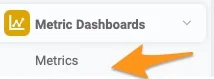
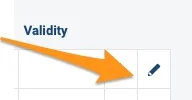
Go to your metric’s settings.
Turn on units conversion
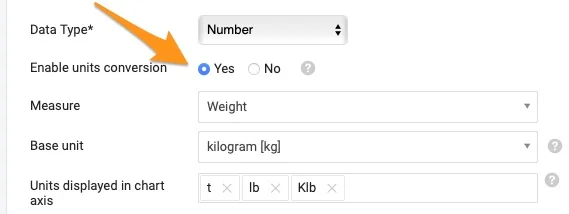
Set Enable units conversion to Yes.
Select the measure and base unit
Select the Measure and the Base unit.
Most standard measures are already defined in the system. If you don’t find the measure you need, contact our team at support@teamguru.com or your system administrators to add it, since a sufficient role is required. How to set up a measure is described at the end of this article.
Choose the chart axis units
In Units displayed in chart axis, select the units you want to use in the chart axis. Based on the data in the chart, TeamGuru chooses the most appropriate of these units.
How the base unit is used
TeamGuru uses the base unit to store metric values in the database. Users can still display the data in the dashboards in their preferred unit of measure (e.g. the base unit is pounds, but you display the data in a dashboard in kilograms). Values in the user’s preferred units are converted from the base unit.
If you are modifying a metric that already has values, make sure the base unit fits the unit of the stored data. Changing the base unit of a metric that is already in use can inadvertently change the meaning of its stored data.
Also, if you use Mass import or API to transfer data to TeamGuru, the values must be uploaded in the base unit.
Set a preferred unit of measure in the dashboard
Open the dashboard settings
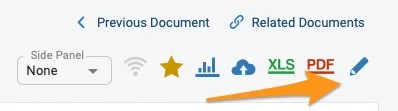
Go to your dashboard’s settings.
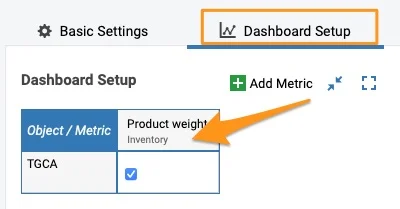
Select the metric
Click your metric on the Dashboard Setup tab.
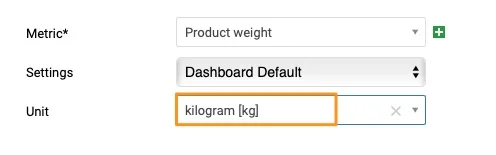
Select the unit
Select your unit.
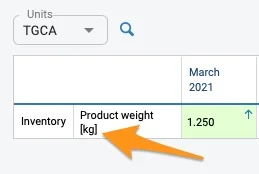
Check the unit in the dashboard
The unit is shown in the dashboard in square brackets after the metric.
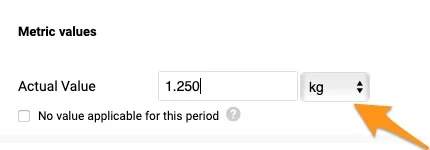
Enter values in another unit
When you click to enter values, your predefined unit is selected by default. You can still select a different unit from the menu if needed.
If you export values from your dashboard to an XLS file using the Custom interval option, the values are exported converted to the base units.
Set up a measure
Open the measures
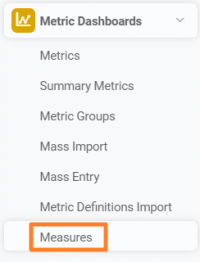
Go to the Metric Dashboards module and select Measures from the submenu.
Create a new measure
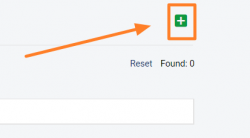
Click the green plus button in the upper right corner to create a new measure.
Define the measure and its units
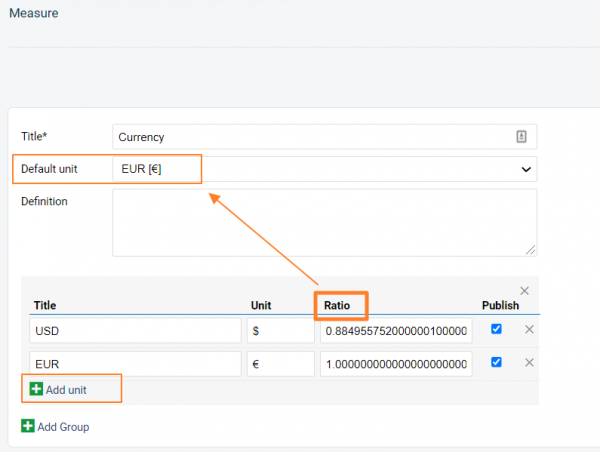
Define your measure: set up the title of the unit, the Default unit and the Definition.
Add other units and their ratio to the default unit by clicking the green plus button Add unit. Fill in the title, the unit’s symbol and the Ratio, and save your settings.
Video guide
V TeamGuru si pre KPI môžete nastaviť automatický prepočet jednotiek.
Jedna vaša prevádzka napríklad sleduje výrobu v librách a druhá v kilogramoch? Žiadny problém: obe môžu používať jednu metriku a súhrn sa môže zobrazovať v „lbs“ aj v „kg“.
Ako prepočet jednotiek funguje
- Zvoľte mernú jednotku. Pre metriku si môžete vybrať mernú jednotku.
- Zjednotené dáta. TeamGuru automaticky zjednotí dáta z rôznych merných jednotiek v celej organizačnej štruktúre.
- Zobrazenie v jednotkách, ktoré chcete. Metriky sa v dashboarde zobrazujú v základnej jednotke, môžete ju však zmeniť na jednotky podľa seba.
Zapnutie prepočtu jednotiek v nastaveniach metriky
Otvorte nastavenia metriky
Otvorte nastavenia metriky.
Zapnite prepočet jednotiek
Pole Zapnúť prepočet jednotiek nastavte na Áno.
Vyberte veličinu a základnú jednotku
Vyberte Veličinu a Základnú jednotku.
Väčšina bežných veličín je v systéme už definovaná. Ak potrebnú veličinu nenájdete, požiadajte o jej pridanie náš tím na support@teamguru.com alebo správcov systému, pretože na to treba dostatočnú rolu. Ako nastaviť veličinu, sa dočítate na konci tohto článku.
Zvoľte jednotky osi grafu
V poli Jednotky zobrazené na osi grafu vyberte jednotky, ktoré chcete na osi grafu používať. TeamGuru z nich podľa dát v grafe zvolí tú najvhodnejšiu.
Ako sa používa základná jednotka
V základnej jednotke ukladá TeamGuru hodnoty metriky do databázy. Používatelia si aj tak môžu dáta v dashboardoch zobraziť v preferovanej mernej jednotke (napr. základnou jednotkou sú libry, ale v dashboarde zobrazujete dáta v kilogramoch). Hodnoty v preferovaných jednotkách sa prepočítavajú zo základnej jednotky.
Ak upravujete metriku, ktorá už má hodnoty, dbajte na to, aby základná jednotka zodpovedala jednotke uložených dát. Zmena základnej jednotky pri metrike, ktorá sa už používa, môže nechtiac zmeniť význam uložených dát.
Ak prenášate dáta do TeamGuru cez Hromadný import alebo API, hodnoty musíte nahrať v základnej jednotke.
Nastavenie preferovanej mernej jednotky v dashboarde
Otvorte nastavenia dashboardu
Otvorte nastavenia dashboardu.
Vyberte metriku
Na karte Nastavenie dashboardu kliknite na metriku.
Vyberte jednotku
Vyberte jednotku.
Skontrolujte jednotku v dashboarde
Jednotka sa v dashboarde zobrazuje v hranatých zátvorkách za metrikou.
Zadajte hodnoty v inej jednotke
Keď kliknete na zadanie hodnôt, predvolene je vybraná vaša prednastavená jednotka. V prípade potreby môžete v menu zvoliť inú.
Ak hodnoty z dashboardu exportujete do súboru XLS s možnosťou Vlastný interval, exportujú sa prepočítané na základné jednotky.
Nastavenie veličiny
Otvorte veličiny
Prejdite do modulu KPI dashboardy a v podmenu vyberte Veličiny.
Vytvorte novú veličinu
Novú veličinu vytvoríte zeleným tlačidlom plus v pravom hornom rohu.
Určte veličinu a jej jednotky
Určte veličinu: zadajte názov jednotky, Predvolenú jednotku a Definíciu.
Ďalšie jednotky a ich pomer k predvolenej jednotke pridáte zeleným tlačidlom plus Pridať jednotku. Vyplňte názov, značku jednotky a Pomer a nastavenia uložte.
Video návod
Potrebujete ďalšiu pomoc?
Napíšte nám. V pracovné dni zvyčajne odpovedáme do hodiny.