Como arquivar ou ocultar um tópico
Tradução automática do inglês. Exibindo o original em inglês.
If you want to remove a whole topic but NOT ALL ITS HISTORY (only the topic for a specific period), you can either archive the topic or just hide it from your presentation.
Archive the whole topic
Open the archive settings
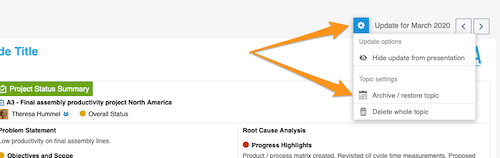
Click the Settings button above your topic and choose Archive / restore topic from the submenu.
Select the archived period
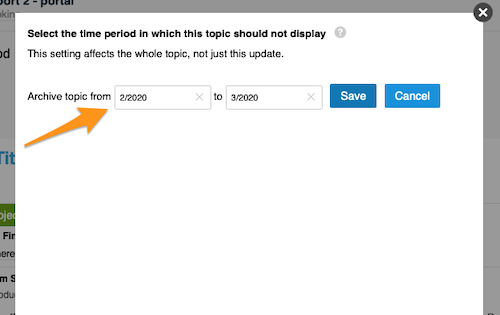
Select the time period in which the topic should not be displayed and click Save. The topic is then no longer included in your presentation.
Restore the topic
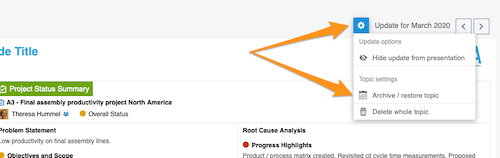
To restore your topic, follow the same steps as for archiving: click the Settings button and select Archive / restore topic from the submenu.
Deselect the archived period
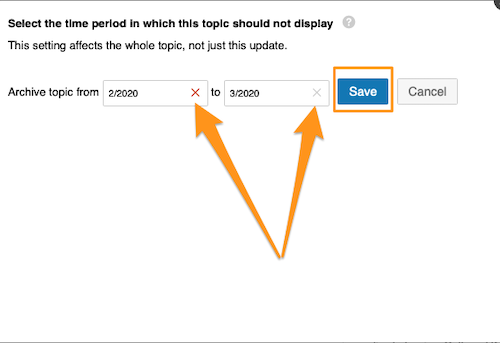
Then deselect the selected time period and click Save. Your topic is included in your presentation again.
Hide an update from the presentation
Hide the update
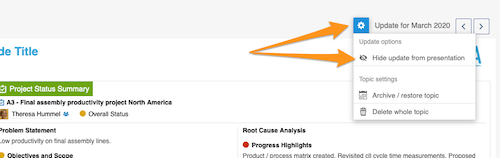
Click the Settings button and choose Hide update from presentation.
Check the greyed-out update
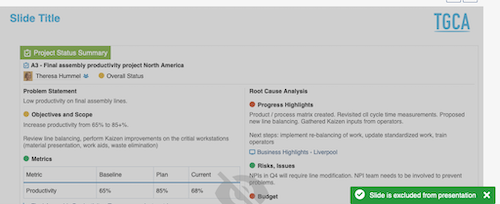
Your update is greyed out and not displayed in your presentation.
Show the update again
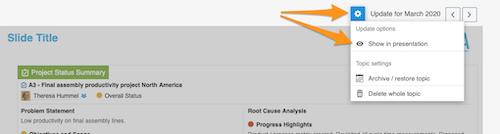
To show your update in the presentation again, click the Settings button and select Show in presentation.
Se você quer remover um tópico inteiro, mas NÃO TODO O HISTÓRICO dele (só o tópico de um período específico), pode arquivar o tópico ou apenas ocultá-lo da apresentação.
Arquive o tópico inteiro
Abra as configurações de arquivamento
Clique no botão Configurações acima do tópico e escolha Arquivar / restaurar tópico no submenu.
Selecione o período arquivado
Selecione o período em que o tópico não deve aparecer e clique em Salvar. O tópico deixa de fazer parte da apresentação.
Restaure o tópico
Para restaurar o tópico, siga os mesmos passos do arquivamento: clique no botão Configurações e selecione Arquivar / restaurar tópico no submenu.
Desmarque o período arquivado
Depois desmarque o período selecionado e clique em Salvar. O tópico volta a fazer parte da apresentação.
Oculte uma atualização da apresentação
Oculte a atualização
Clique no botão Configurações e escolha Ocultar atualização da apresentação.
Confira a atualização esmaecida
A atualização fica esmaecida e não aparece na apresentação.
Mostre a atualização de novo
Para mostrar a atualização na apresentação de novo, clique no botão Configurações e selecione Mostrar na apresentação.
Precisa de mais ajuda?
Escreva para nós. Em dias úteis, costumamos responder em até uma hora.