Jak archivovat nebo skrýt téma
Strojový překlad z angličtiny. Zobrazen anglický originál.
If you want to remove a whole topic but NOT ALL ITS HISTORY (only the topic for a specific period), you can either archive the topic or just hide it from your presentation.
Archive the whole topic
Open the archive settings
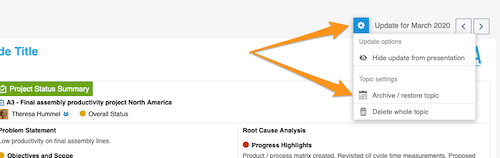
Click the Settings button above your topic and choose Archive / restore topic from the submenu.
Select the archived period
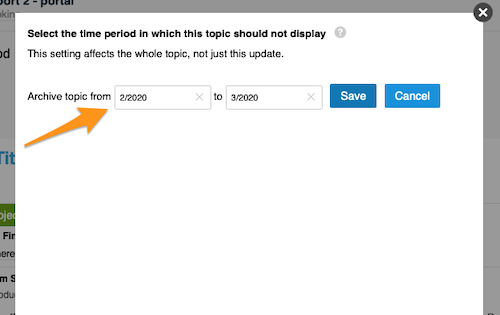
Select the time period in which the topic should not be displayed and click Save. The topic is then no longer included in your presentation.
Restore the topic
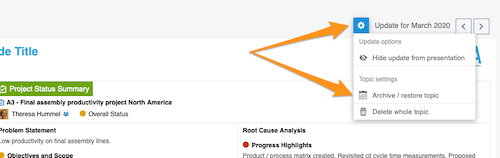
To restore your topic, follow the same steps as for archiving: click the Settings button and select Archive / restore topic from the submenu.
Deselect the archived period
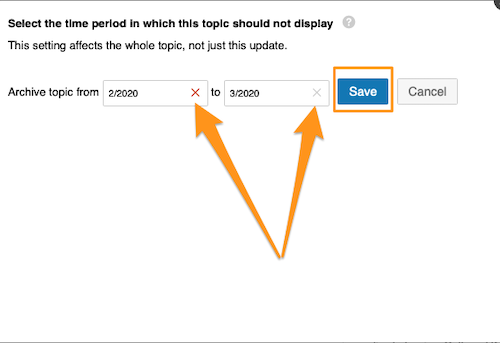
Then deselect the selected time period and click Save. Your topic is included in your presentation again.
Hide an update from the presentation
Hide the update
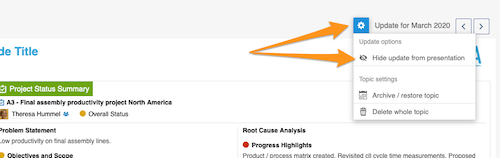
Click the Settings button and choose Hide update from presentation.
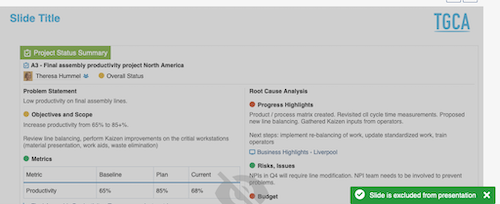
Check the greyed-out update
Your update is greyed out and not displayed in your presentation.
Show the update again
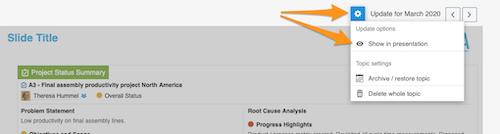
To show your update in the presentation again, click the Settings button and select Show in presentation.
Pokud chcete odebrat celé téma, ale NE CELOU JEHO HISTORII (jen téma za určité období), můžete téma archivovat, nebo ho jen skrýt z prezentace.
Archivace celého tématu
Otevření nastavení archivace
Klikněte na tlačítko Nastavení nad tématem a v podnabídce zvolte Archivovat / obnovit téma.
Výběr archivovaného období
Vyberte období, ve kterém se téma nemá zobrazovat, a klikněte na Uložit. Téma pak v prezentaci nebude.
Obnovení tématu
Téma obnovíte stejně, jako jste ho archivovali: klikněte na tlačítko Nastavení a v podnabídce vyberte Archivovat / obnovit téma.
Zrušení výběru archivovaného období
Pak zrušte výběr zvoleného období a klikněte na Uložit. Téma je v prezentaci znovu.
Skrytí aktualizace z prezentace
Skrytí aktualizace
Klikněte na tlačítko Nastavení a zvolte Skrýt aktualizaci z prezentace.
Zašedlá aktualizace
Aktualizace je zašedlá a v prezentaci se nezobrazuje.
Opětovné zobrazení aktualizace
Pokud chcete aktualizaci v prezentaci znovu zobrazit, klikněte na tlačítko Nastavení a vyberte Zobrazit v prezentaci.
Potřebujete další pomoc?
Napište nám. V pracovní dny obvykle odpovídáme do hodiny.