Ako archivovať alebo skryť tému
Strojový preklad z angličtiny. Zobrazený je anglický originál.
If you want to remove a whole topic but NOT ALL ITS HISTORY (only the topic for a specific period), you can either archive the topic or just hide it from your presentation.
Archive the whole topic
Open the archive settings
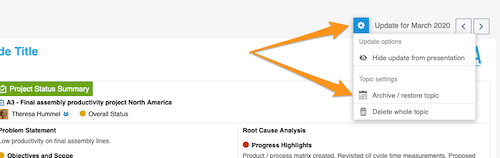
Click the Settings button above your topic and choose Archive / restore topic from the submenu.
Select the archived period
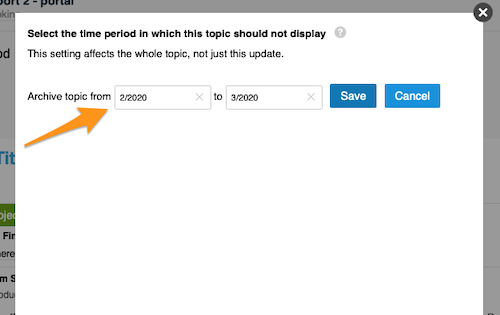
Select the time period in which the topic should not be displayed and click Save. The topic is then no longer included in your presentation.
Restore the topic
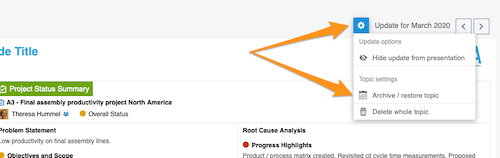
To restore your topic, follow the same steps as for archiving: click the Settings button and select Archive / restore topic from the submenu.
Deselect the archived period
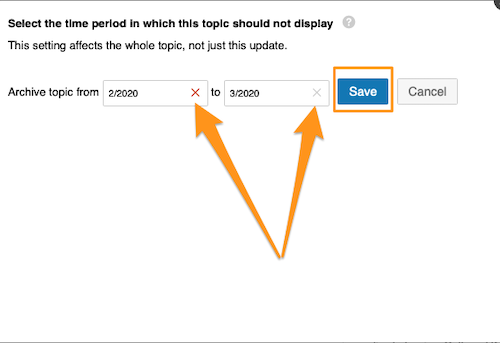
Then deselect the selected time period and click Save. Your topic is included in your presentation again.
Hide an update from the presentation
Hide the update
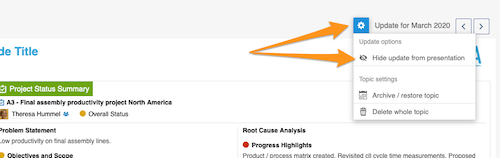
Click the Settings button and choose Hide update from presentation.
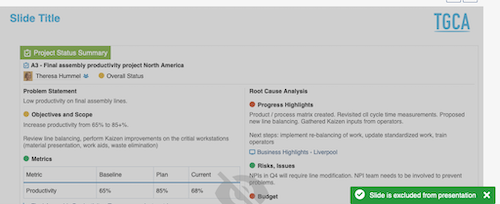
Check the greyed-out update
Your update is greyed out and not displayed in your presentation.
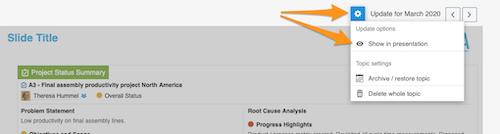
Show the update again
To show your update in the presentation again, click the Settings button and select Show in presentation.
Ak chcete odstrániť celú tému, ale NIE CELÚ JEJ HISTÓRIU (iba tému za určité obdobie), môžete tému archivovať alebo ju len skryť v prezentácii.
Archivovanie celej témy
Otvorte nastavenia archivácie
Kliknite na tlačidlo Nastavenia nad témou a v podmenu zvoľte Archivovať / obnoviť tému.
Zvoľte archivované obdobie
Vyberte obdobie, v ktorom sa téma nemá zobrazovať, a kliknite na Uložiť. Téma potom v prezentácii už nebude.
Obnovte tému
Tému obnovíte rovnako ako pri archivácii: kliknite na tlačidlo Nastavenia a v podmenu zvoľte Archivovať / obnoviť tému.
Zrušte výber archivovaného obdobia
Potom zrušte výber zvoleného obdobia a kliknite na Uložiť. Téma bude v prezentácii znova.
Skrytie aktualizácie v prezentácii
Skryte aktualizáciu
Kliknite na tlačidlo Nastavenia a zvoľte Skryť aktualizáciu z prezentácie.
Skontrolujte sivú aktualizáciu
Aktualizácia sa zobrazí sivou farbou a v prezentácii sa neukáže.
Znova zobrazte aktualizáciu
Ak chcete aktualizáciu v prezentácii znova zobraziť, kliknite na tlačidlo Nastavenia a zvoľte Zobraziť v prezentácii.
Potrebujete ďalšiu pomoc?
Napíšte nám. V pracovné dni zvyčajne odpovedáme do hodiny.