Cómo archivar u ocultar un tema
Traducción automática del inglés. Se muestra el original en inglés.
If you want to remove a whole topic but NOT ALL ITS HISTORY (only the topic for a specific period), you can either archive the topic or just hide it from your presentation.
Archive the whole topic
Open the archive settings
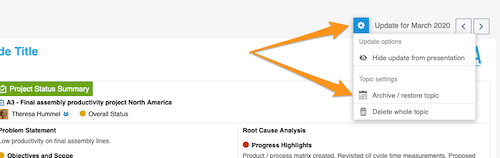
Click the Settings button above your topic and choose Archive / restore topic from the submenu.
Select the archived period
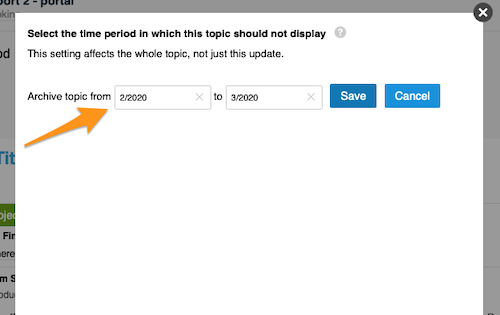
Select the time period in which the topic should not be displayed and click Save. The topic is then no longer included in your presentation.
Restore the topic
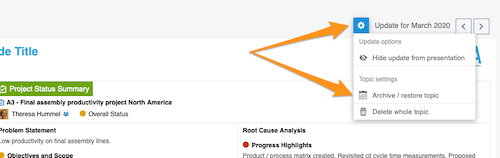
To restore your topic, follow the same steps as for archiving: click the Settings button and select Archive / restore topic from the submenu.
Deselect the archived period
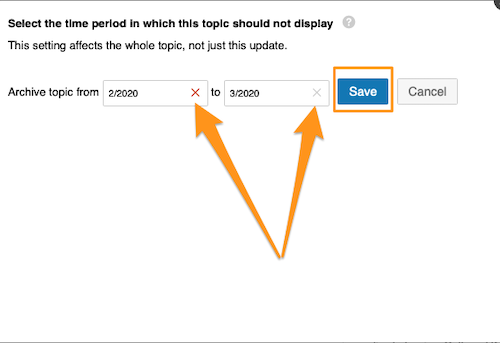
Then deselect the selected time period and click Save. Your topic is included in your presentation again.
Hide an update from the presentation
Hide the update
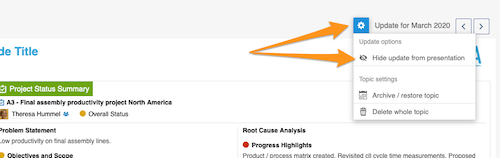
Click the Settings button and choose Hide update from presentation.
Check the greyed-out update
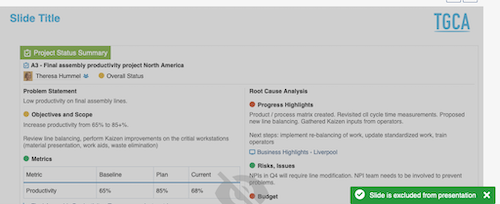
Your update is greyed out and not displayed in your presentation.
Show the update again
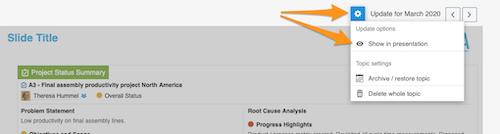
To show your update in the presentation again, click the Settings button and select Show in presentation.
Si quiere quitar un tema completo pero NO TODO SU HISTORIAL (solo el tema de un período concreto), puede archivar el tema o simplemente ocultarlo de la presentación.
Archivar el tema completo
Abra la configuración de archivo
Haga clic en el botón Configuración encima del tema y elija Archivar / restaurar tema en el submenú.
Seleccione el período archivado
Seleccione el período en el que el tema no debe mostrarse y haga clic en Guardar. El tema deja de aparecer en la presentación.
Restaure el tema
Para restaurar el tema, siga los mismos pasos que para archivarlo: haga clic en el botón Configuración y seleccione Archivar / restaurar tema en el submenú.
Quite el período archivado
Luego desmarque el período seleccionado y haga clic en Guardar. El tema vuelve a aparecer en la presentación.
Ocultar una actualización de la presentación
Oculte la actualización
Haga clic en el botón Configuración y elija Ocultar actualización de la presentación.
Compruebe la actualización atenuada
La actualización aparece atenuada y no se muestra en la presentación.
Vuelva a mostrar la actualización
Para volver a mostrar la actualización en la presentación, haga clic en el botón Configuración y seleccione Mostrar en la presentación.
¿Necesita más ayuda?
Escríbanos. En días laborables solemos responder en menos de una hora.