Relatórios: unidade organizacional (objeto) nos widgets de gráficos
Tradução automática do inglês. Exibindo o original em inglês.
You have several options for setting up the object (org. unit) of the data in your report’s charts, and for benefiting from this functionality.
Please note: at the moment, this functionality is available for Charts widgets only, but we are planning to extend it to other report widgets too.
This feature will help you if:
- you are creating a report with charts’ data for the same org. unit,
- you have a report with charts for one unit and would like to use the same report to display the data of a different org. unit,
- you are creating slides with the same charts’ layout, but for different org. units within the same report.
Watch the video guide
Reports / Charts Org. Units Management (text instructions below):
Set the org. unit in the report settings
Select the default org. unit
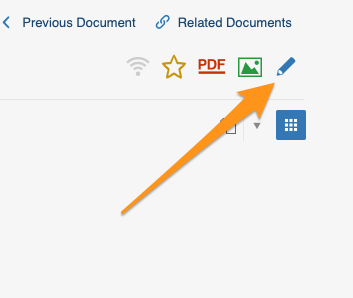
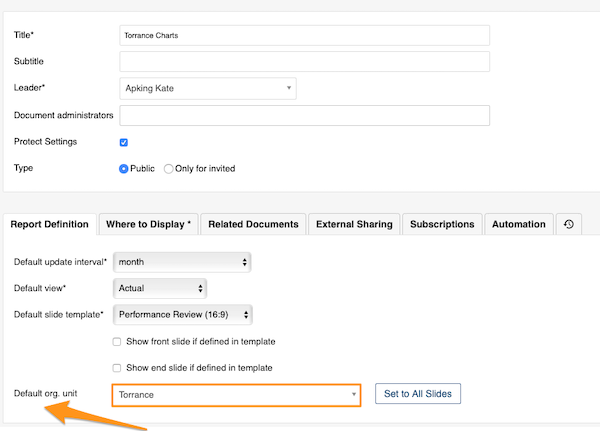
To set up a default org. unit for your whole report, go to your report settings and select your default org. unit. Use this option when you are setting up a report with data for the same org. unit.
Reuse the report for another org. unit
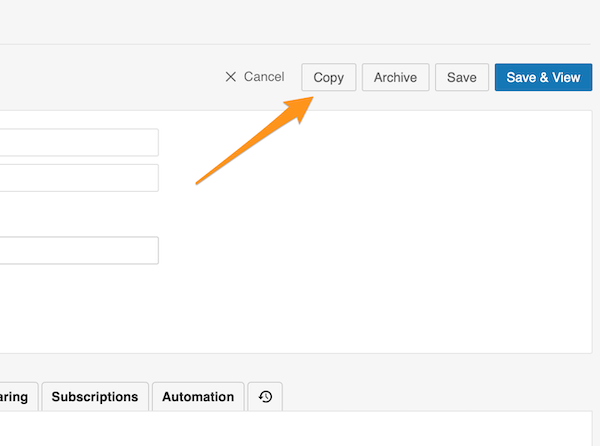
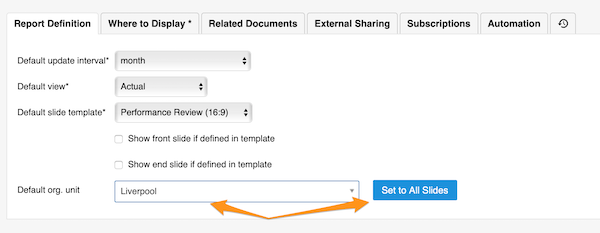
If you would like to set up the same report but display data for a different org. unit, you can easily make a copy of that report. Then just change the default org. unit and click the Set to All Slides button. All charts’ data are updated automatically with the unit of your choice.
Switch new charts to the slide settings
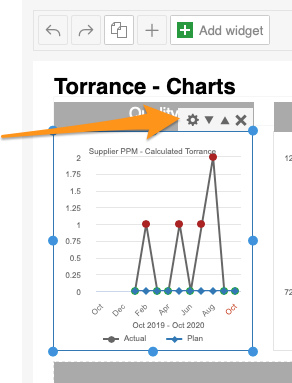
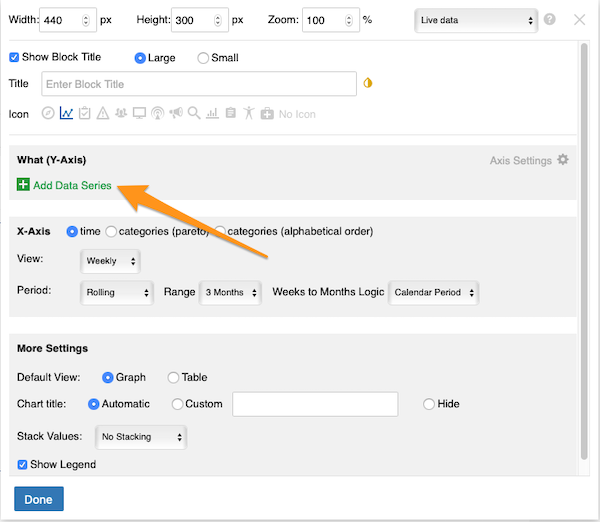
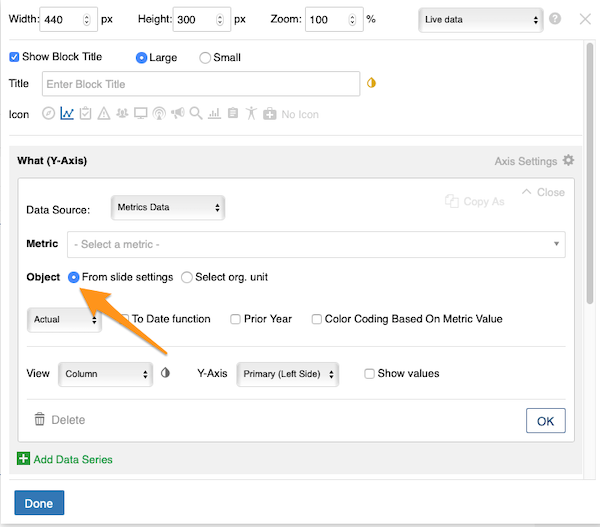
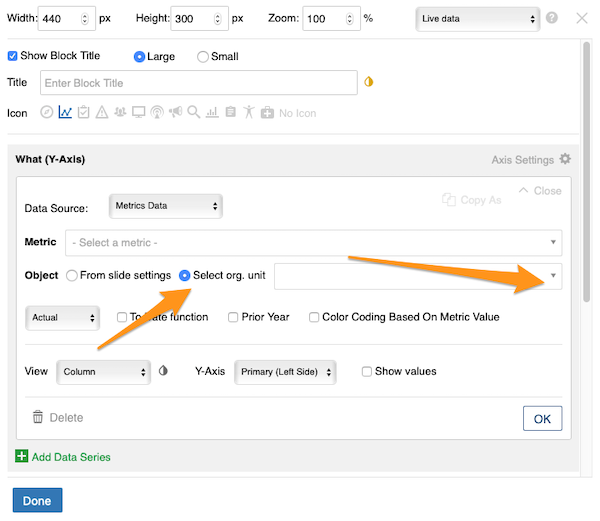
Please note: when you set up charts in your report for the first time, you need to complete one more step: in the chart settings, manually select the From Slide Settings option, because the default setup is Select org. unit from the org. structure. You only have to do this the first time you create a chart.
Set the org. unit in the slide settings
Select the org. unit of the slide
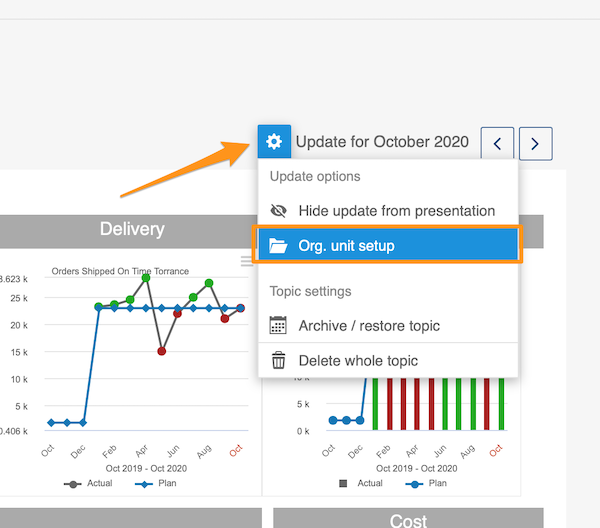
To set up the org. unit for each slide separately, go to the slide settings, select Org. unit setup from the submenu and then choose your org. unit.
Use this option when you are creating slides with charts and each slide displays data of a different org. unit. You can easily copy your slide and change the org. unit.
Copy the slide for another org. unit
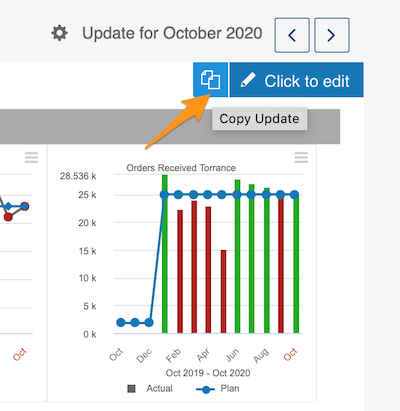
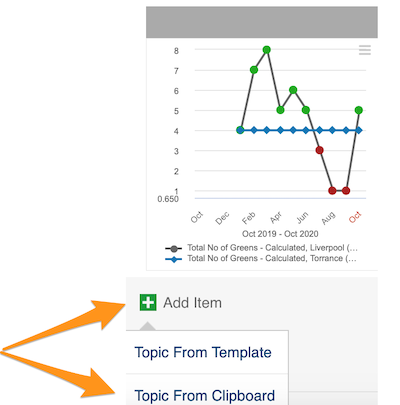
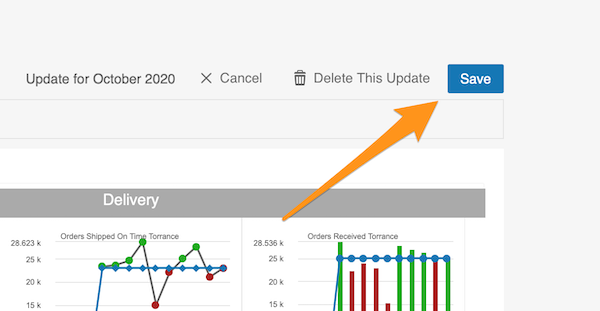
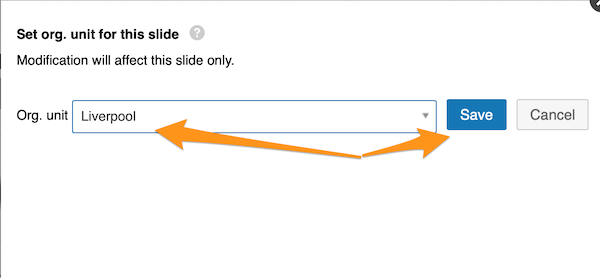
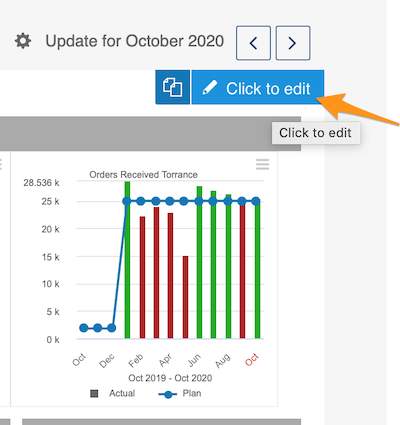
To copy a slide (update), click your slide and the two pages icon. Then choose Add item – Topic From Clipboard and Save your slide. Then choose Org. unit setup in the slide settings submenu and change your org. unit.
Set the org. unit in the chart settings
Take the org. unit from the settings
You can also set up the org. unit in each chart individually. You can choose the object From Slide Settings (if you set up your default org. unit in the report settings or in the slide settings).
Pick any org. unit
Or you can choose any org. unit from the structure: click the Select org. unit option and choose the unit from the submenu.
This feature is flexible, so you can change your org. unit at the report level, the slide level and the individual chart level, and vice versa.
Há várias formas de definir o objeto (unidade organizacional) dos dados nos gráficos do seu relatório e de aproveitar esse recurso.
Atenção: no momento, este recurso está disponível apenas para widgets de gráficos, mas pretendemos estendê-lo a outros widgets de relatório.
Este recurso ajuda quando:
- você cria um relatório com dados de gráficos da mesma unidade organizacional,
- você tem um relatório com gráficos de uma unidade e quer usar o mesmo relatório para mostrar os dados de outra unidade organizacional,
- você cria slides com o mesmo layout de gráficos, mas para unidades organizacionais diferentes, no mesmo relatório.
Assista ao vídeo
Relatórios / Gerenciamento de unidades organizacionais nos gráficos (instruções em texto abaixo):
Definir a unidade organizacional nas configurações do relatório
Selecionar a unidade organizacional padrão
Para definir uma unidade organizacional padrão para todo o relatório, abra as configurações do relatório e selecione a unidade padrão. Use esta opção quando o relatório tiver dados de uma única unidade organizacional.
Reutilizar o relatório para outra unidade organizacional
Se quiser o mesmo relatório com dados de outra unidade organizacional, basta fazer uma cópia dele. Depois, altere a unidade organizacional padrão e clique no botão Aplicar a todos os slides. Os dados de todos os gráficos são atualizados automaticamente com a unidade escolhida.
Vincular novos gráficos às configurações do slide
Atenção: ao configurar gráficos no relatório pela primeira vez, é preciso fazer mais um passo: nas configurações do gráfico, selecione manualmente a opção Das configurações do slide, porque o padrão é Selecionar unidade organizacional na estrutura organizacional. Isso só é necessário na primeira vez que você cria um gráfico.
Definir a unidade organizacional nas configurações do slide
Selecionar a unidade organizacional do slide
Para definir a unidade organizacional de cada slide separadamente, abra as configurações do slide, selecione Configurar unidade organizacional no submenu e escolha a unidade.
Use esta opção quando criar slides com gráficos em que cada slide mostra dados de uma unidade organizacional diferente. Você pode copiar o slide e trocar a unidade organizacional com facilidade.
Copiar o slide para outra unidade organizacional
Para copiar um slide (atualização), clique no slide e no ícone de duas páginas. Depois, escolha Adicionar item – Tópico da área de transferência e clique em Salvar para salvar o slide. Em seguida, escolha Configurar unidade organizacional no submenu de configurações do slide e altere a unidade.
Definir a unidade organizacional nas configurações do gráfico
Usar a unidade organizacional das configurações
Você também pode definir a unidade organizacional em cada gráfico individualmente. Escolha o objeto Das configurações do slide (se você definiu a unidade padrão nas configurações do relatório ou do slide).
Escolher qualquer unidade organizacional
Ou escolha qualquer unidade da estrutura: clique na opção Selecionar unidade organizacional e escolha a unidade no submenu.
O recurso é flexível: você pode alterar a unidade organizacional no nível do relatório, do slide e de cada gráfico, em qualquer direção.
Precisa de mais ajuda?
Escreva para nós. Em dias úteis, costumamos responder em até uma hora.