Raporty: jednostka org. (obiekt) w widżetach wykresów
Tłumaczenie maszynowe z angielskiego. Wyświetlany jest oryginał po angielsku.
You have several options for setting up the object (org. unit) of the data in your report’s charts, and for benefiting from this functionality.
Please note: at the moment, this functionality is available for Charts widgets only, but we are planning to extend it to other report widgets too.
This feature will help you if:
- you are creating a report with charts’ data for the same org. unit,
- you have a report with charts for one unit and would like to use the same report to display the data of a different org. unit,
- you are creating slides with the same charts’ layout, but for different org. units within the same report.
Watch the video guide
Reports / Charts Org. Units Management (text instructions below):
Set the org. unit in the report settings
Select the default org. unit
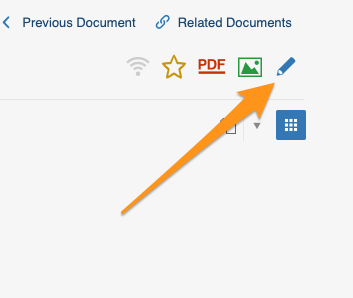
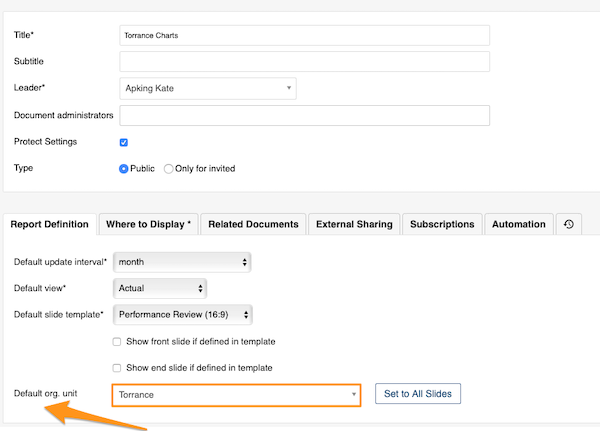
To set up a default org. unit for your whole report, go to your report settings and select your default org. unit. Use this option when you are setting up a report with data for the same org. unit.
Reuse the report for another org. unit
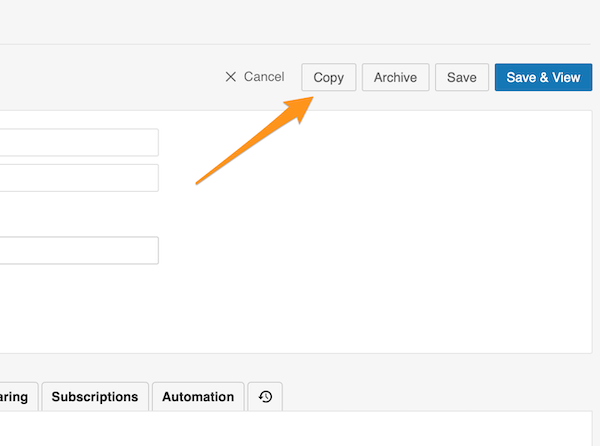
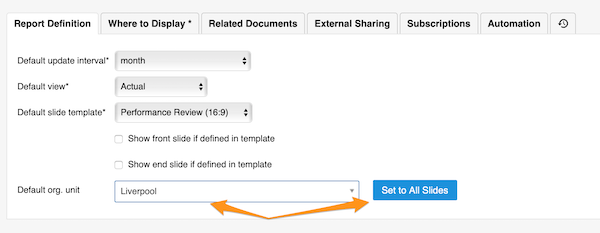
If you would like to set up the same report but display data for a different org. unit, you can easily make a copy of that report. Then just change the default org. unit and click the Set to All Slides button. All charts’ data are updated automatically with the unit of your choice.
Switch new charts to the slide settings
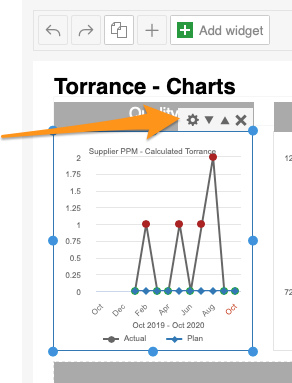
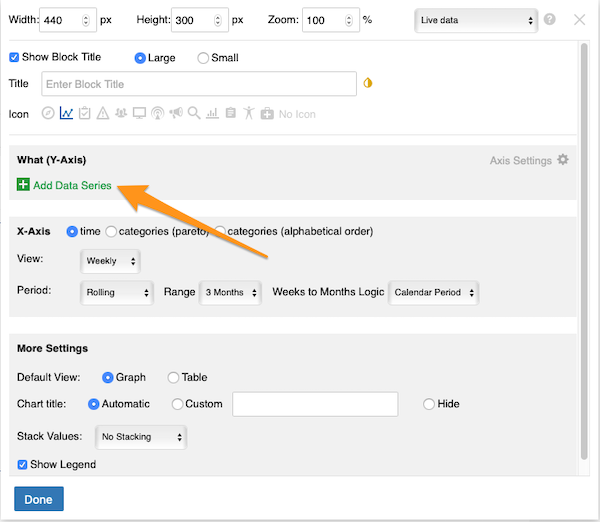
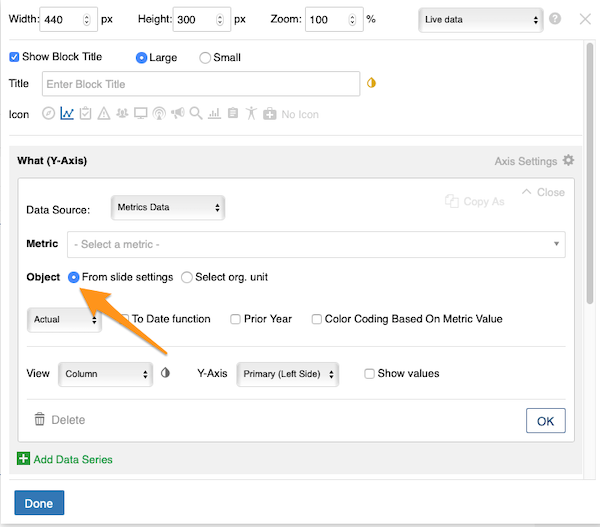
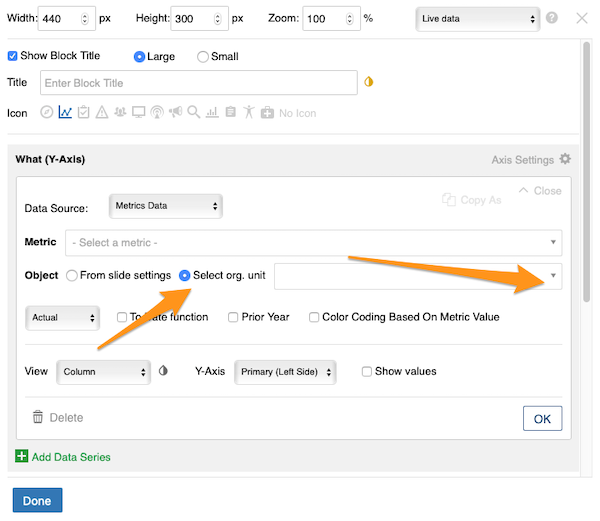
Please note: when you set up charts in your report for the first time, you need to complete one more step: in the chart settings, manually select the From Slide Settings option, because the default setup is Select org. unit from the org. structure. You only have to do this the first time you create a chart.
Set the org. unit in the slide settings
Select the org. unit of the slide
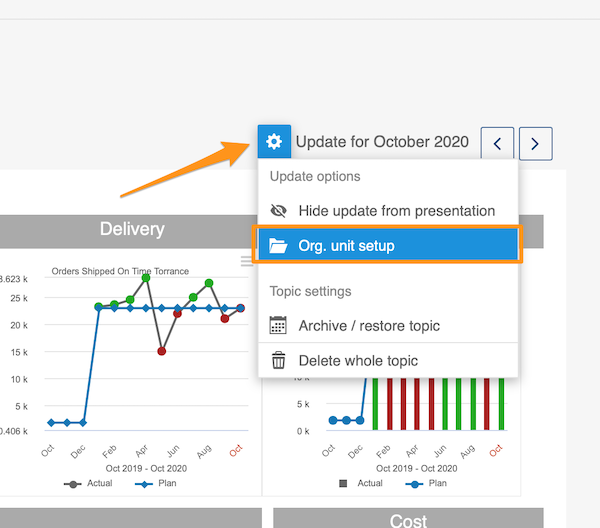
To set up the org. unit for each slide separately, go to the slide settings, select Org. unit setup from the submenu and then choose your org. unit.
Use this option when you are creating slides with charts and each slide displays data of a different org. unit. You can easily copy your slide and change the org. unit.
Copy the slide for another org. unit
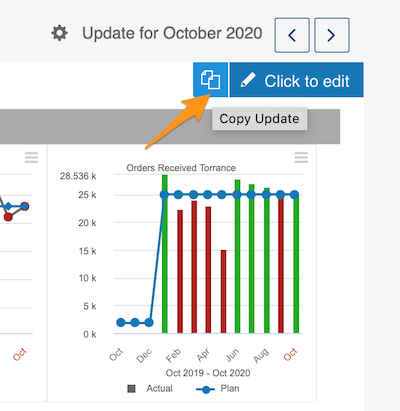
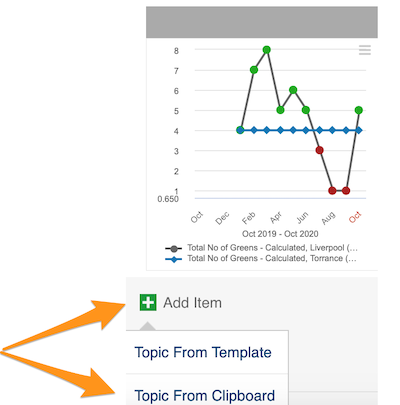
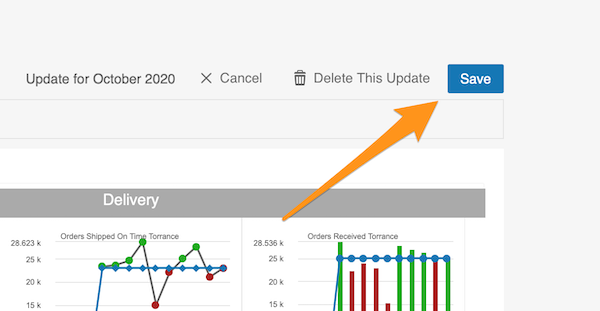
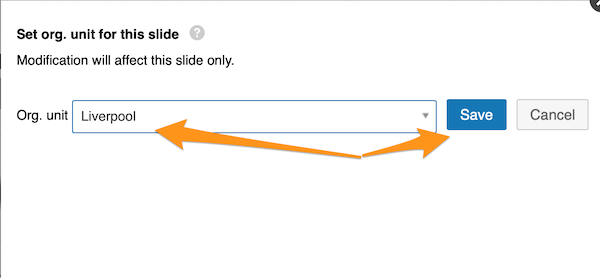
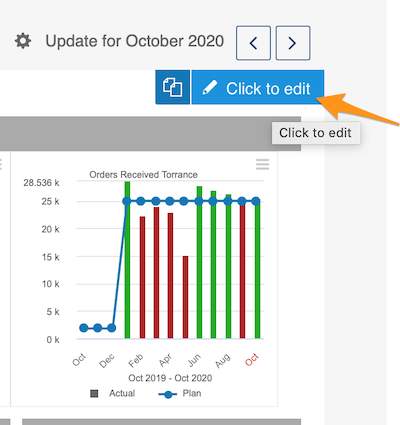
To copy a slide (update), click your slide and the two pages icon. Then choose Add item – Topic From Clipboard and Save your slide. Then choose Org. unit setup in the slide settings submenu and change your org. unit.
Set the org. unit in the chart settings
Take the org. unit from the settings
You can also set up the org. unit in each chart individually. You can choose the object From Slide Settings (if you set up your default org. unit in the report settings or in the slide settings).
Pick any org. unit
Or you can choose any org. unit from the structure: click the Select org. unit option and choose the unit from the submenu.
This feature is flexible, so you can change your org. unit at the report level, the slide level and the individual chart level, and vice versa.
Jednostkę organizacyjną (obiekt), z której pochodzą dane na wykresach w raporcie, możesz ustawić na kilka sposobów.
Uwaga: obecnie ta funkcja działa tylko w widżetach wykresów, ale planujemy rozszerzyć ją na inne widżety raportu.
Ta funkcja przyda się, gdy:
- tworzysz raport z wykresami dla tej samej jednostki org.,
- masz raport z wykresami dla jednej jednostki i chcesz w tym samym raporcie pokazać dane innej jednostki org.,
- tworzysz w jednym raporcie slajdy z takim samym układem wykresów, ale dla różnych jednostek org.
Obejrzyj film instruktażowy
Raporty / jednostki org. na wykresach (instrukcja tekstowa poniżej):
Ustaw jednostkę org. w ustawieniach raportu
Wybierz domyślną jednostkę org.
Aby ustawić domyślną jednostkę org. dla całego raportu, otwórz ustawienia raportu i wybierz domyślną jednostkę. Użyj tej opcji, gdy cały raport pokazuje dane tej samej jednostki org.
Użyj raportu dla innej jednostki org.
Jeśli chcesz mieć ten sam raport z danymi innej jednostki org., po prostu zrób kopię raportu. Zmień w niej domyślną jednostkę org. i kliknij przycisk Ustaw dla wszystkich slajdów. Dane na wszystkich wykresach zaktualizują się automatycznie do wybranej jednostki.
Przełącz nowe wykresy na ustawienia slajdu
Uwaga: przy pierwszym ustawianiu wykresów w raporcie potrzebny jest jeszcze jeden krok. W ustawieniach wykresu ręcznie wybierz opcję Z ustawień slajdu, bo domyślnie zaznaczona jest opcja Wybierz jednostkę org. ze struktury organizacyjnej. Robisz to tylko przy pierwszym tworzeniu wykresu.
Ustaw jednostkę org. w ustawieniach slajdu
Wybierz jednostkę org. slajdu
Aby ustawić jednostkę org. osobno dla każdego slajdu, otwórz ustawienia slajdu, wybierz z podmenu Ustawienia jednostki org. i wskaż jednostkę.
Użyj tej opcji, gdy tworzysz slajdy z wykresami, a każdy slajd pokazuje dane innej jednostki org. Slajd łatwo skopiujesz i zmienisz w nim jednostkę.
Skopiuj slajd dla innej jednostki org.
Aby skopiować slajd (aktualizację), kliknij slajd i ikonę dwóch kartek. Następnie wybierz Dodaj element – Temat ze schowka i kliknij Zapisz. Potem w podmenu ustawień slajdu wybierz Ustawienia jednostki org. i zmień jednostkę.
Ustaw jednostkę org. w ustawieniach wykresu
Pobierz jednostkę org. z ustawień
Jednostkę org. możesz też ustawić osobno dla każdego wykresu. Wybierz obiekt Z ustawień slajdu (jeśli ustawiłeś domyślną jednostkę org. w ustawieniach raportu lub slajdu).
Wybierz dowolną jednostkę org.
Możesz też wybrać dowolną jednostkę ze struktury: kliknij opcję Wybierz jednostkę org. i wskaż jednostkę w podmenu.
Funkcja jest elastyczna: jednostkę org. zmienisz na poziomie raportu, slajdu i pojedynczego wykresu, w dowolnej kolejności.
Potrzebujesz dalszej pomocy?
Napisz do nas. W dni robocze zwykle odpowiadamy w ciągu godziny.