Reporty – nastavenie org. jednotky (objektu) vo widgetoch grafov
Strojový preklad z angličtiny. Zobrazený je anglický originál.
You have several options for setting up the object (org. unit) of the data in your report’s charts, and for benefiting from this functionality.
Please note: at the moment, this functionality is available for Charts widgets only, but we are planning to extend it to other report widgets too.
This feature will help you if:
- you are creating a report with charts’ data for the same org. unit,
- you have a report with charts for one unit and would like to use the same report to display the data of a different org. unit,
- you are creating slides with the same charts’ layout, but for different org. units within the same report.
Watch the video guide
Reports / Charts Org. Units Management (text instructions below):
Set the org. unit in the report settings
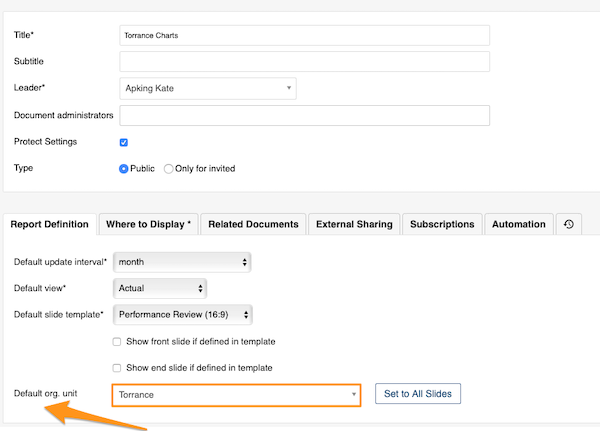
Select the default org. unit
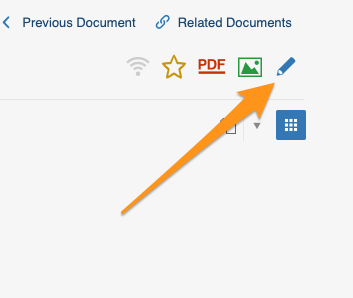
To set up a default org. unit for your whole report, go to your report settings and select your default org. unit. Use this option when you are setting up a report with data for the same org. unit.
Reuse the report for another org. unit
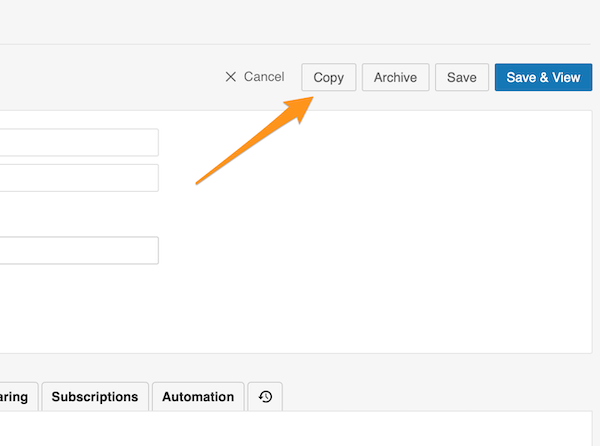
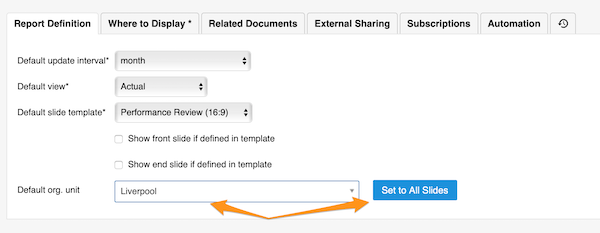
If you would like to set up the same report but display data for a different org. unit, you can easily make a copy of that report. Then just change the default org. unit and click the Set to All Slides button. All charts’ data are updated automatically with the unit of your choice.
Switch new charts to the slide settings
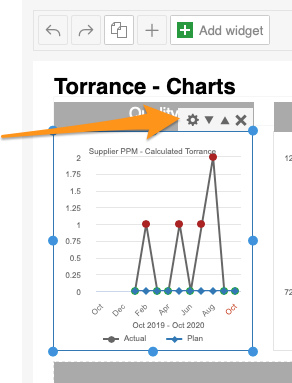
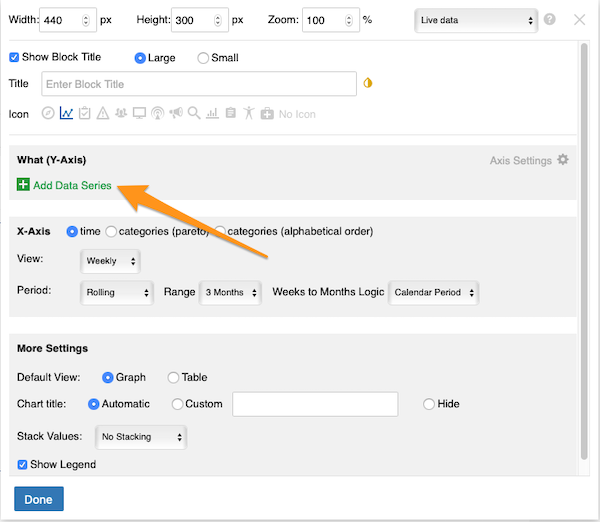
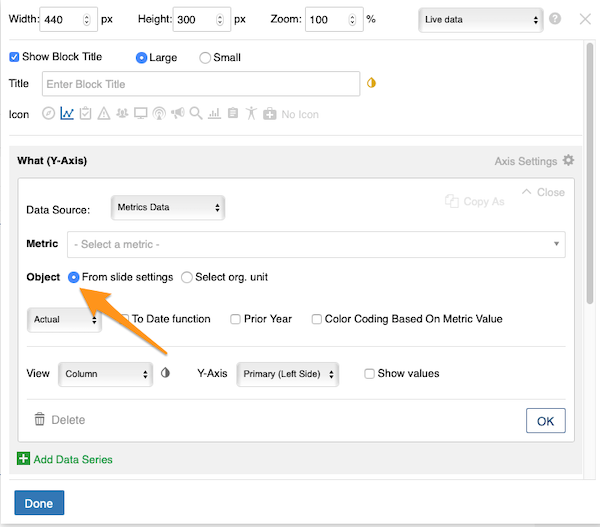
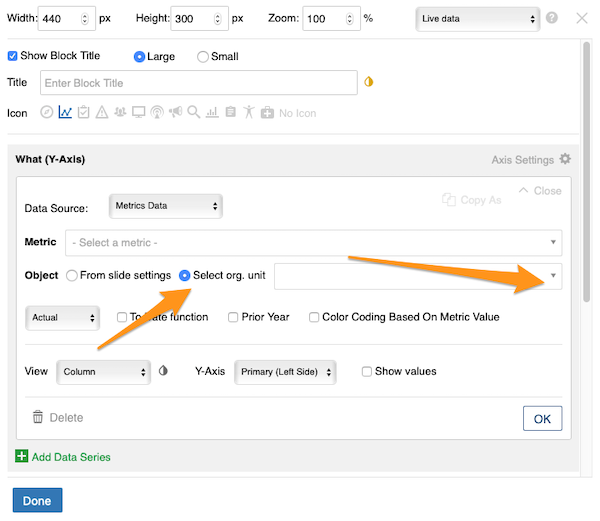
Please note: when you set up charts in your report for the first time, you need to complete one more step: in the chart settings, manually select the From Slide Settings option, because the default setup is Select org. unit from the org. structure. You only have to do this the first time you create a chart.
Set the org. unit in the slide settings
Select the org. unit of the slide
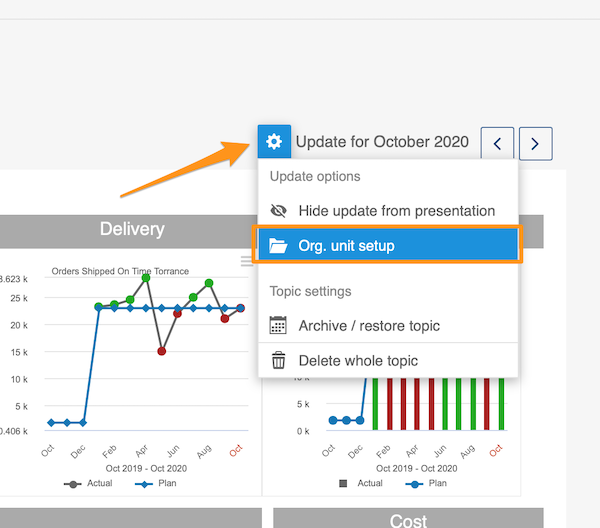
To set up the org. unit for each slide separately, go to the slide settings, select Org. unit setup from the submenu and then choose your org. unit.
Use this option when you are creating slides with charts and each slide displays data of a different org. unit. You can easily copy your slide and change the org. unit.
Copy the slide for another org. unit
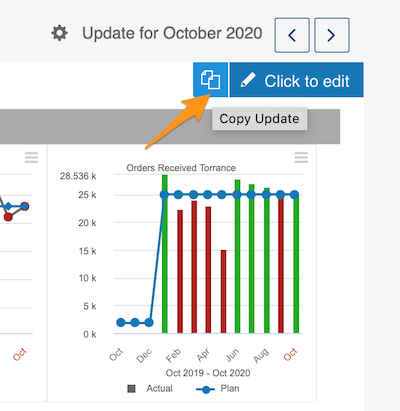
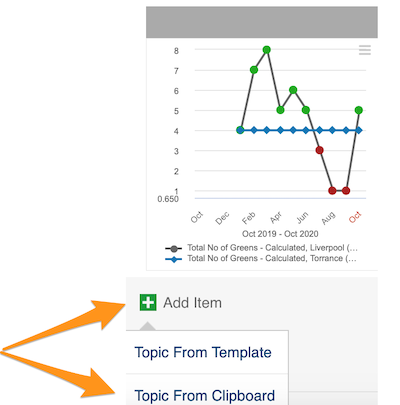
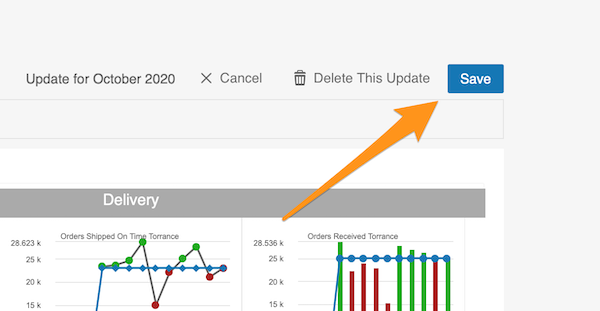
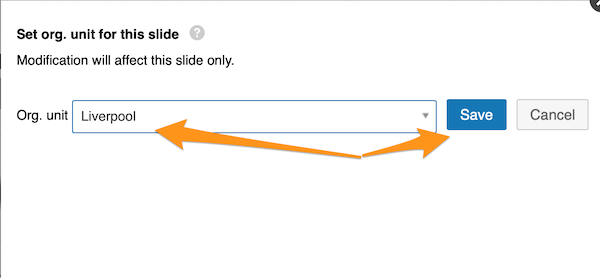
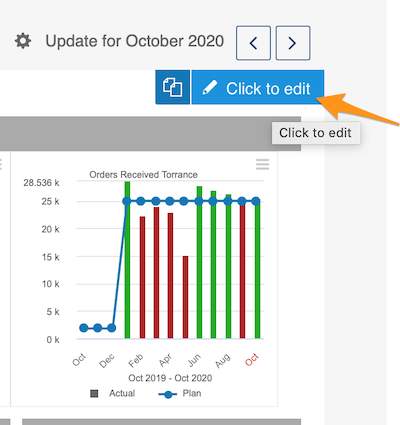
To copy a slide (update), click your slide and the two pages icon. Then choose Add item – Topic From Clipboard and Save your slide. Then choose Org. unit setup in the slide settings submenu and change your org. unit.
Set the org. unit in the chart settings
Take the org. unit from the settings
You can also set up the org. unit in each chart individually. You can choose the object From Slide Settings (if you set up your default org. unit in the report settings or in the slide settings).
Pick any org. unit
Or you can choose any org. unit from the structure: click the Select org. unit option and choose the unit from the submenu.
This feature is flexible, so you can change your org. unit at the report level, the slide level and the individual chart level, and vice versa.
Org. jednotku (objekt), z ktorej grafy v reporte čerpajú dáta, môžete nastaviť niekoľkými spôsobmi a ušetriť si tak veľa práce.
Upozornenie: zatiaľ funguje táto možnosť len vo widgetoch Grafy, no plánujeme ju rozšíriť aj na ďalšie widgety reportov.
Funkcia vám pomôže, ak:
- vytvárate report s grafmi pre jednu a tú istú org. jednotku,
- máte report s grafmi pre jednu jednotku a chcete v ňom zobraziť dáta inej org. jednotky,
- vytvárate v jednom reporte snímky s rovnakým rozložením grafov, ale pre rôzne org. jednotky.
Pozrite si video návod
Reporty / Správa org. jednotiek v grafoch (textový návod nájdete nižšie):
Nastavenie org. jednotky v nastaveniach reportu
Vyberte predvolenú org. jednotku
Ak chcete nastaviť predvolenú org. jednotku pre celý report, otvorte nastavenia reportu a vyberte ju. Táto možnosť sa hodí, keď report zobrazuje dáta jednej org. jednotky.
Použite report pre inú org. jednotku
Ak chcete ten istý report s dátami inej org. jednotky, jednoducho si ho skopírujte. Potom zmeňte predvolenú org. jednotku a kliknite na tlačidlo Nastaviť na všetky snímky. Dáta všetkých grafov sa automaticky prepnú na zvolenú jednotku.
Prepnite nové grafy na nastavenia snímky
Upozornenie: keď v reporte nastavujete grafy prvýkrát, čaká vás ešte jeden krok. V nastaveniach grafu ručne vyberte možnosť Z nastavení snímky, pretože predvolene je nastavená možnosť Vybrať org. jednotku z organizačnej štruktúry. Robíte to len pri prvom vytvorení grafu.
Nastavenie org. jednotky v nastaveniach snímky
Vyberte org. jednotku snímky
Ak chcete nastaviť org. jednotku pre každú snímku zvlášť, otvorte nastavenia snímky, v podmenu vyberte Nastavenie org. jednotky a zvoľte org. jednotku.
Táto možnosť sa hodí, keď vytvárate snímky s grafmi a každá snímka zobrazuje dáta inej org. jednotky. Snímku jednoducho skopírujete a zmeníte v nej org. jednotku.
Skopírujte snímku pre inú org. jednotku
Ak chcete snímku (aktualizáciu) skopírovať, kliknite na ňu a na ikonu dvoch stránok. Potom zvoľte Pridať položku – Téma zo schránky a snímku Uložte. Nakoniec v podmenu nastavení snímky vyberte Nastavenie org. jednotky a zmeňte org. jednotku.
Nastavenie org. jednotky v nastaveniach grafu
Prevezmite org. jednotku z nastavení
Org. jednotku môžete nastaviť aj v každom grafe zvlášť. Objekt môžete prevziať voľbou Z nastavení snímky (ak ste predvolenú org. jednotku nastavili v nastaveniach reportu alebo snímky).
Vyberte ľubovoľnú org. jednotku
Prípadne si môžete vybrať ktorúkoľvek org. jednotku zo štruktúry: kliknite na možnosť Vybrať org. jednotku a jednotku zvoľte v podmenu.
Funkcia je flexibilná: org. jednotku môžete meniť na úrovni reportu, snímky aj jednotlivého grafu, a to oboma smermi.
Potrebujete ďalšiu pomoc?
Napíšte nám. V pracovné dni zvyčajne odpovedáme do hodiny.