Reports - Charts Widgets - Org. unit (Object) Setup
You have several options for setting up the object (org. unit) of the data in your report’s charts, and for benefiting from this functionality.
Please note: at the moment, this functionality is available for Charts widgets only, but we are planning to extend it to other report widgets too.
This feature will help you if:
- you are creating a report with charts’ data for the same org. unit,
- you have a report with charts for one unit and would like to use the same report to display the data of a different org. unit,
- you are creating slides with the same charts’ layout, but for different org. units within the same report.
Watch the video guide
Reports / Charts Org. Units Management (text instructions below):
Set the org. unit in the report settings
Select the default org. unit
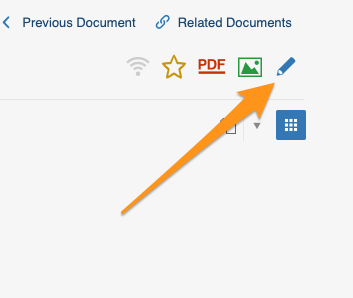
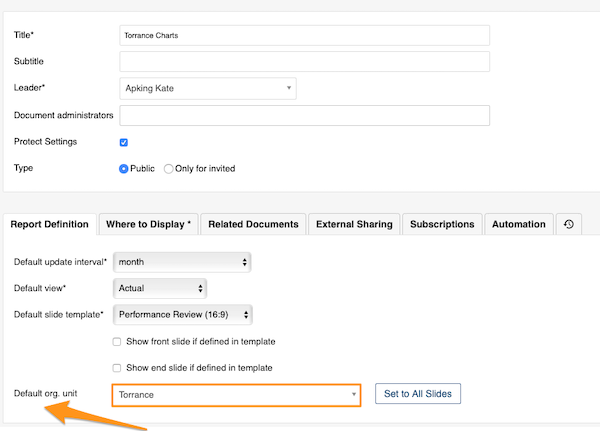
To set up a default org. unit for your whole report, go to your report settings and select your default org. unit. Use this option when you are setting up a report with data for the same org. unit.
Reuse the report for another org. unit
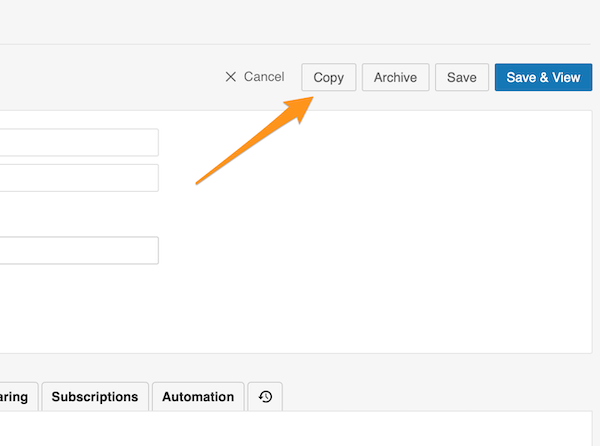
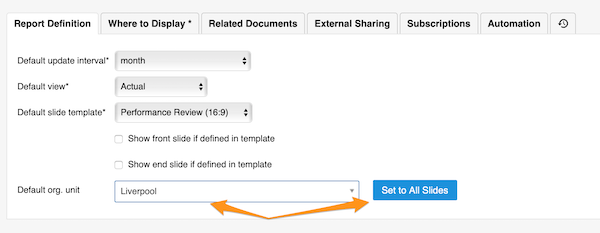
If you would like to set up the same report but display data for a different org. unit, you can easily make a copy of that report. Then just change the default org. unit and click the Set to All Slides button. All charts’ data are updated automatically with the unit of your choice.
Switch new charts to the slide settings
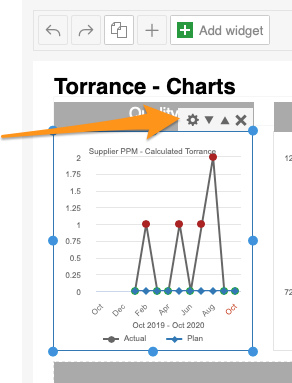
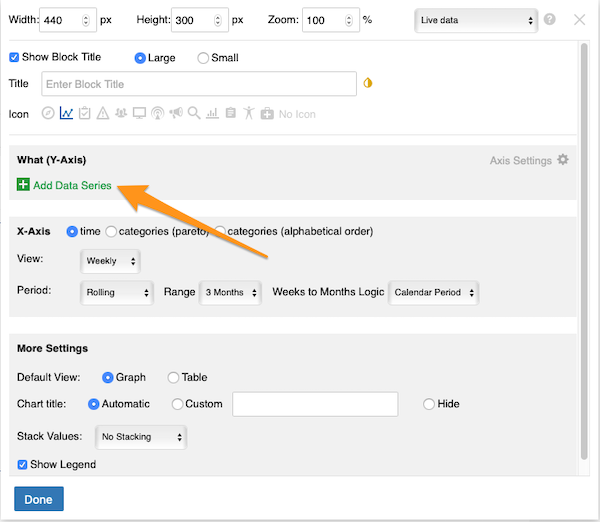
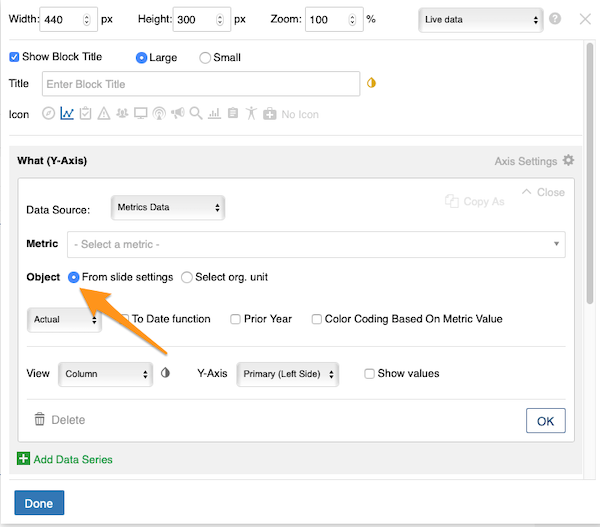
Please note: when you set up charts in your report for the first time, you need to complete one more step: in the chart settings, manually select the From Slide Settings option, because the default setup is Select org. unit from the org. structure. You only have to do this the first time you create a chart.
Set the org. unit in the slide settings
Select the org. unit of the slide
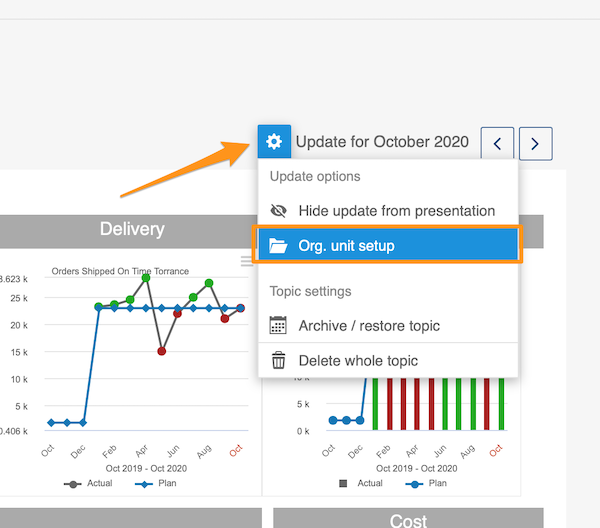
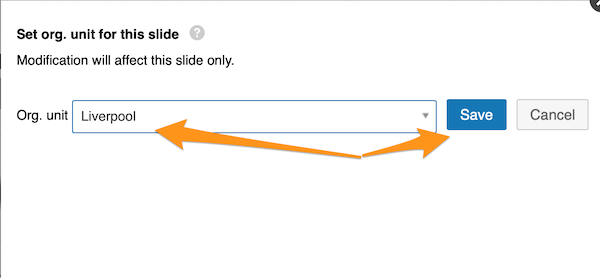
To set up the org. unit for each slide separately, go to the slide settings, select Org. unit setup from the submenu and then choose your org. unit.
Use this option when you are creating slides with charts and each slide displays data of a different org. unit. You can easily copy your slide and change the org. unit.
Copy the slide for another org. unit
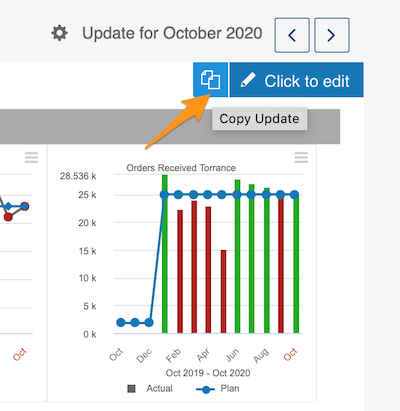
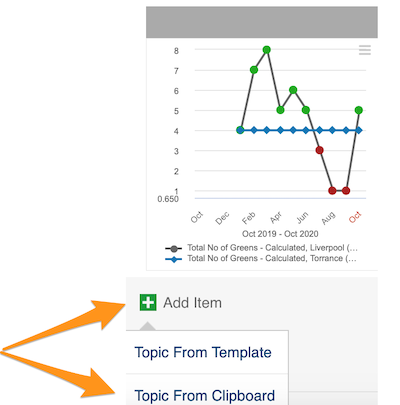
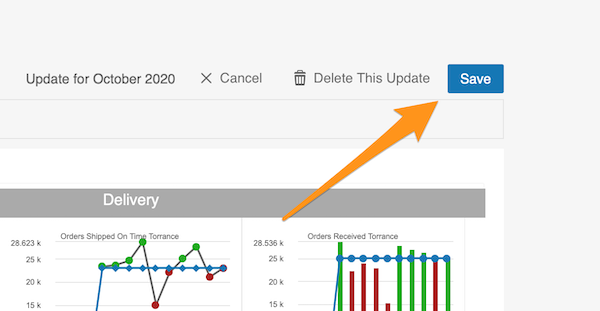
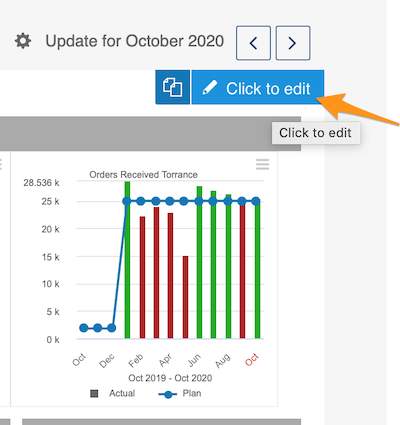
To copy a slide (update), click your slide and the two pages icon. Then choose Add item – Topic From Clipboard and Save your slide. Then choose Org. unit setup in the slide settings submenu and change your org. unit.
Set the org. unit in the chart settings
Take the org. unit from the settings
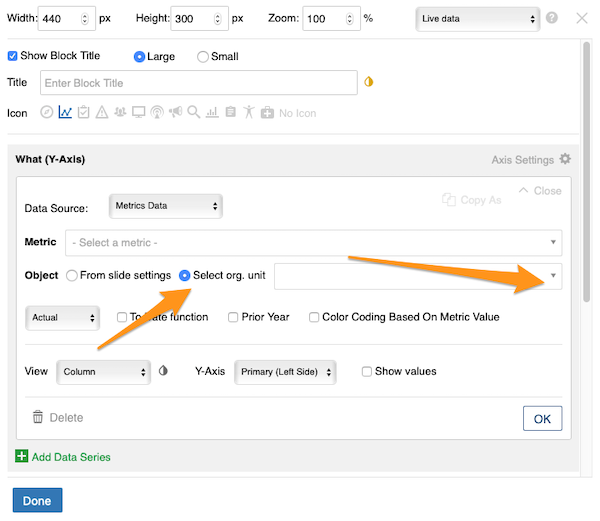
You can also set up the org. unit in each chart individually. You can choose the object From Slide Settings (if you set up your default org. unit in the report settings or in the slide settings).
Pick any org. unit
Or you can choose any org. unit from the structure: click the Select org. unit option and choose the unit from the submenu.
This feature is flexible, so you can change your org. unit at the report level, the slide level and the individual chart level, and vice versa.
Still need help?
Write to us. We usually reply within an hour on business days.