报告:图表组件的组织单元(对象)设置
本文由英文机器翻译。 当前显示英文原文。
You have several options for setting up the object (org. unit) of the data in your report’s charts, and for benefiting from this functionality.
Please note: at the moment, this functionality is available for Charts widgets only, but we are planning to extend it to other report widgets too.
This feature will help you if:
- you are creating a report with charts’ data for the same org. unit,
- you have a report with charts for one unit and would like to use the same report to display the data of a different org. unit,
- you are creating slides with the same charts’ layout, but for different org. units within the same report.
Watch the video guide
Reports / Charts Org. Units Management (text instructions below):
Set the org. unit in the report settings
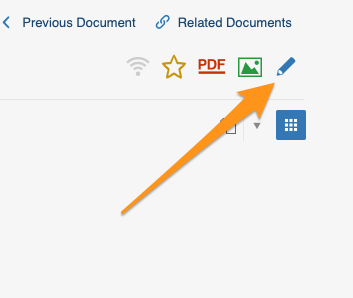
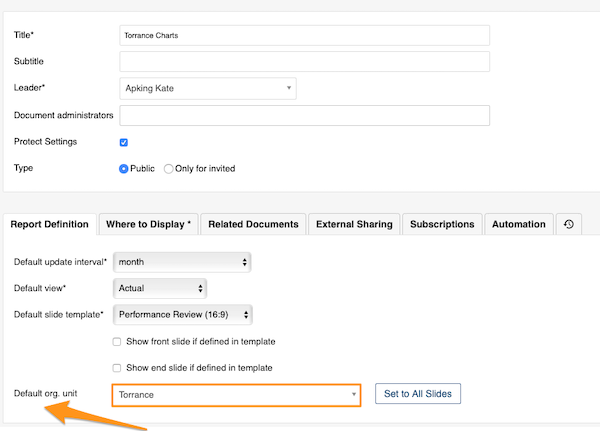
Select the default org. unit
To set up a default org. unit for your whole report, go to your report settings and select your default org. unit. Use this option when you are setting up a report with data for the same org. unit.
Reuse the report for another org. unit
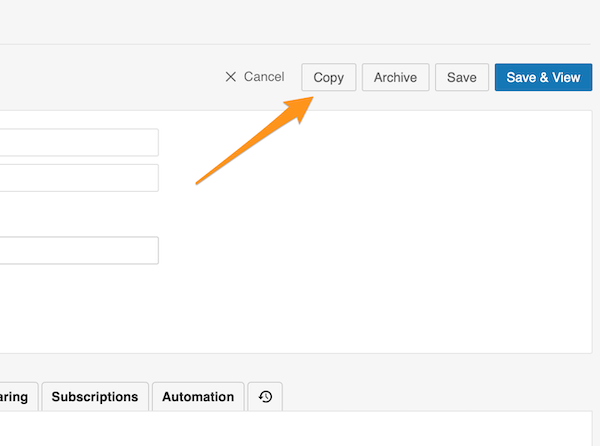
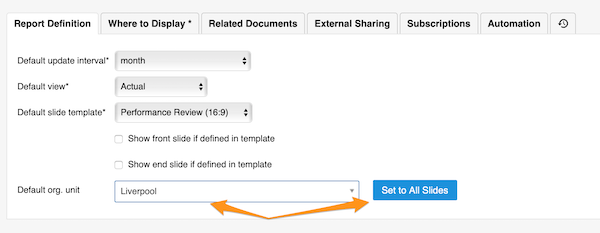
If you would like to set up the same report but display data for a different org. unit, you can easily make a copy of that report. Then just change the default org. unit and click the Set to All Slides button. All charts’ data are updated automatically with the unit of your choice.
Switch new charts to the slide settings
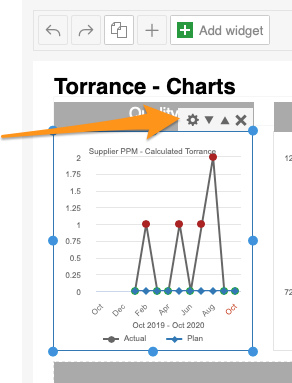
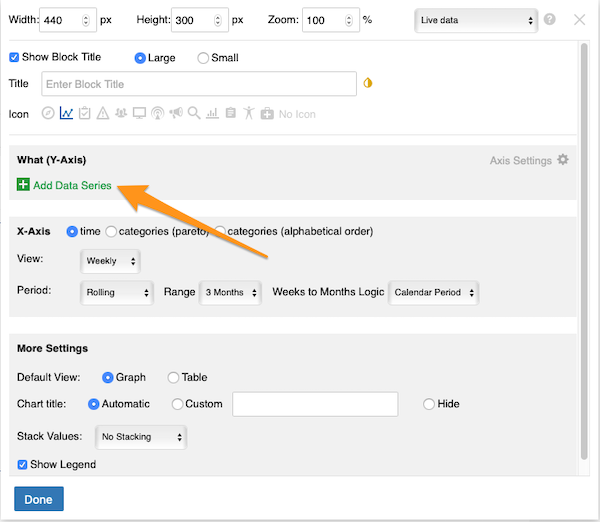
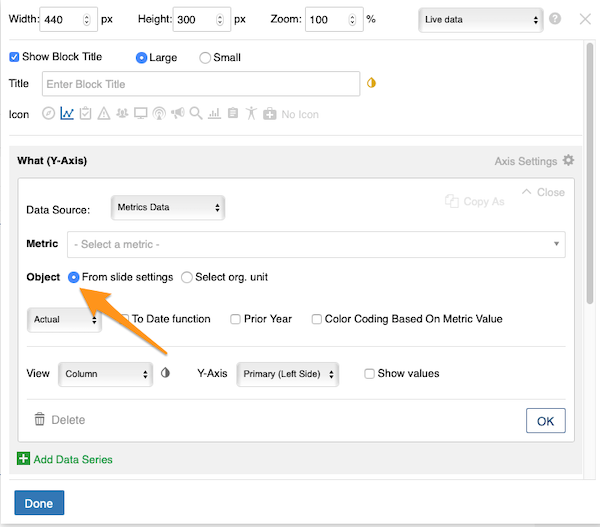
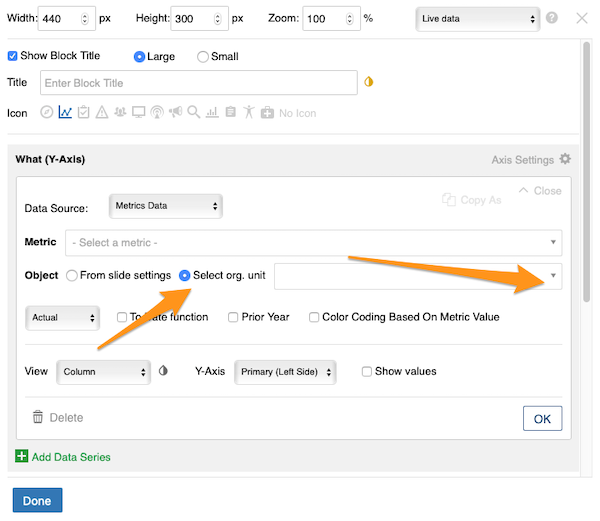
Please note: when you set up charts in your report for the first time, you need to complete one more step: in the chart settings, manually select the From Slide Settings option, because the default setup is Select org. unit from the org. structure. You only have to do this the first time you create a chart.
Set the org. unit in the slide settings
Select the org. unit of the slide
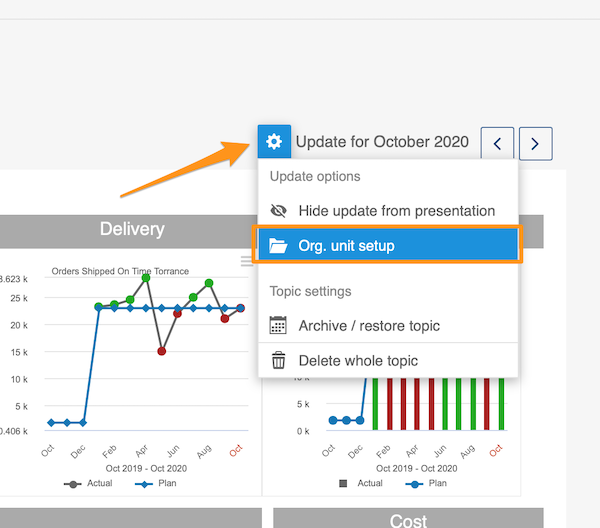
To set up the org. unit for each slide separately, go to the slide settings, select Org. unit setup from the submenu and then choose your org. unit.
Use this option when you are creating slides with charts and each slide displays data of a different org. unit. You can easily copy your slide and change the org. unit.
Copy the slide for another org. unit
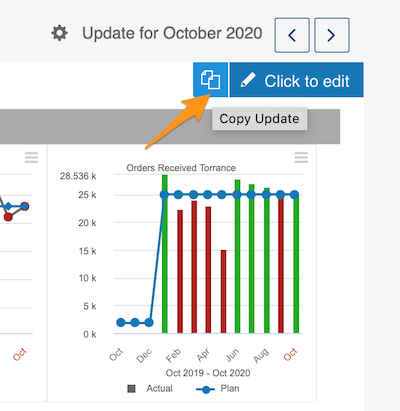
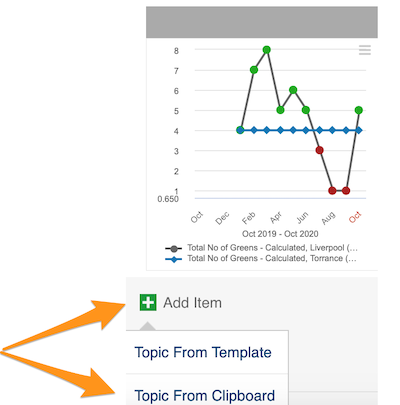
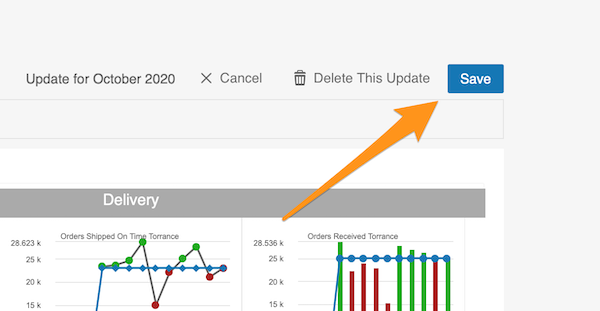
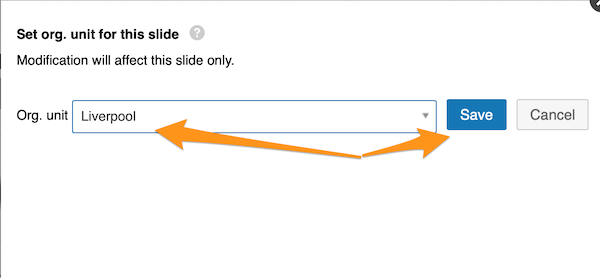
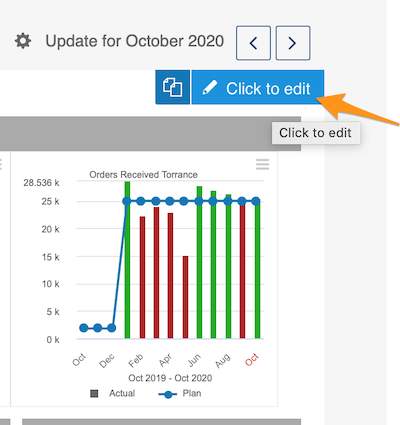
To copy a slide (update), click your slide and the two pages icon. Then choose Add item – Topic From Clipboard and Save your slide. Then choose Org. unit setup in the slide settings submenu and change your org. unit.
Set the org. unit in the chart settings
Take the org. unit from the settings
You can also set up the org. unit in each chart individually. You can choose the object From Slide Settings (if you set up your default org. unit in the report settings or in the slide settings).
Pick any org. unit
Or you can choose any org. unit from the structure: click the Select org. unit option and choose the unit from the submenu.
This feature is flexible, so you can change your org. unit at the report level, the slide level and the individual chart level, and vice versa.
您可以通过多种方式设置报告中图表数据所属的对象(组织单元),并充分利用这项功能。
请注意:目前此功能仅适用于图表组件,我们计划将其扩展到其他报告组件。
此功能适用于以下情况:
- 您正在创建一份报告,其中所有图表数据都来自同一个组织单元,
- 您已有一份显示某个单元图表的报告,希望用同一份报告显示另一个组织单元的数据,
- 您正在同一份报告中创建图表布局相同、但对应不同组织单元的幻灯片。
观看视频教程
报告/图表组织单元管理(文字说明见下文):
在报告设置中设置组织单元
选择默认组织单元
要为整份报告设置默认组织单元,请打开报告设置并选择默认组织单元。如果整份报告使用同一个组织单元的数据,请使用此选项。
将报告用于其他组织单元
如果您想使用同一份报告显示另一个组织单元的数据,可以轻松复制该报告。然后只需更改默认组织单元,并点击应用到所有幻灯片按钮。所有图表数据都会自动更新为您选择的单元。
将新图表切换为使用幻灯片设置
请注意:首次在报告中设置图表时,还需要多做一步:在图表设置中手动选择来自幻灯片设置选项,因为默认设置是从组织结构中选择组织单元。此操作只需在首次创建图表时进行。
在幻灯片设置中设置组织单元
选择幻灯片的组织单元
要为每张幻灯片单独设置组织单元,请打开幻灯片设置,在子菜单中选择组织单元设置,然后选择组织单元。
如果您创建的幻灯片包含图表,且每张幻灯片显示不同组织单元的数据,请使用此选项。您可以轻松复制幻灯片并更改组织单元。
为其他组织单元复制幻灯片
要复制幻灯片(更新),请点击该幻灯片和双页图标。然后选择添加项目 – 从剪贴板添加主题,并保存幻灯片。接着在幻灯片设置子菜单中选择组织单元设置,更改组织单元。
在图表设置中设置组织单元
使用设置中的组织单元
您也可以为每个图表单独设置组织单元。您可以选择来自幻灯片设置作为对象(前提是已在报告设置或幻灯片设置中设置了默认组织单元)。
选择任意组织单元
您也可以从组织结构中选择任意组织单元:点击选择组织单元选项,然后在子菜单中选择单元。
此功能非常灵活,您可以在报告、幻灯片和单个图表层级更改组织单元,反之亦然。
还需要帮助吗?
请给我们留言。工作日我们通常会在一小时内回复。