Informes: configurar la unidad organizativa (objeto) en los widgets de gráficos
Traducción automática del inglés. Se muestra el original en inglés.
You have several options for setting up the object (org. unit) of the data in your report’s charts, and for benefiting from this functionality.
Please note: at the moment, this functionality is available for Charts widgets only, but we are planning to extend it to other report widgets too.
This feature will help you if:
- you are creating a report with charts’ data for the same org. unit,
- you have a report with charts for one unit and would like to use the same report to display the data of a different org. unit,
- you are creating slides with the same charts’ layout, but for different org. units within the same report.
Watch the video guide
Reports / Charts Org. Units Management (text instructions below):
Set the org. unit in the report settings
Select the default org. unit
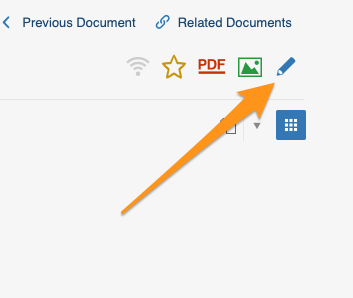
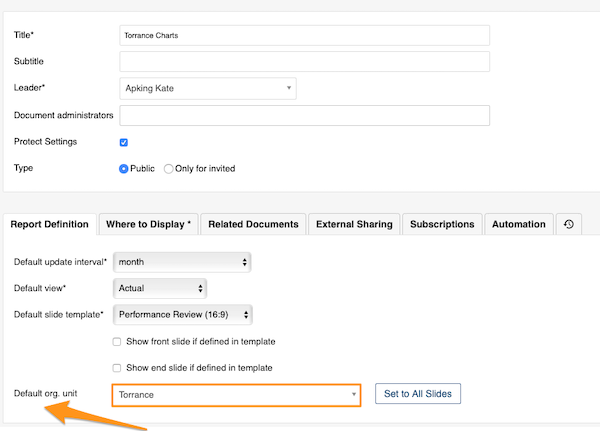
To set up a default org. unit for your whole report, go to your report settings and select your default org. unit. Use this option when you are setting up a report with data for the same org. unit.
Reuse the report for another org. unit
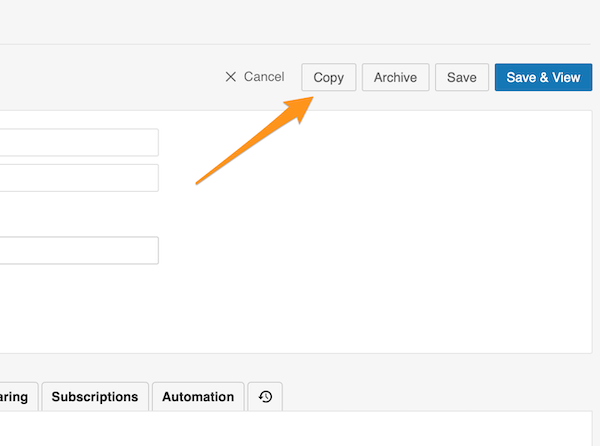
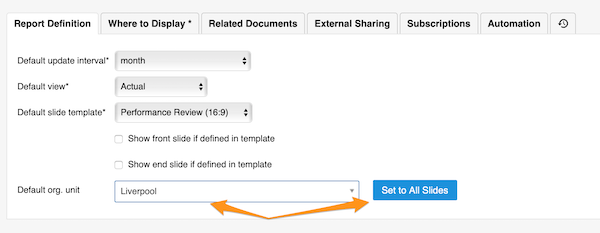
If you would like to set up the same report but display data for a different org. unit, you can easily make a copy of that report. Then just change the default org. unit and click the Set to All Slides button. All charts’ data are updated automatically with the unit of your choice.
Switch new charts to the slide settings
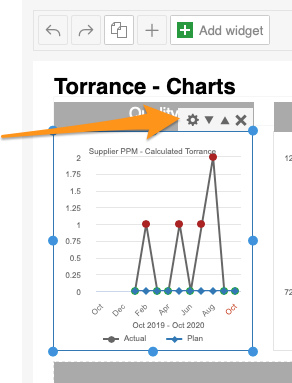
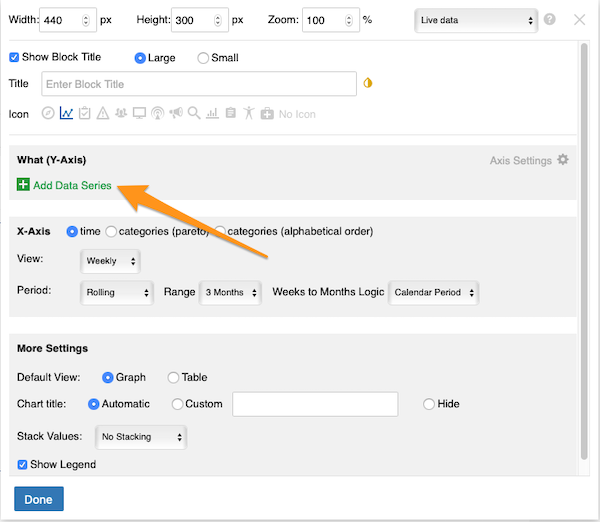
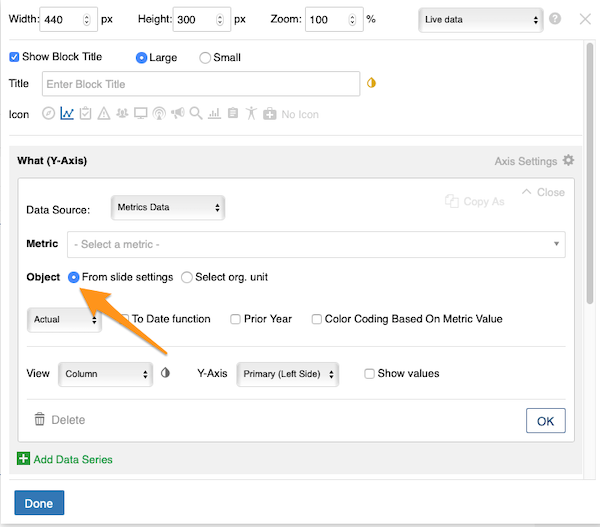
Please note: when you set up charts in your report for the first time, you need to complete one more step: in the chart settings, manually select the From Slide Settings option, because the default setup is Select org. unit from the org. structure. You only have to do this the first time you create a chart.
Set the org. unit in the slide settings
Select the org. unit of the slide
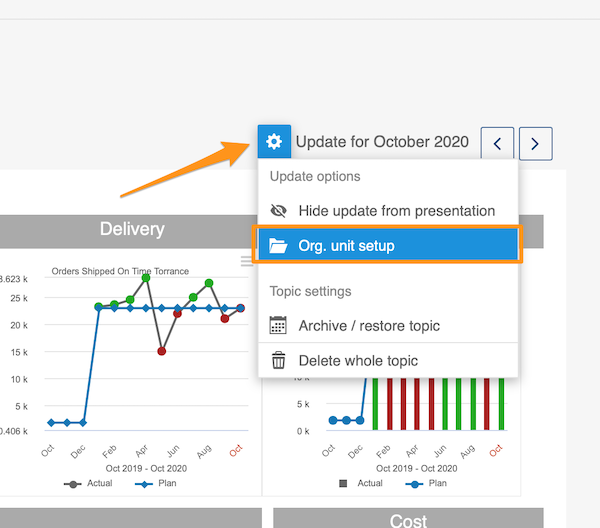
To set up the org. unit for each slide separately, go to the slide settings, select Org. unit setup from the submenu and then choose your org. unit.
Use this option when you are creating slides with charts and each slide displays data of a different org. unit. You can easily copy your slide and change the org. unit.
Copy the slide for another org. unit
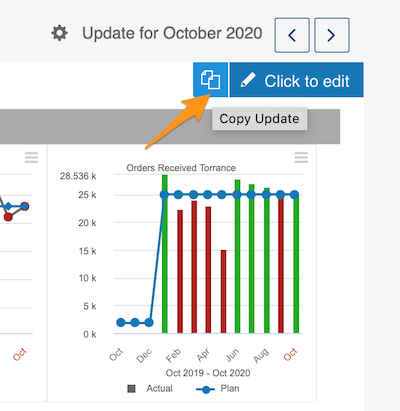
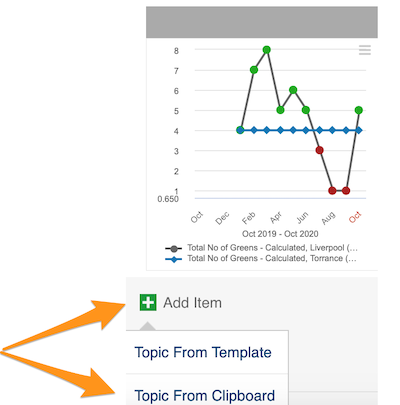
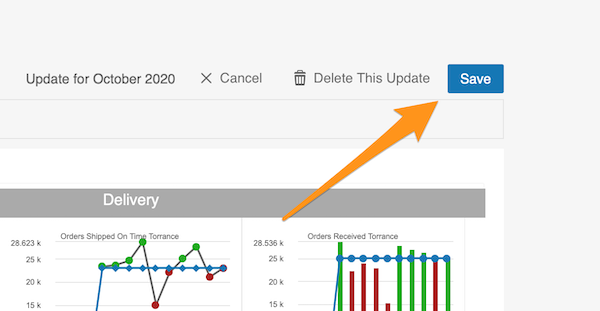
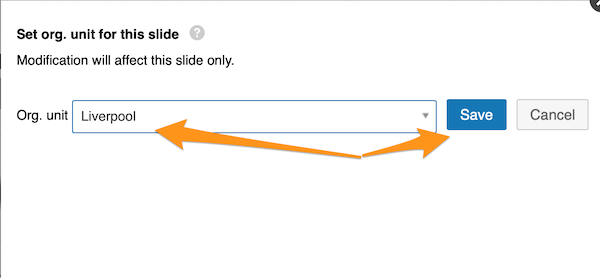
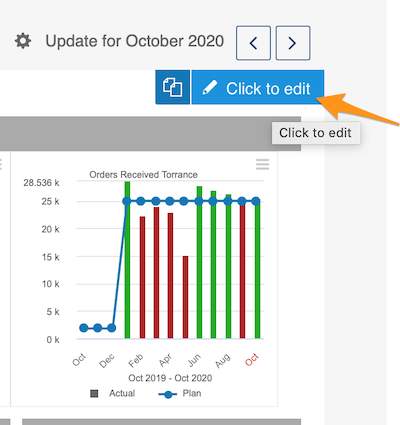
To copy a slide (update), click your slide and the two pages icon. Then choose Add item – Topic From Clipboard and Save your slide. Then choose Org. unit setup in the slide settings submenu and change your org. unit.
Set the org. unit in the chart settings
Take the org. unit from the settings
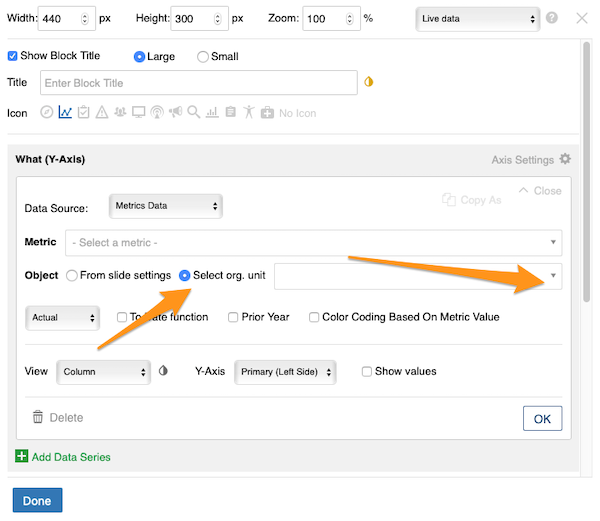
You can also set up the org. unit in each chart individually. You can choose the object From Slide Settings (if you set up your default org. unit in the report settings or in the slide settings).
Pick any org. unit
Or you can choose any org. unit from the structure: click the Select org. unit option and choose the unit from the submenu.
This feature is flexible, so you can change your org. unit at the report level, the slide level and the individual chart level, and vice versa.
Tiene varias opciones para definir el objeto (unidad organizativa) de los datos que muestran los gráficos de su informe y aprovechar esta función.
Tenga en cuenta que, por ahora, esta función solo está disponible en los widgets de gráficos, pero tenemos previsto ampliarla a otros widgets de informes.
Esta función le resultará útil si:
- crea un informe con gráficos de una misma unidad organizativa,
- tiene un informe con gráficos de una unidad y quiere usar ese mismo informe para mostrar los datos de otra unidad organizativa,
- crea diapositivas con la misma disposición de gráficos, pero para distintas unidades organizativas dentro del mismo informe.
Vea el video tutorial
Informes / Gestión de unidades organizativas en los gráficos (instrucciones por escrito más abajo):
Definir la unidad organizativa en la configuración del informe
Seleccionar la unidad organizativa predeterminada
Para definir una unidad organizativa predeterminada para todo el informe, abra la configuración del informe y seleccione la unidad. Use esta opción cuando el informe muestre datos de una misma unidad organizativa.
Reutilizar el informe para otra unidad organizativa
Si quiere el mismo informe con los datos de otra unidad organizativa, haga una copia del informe. Después cambie la unidad organizativa predeterminada y haga clic en el botón Aplicar a todas las diapositivas. Los datos de todos los gráficos se actualizan automáticamente con la unidad elegida.
Cambiar los gráficos nuevos a la configuración de la diapositiva
Tenga en cuenta que, la primera vez que configura los gráficos de un informe, debe hacer un paso más: en la configuración del gráfico, seleccione manualmente la opción Desde la configuración de la diapositiva, porque la opción predeterminada es Seleccionar unidad organizativa de la estructura organizativa. Solo tiene que hacerlo la primera vez que crea un gráfico.
Definir la unidad organizativa en la configuración de la diapositiva
Seleccionar la unidad organizativa de la diapositiva
Para definir la unidad organizativa de cada diapositiva por separado, abra la configuración de la diapositiva, seleccione Configurar unidad organizativa en el submenú y elija la unidad.
Use esta opción cuando cree diapositivas con gráficos y cada diapositiva muestre datos de una unidad organizativa distinta. Puede copiar fácilmente la diapositiva y cambiar la unidad.
Copiar la diapositiva para otra unidad organizativa
Para copiar una diapositiva (actualización), haga clic en ella y en el icono de dos páginas. Después elija Agregar elemento – Tema desde el portapapeles y haga clic en Guardar. Luego elija Configurar unidad organizativa en el submenú de configuración de la diapositiva y cambie la unidad.
Definir la unidad organizativa en la configuración del gráfico
Tomar la unidad organizativa de la configuración
También puede definir la unidad organizativa en cada gráfico por separado. Puede elegir el objeto Desde la configuración de la diapositiva (si definió la unidad predeterminada en la configuración del informe o de la diapositiva).
Elegir cualquier unidad organizativa
También puede elegir cualquier unidad de la estructura: haga clic en la opción Seleccionar unidad organizativa y elija la unidad en el submenú.
Esta función es flexible: puede cambiar la unidad organizativa a nivel de informe, de diapositiva y de cada gráfico, y viceversa.
¿Necesita más ayuda?
Escríbanos. En días laborables solemos responder en menos de una hora.