Como atribuir uma tarefa diretamente na reunião. Como vincular uma reunião a um plano de ação
Tradução automática do inglês. Exibindo o original em inglês.
The Standardized Meetings module gives you two options for assigning a task directly from a meeting document: create a new action as part of the Standardized Meeting document, or create a new (or use an existing) action list in the Action Lists module and link it to your Standardized Meeting as a related document.
Add an action in the meeting
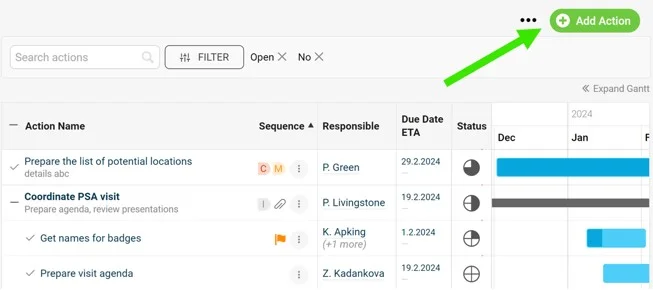
Create the action directly from the meeting document, as shown below.
Link an action list to the meeting
-
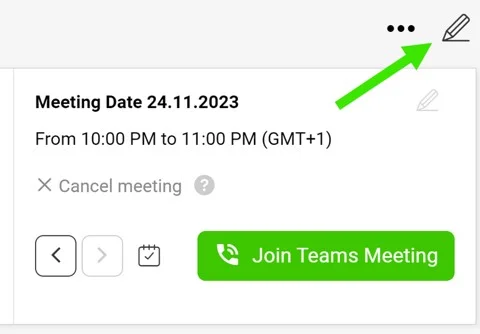
Open the edit screen. Go to the meeting document edit screen via the pencil icon in the upper right corner.
-
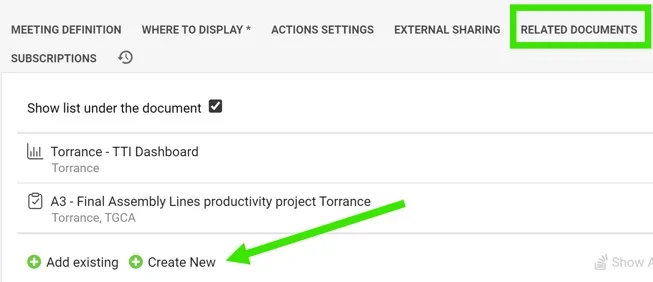
Go to Related Documents. Scroll down to the Related Documents tab.
-
Add a document. Click the Add document button.
-
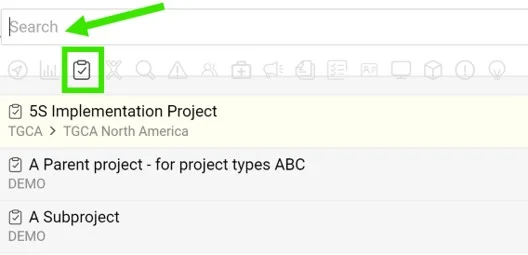
Select the document type. Select the Action lists icon as the document type.
-
Pick or create the action list. Select Existing if your action list has already been created and search for it by its title, or select Create new to get a new one.
-
Save. Save and go to the meeting document.
-
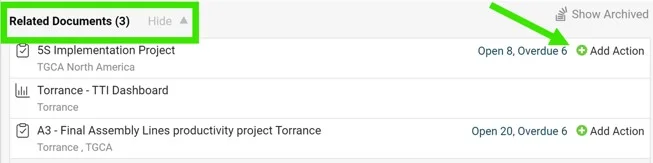
Find the linked action list. Your action list appears at the bottom as a Related Document.
-
Assign the tasks. When you assign a new task, you can either click the action list name to open the action list document, or click the Add Action button to assign the task directly from the meeting document. The new task is added to the action list document automatically.
O módulo Reuniões padronizadas oferece duas formas de atribuir uma tarefa diretamente no documento da reunião: criar uma nova ação dentro do documento da reunião padronizada ou criar um novo plano de ação (ou usar um existente) no módulo Planos de ação e vinculá-lo à reunião padronizada como documento relacionado.
Adicionar uma ação na reunião
Crie a ação diretamente no documento da reunião, como mostrado abaixo.
Vincular um plano de ação à reunião
-
Abra a tela de edição. Abra a tela de edição do documento da reunião pelo ícone de lápis no canto superior direito.
-
Vá até Documentos relacionados. Role até a aba Documentos relacionados.
-
Adicione um documento. Clique no botão Adicionar documento.
-
Selecione o tipo de documento. Selecione o ícone Planos de ação como tipo de documento.
-
Escolha ou crie o plano de ação. Selecione Existente se o plano de ação já tiver sido criado e pesquise-o pelo título, ou selecione Criar novo para criar um.
-
Salve. Salve e abra o documento da reunião.
-
Encontre o plano de ação vinculado. O plano de ação aparece na parte de baixo como Documento relacionado.
-
Atribua as tarefas. Ao atribuir uma nova tarefa, você pode clicar no nome do plano de ação para abrir o documento dele ou clicar no botão Adicionar ação para atribuir a tarefa diretamente no documento da reunião. A nova tarefa é adicionada automaticamente ao plano de ação.
Precisa de mais ajuda?
Escreva para nós. Em dias úteis, costumamos responder em até uma hora.