Jak przydzielić zadanie bezpośrednio ze spotkania i powiązać spotkanie z listą działań
Tłumaczenie maszynowe z angielskiego. Wyświetlany jest oryginał po angielsku.
The Standardized Meetings module gives you two options for assigning a task directly from a meeting document: create a new action as part of the Standardized Meeting document, or create a new (or use an existing) action list in the Action Lists module and link it to your Standardized Meeting as a related document.
Add an action in the meeting
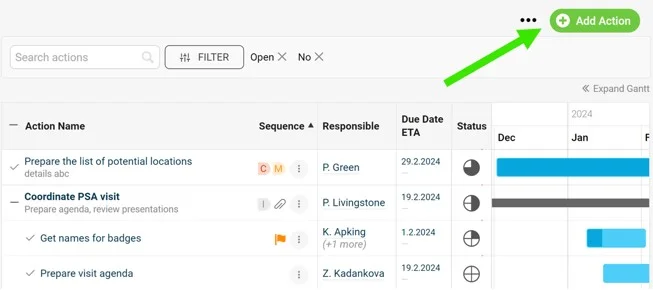
Create the action directly from the meeting document, as shown below.
Link an action list to the meeting
-
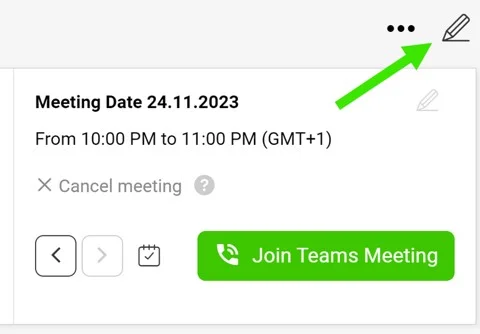
Open the edit screen. Go to the meeting document edit screen via the pencil icon in the upper right corner.
-
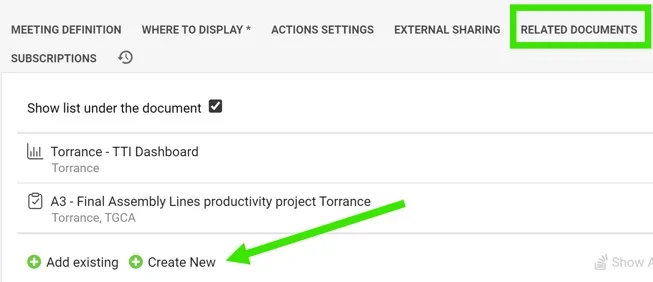
Go to Related Documents. Scroll down to the Related Documents tab.
-
Add a document. Click the Add document button.
-
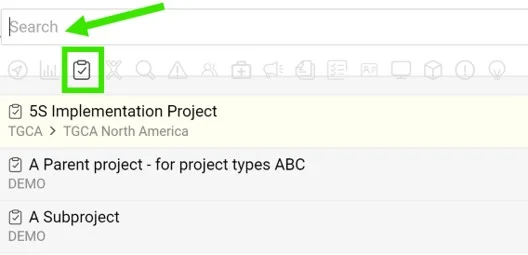
Select the document type. Select the Action lists icon as the document type.
-
Pick or create the action list. Select Existing if your action list has already been created and search for it by its title, or select Create new to get a new one.
-
Save. Save and go to the meeting document.
-
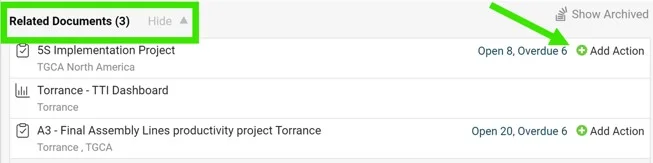
Find the linked action list. Your action list appears at the bottom as a Related Document.
-
Assign the tasks. When you assign a new task, you can either click the action list name to open the action list document, or click the Add Action button to assign the task directly from the meeting document. The new task is added to the action list document automatically.
Moduł Standaryzowane spotkania daje dwie możliwości przydzielenia zadania bezpośrednio z dokumentu spotkania: utwórz nowe działanie w dokumencie standaryzowanego spotkania albo utwórz nową (lub użyj istniejącej) listę działań w module Listy działań i powiąż ją ze spotkaniem jako dokument powiązany.
Dodaj działanie w spotkaniu
Utwórz działanie bezpośrednio w dokumencie spotkania, jak poniżej.
Powiąż listę działań ze spotkaniem
-
Otwórz ekran edycji. Przejdź do ekranu edycji dokumentu spotkania ikoną ołówka w prawym górnym rogu.
-
Przejdź do Powiązanych dokumentów. Przewiń do karty Powiązane dokumenty.
-
Dodaj dokument. Kliknij przycisk Dodaj dokument.
-
Wybierz typ dokumentu. Jako typ dokumentu wybierz ikonę Listy działań.
-
Wybierz lub utwórz listę działań. Wybierz Istniejąca, jeśli lista działań już istnieje, i wyszukaj ją po tytule, albo wybierz Utwórz nową, aby założyć nową.
-
Zapisz. Zapisz i przejdź do dokumentu spotkania.
-
Znajdź powiązaną listę działań. Lista działań pojawi się na dole jako Powiązany dokument.
-
Przydzielaj zadania. Przydzielając nowe zadanie, możesz kliknąć nazwę listy działań, aby ją otworzyć, albo kliknąć przycisk Dodaj działanie, aby przydzielić zadanie bezpośrednio z dokumentu spotkania. Nowe zadanie trafi automatycznie na listę działań.
Potrzebujesz dalszej pomocy?
Napisz do nas. W dni robocze zwykle odpowiadamy w ciągu godziny.